If your laptop is stolen, anyone with a USB stick can read your files, unless the drive is encrypted. BitLocker encrypts your entire drive in Windows 11. Without your sign-in or recovery key, the data is unreadable. This article shows how to turn on BitLocker, where to keep the recovery key and how it differs from device encryption in Windows 11 Home.
Which Windows edition do you have?
- Windows 11 Pro, Enterprise and Education: full BitLocker with all options.
- Windows 11 Home: no BitLocker management, but device encryption on most modern devices. It's often already on once you sign in with a Microsoft account.
Check via Settings > Privacy & security > Device encryption.
Turn on BitLocker
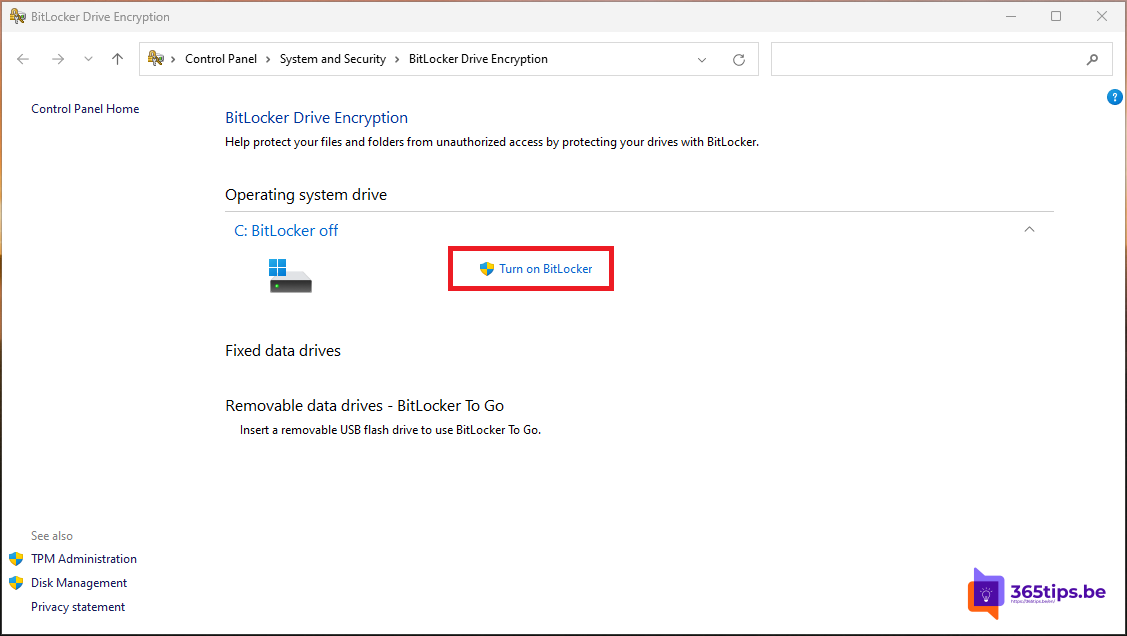
- Search the Start menu for Manage BitLocker and open it.
- Next to the system drive (C:), select Turn on BitLocker.
- Choose where to store the recovery key: your Microsoft account, a file or a printout. On a work device the key goes to Microsoft Entra ID.
- Choose Encrypt used disk space only (faster, fine for a new PC) or the entire drive (better for a PC already in use).
- Choose New encryption mode for the internal drive.
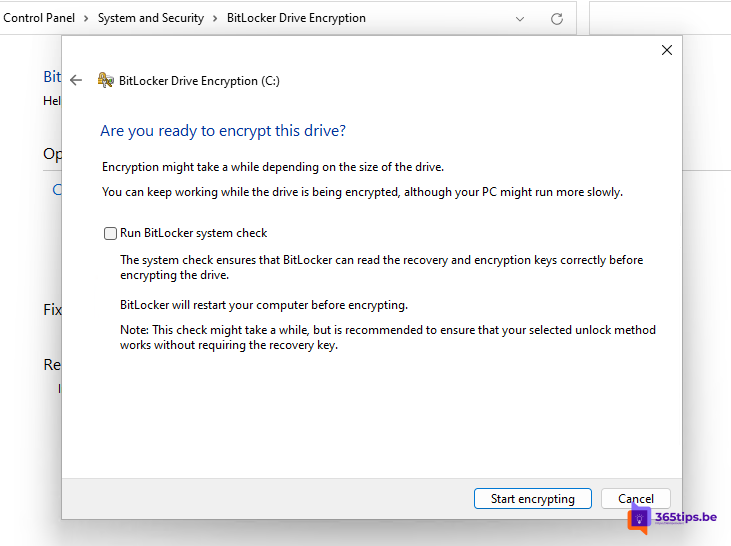
- Start encryption. You can keep working meanwhile.


Find the recovery key
After a BIOS update, a new motherboard or too many failed attempts, Windows asks for the 48-digit recovery key. You'll find it:
- for a Microsoft account at account.microsoft.com/devices/recoverykey;
- for a work account in the Entra admin center or Intune, on the device (or ask your IT department);
- in the file or printout you saved yourself.
Check the status
Open a terminal as administrator and type manage-bde -status. You'll see the percentage encrypted and the protection method for each drive.
For admins
Deploy BitLocker centrally with Intune > Endpoint security > Disk encryption. Every laptop is encrypted automatically and the recovery key lands in Entra ID. Combine it with Windows LAPS for local admin accounts.
Read also
How to enable and use Windows LAPS with Microsoft Entra ID
Reset a Windows 11 PC to factory settings
Keep all Windows PCs up to date with Microsoft Intune
Nederlandstalige versie: BitLocker inschakelen in Windows 11 en je herstelsleutel bewaren