Passwords get guessed, stolen and reused. With passwordless sign-in you sign in to Microsoft 365 with something you have, your phone or security key, plus something you are or know, your fingerprint, face or PIN. That's safer and faster. This article covers the available methods, how to enable them in Microsoft Entra ID and how users set them up.
The passwordless methods
| Method | How | Good for |
|---|---|---|
| Passkey in Microsoft Authenticator | Phone with fingerprint, face or PIN | Most users; phishing-resistant |
| Phone sign-in (Authenticator) | You pick the matching number in the app and confirm | Quick to roll out, but less phishing-resistant than a passkey |
| FIDO2 security key | USB or NFC key, such as a YubiKey | Admins, shared devices, people without a smartphone |
| Windows Hello for Business | Face, fingerprint or PIN on your own PC | Signing in on managed Windows PCs |
Passkeys, FIDO2 keys and Windows Hello are phishing-resistant: they only work on the real Microsoft sign-in page, so a fake site can't use them.
Step 1: Enable the methods
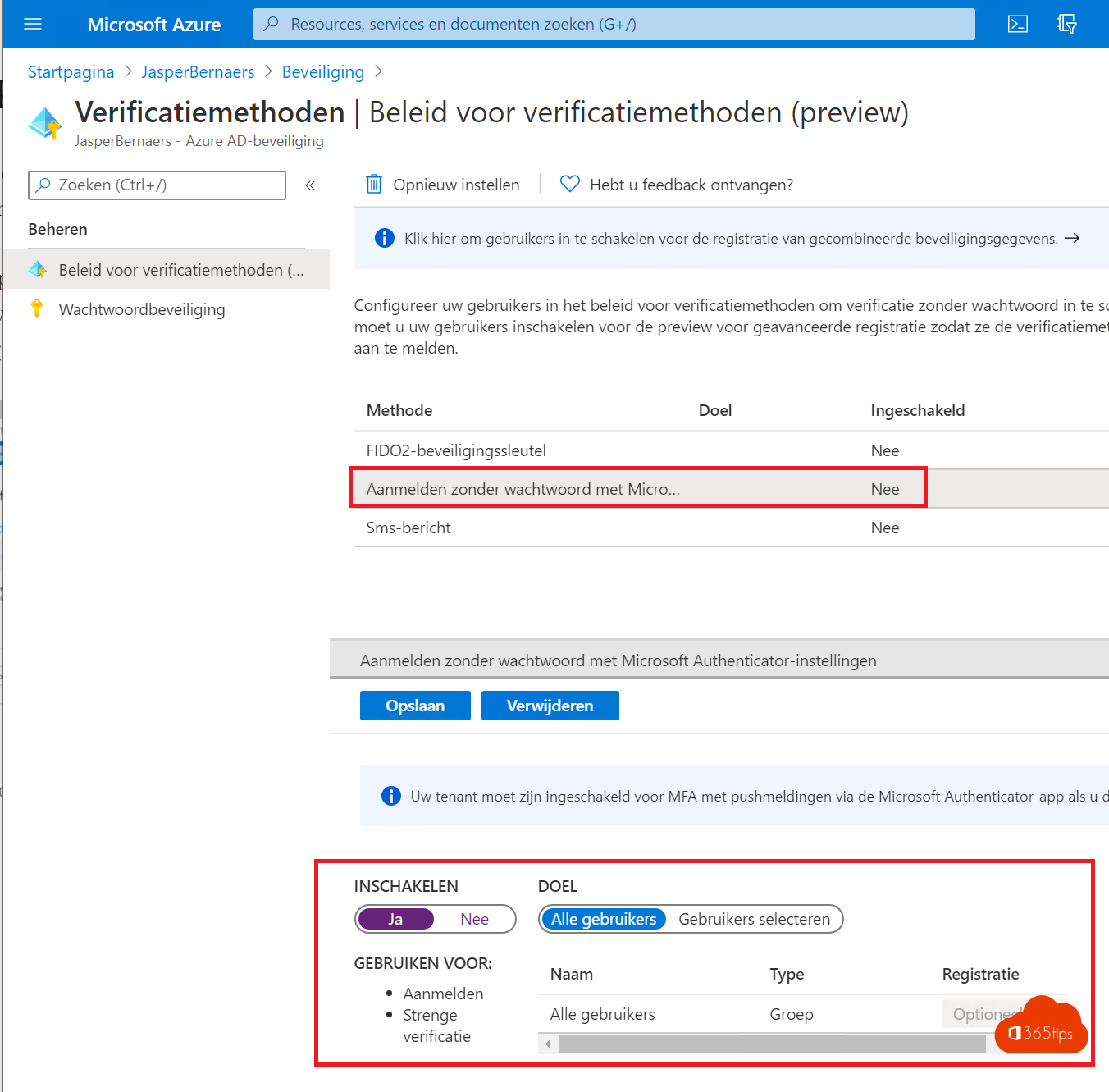
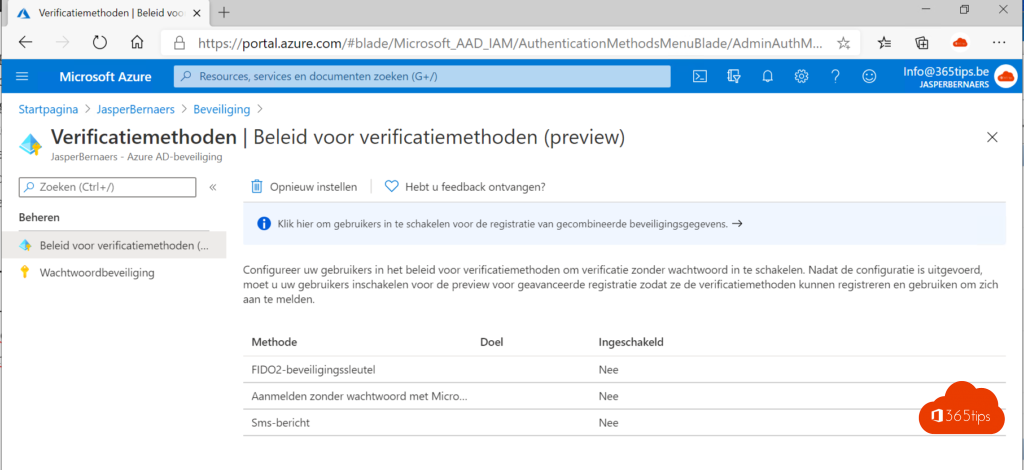
- Go to the Microsoft Entra admin center > Entra ID (in older menus Protection) > Authentication methods > Policies.
- Select Passkey (FIDO2), enable it and choose All users or a pilot group. Allow passkeys in Microsoft Authenticator.
- Select Microsoft Authenticator, enable it and set Authentication mode to Any or Passwordless.
- Also enable Temporary Access Pass for onboarding (see step 3).
- Save each time.
Step 2: Users set it up
- The user goes to mysignins.microsoft.com/security-info.
- Select Add sign-in method > Passkey in Microsoft Authenticator (or Security key).
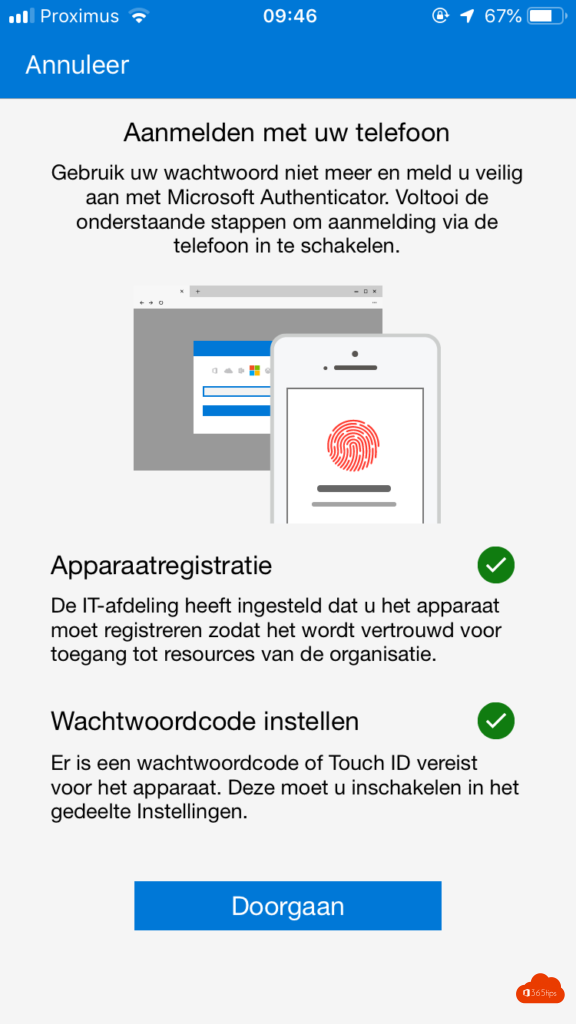
- Follow the steps: scan the QR code with the phone and confirm with fingerprint or face.
- At the next sign-in, the user chooses Sign in with a passkey or Sign-in options and confirms on their phone.
Step 3: Let new employees start without a password
With a Temporary Access Pass, an admin creates a one-time code with limited validity, for example eight hours. The new employee uses it to sign in the first time and registers their passkey straight away. That way they never receive a password by email or on paper. Create the pass on the user in Entra ID under Authentication methods > Add authentication method.
Enforce passwordless
With Entra ID P1 and Conditional Access you can require an authentication strength, such as phishing-resistant MFA, for admins or sensitive apps. Start with admin accounts, test with a pilot group, then expand. Always keep one or two emergency access accounts outside those policies. See also security defaults in Microsoft Entra ID.
Read also
Security defaults in Microsoft Entra ID: what they do and how to enable them
App passwords in Microsoft 365: create, delete and replace them
Disable the "Stay signed in?" prompt in Microsoft 365
Nederlandstalige versie: Wachtwoordloos aanmelden in Microsoft 365 inschakelen in 3 stappen