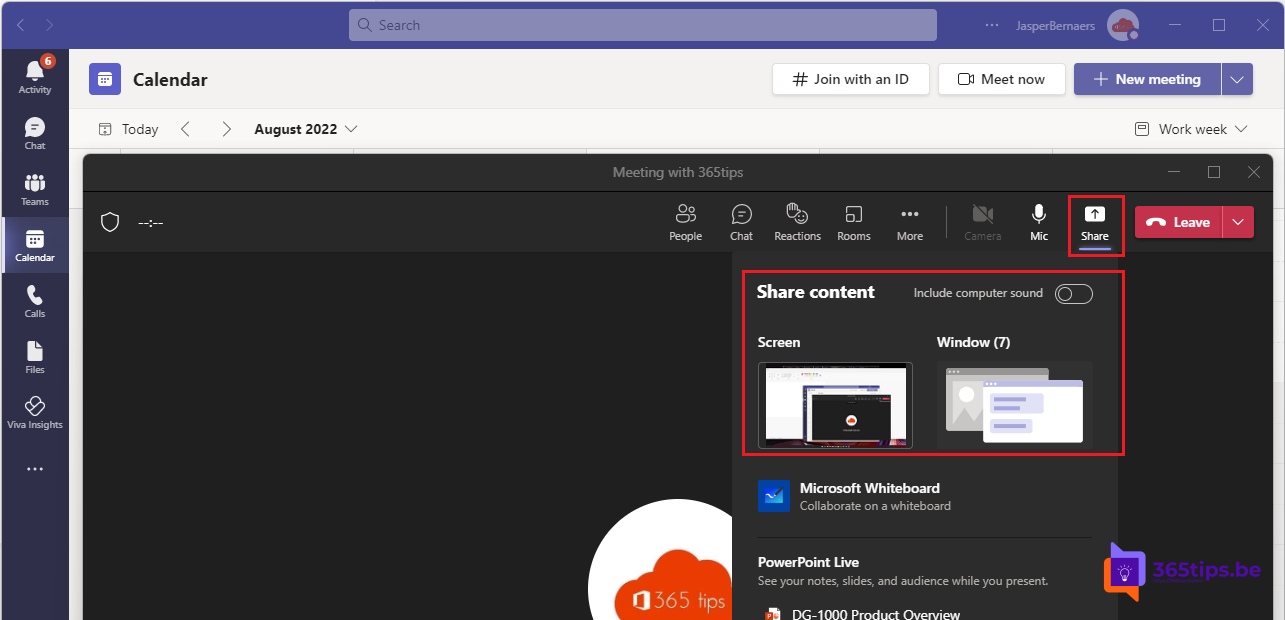
In a Teams meeting you want to show something: a document, a website, a presentation or a sketch. With Share you show your screen, one window, a PowerPoint or a whiteboard to all participants. Here's how.
Share your screen
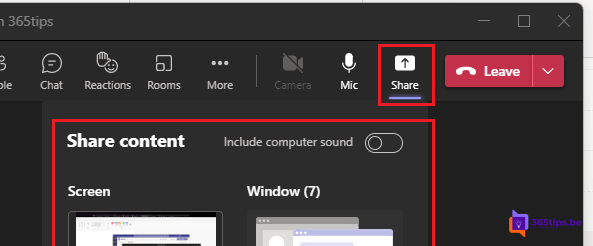
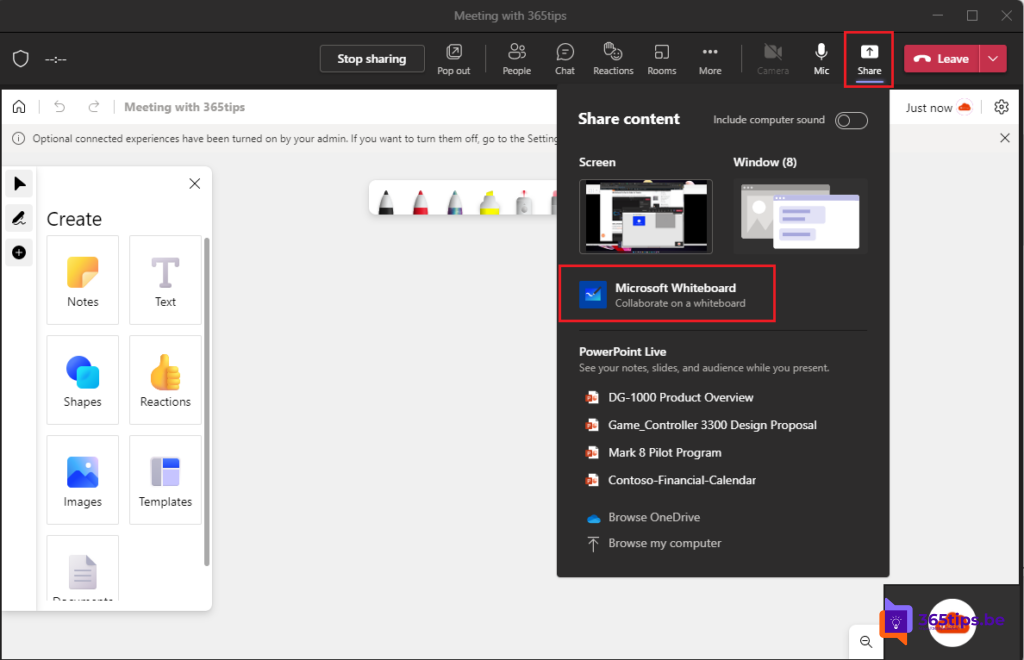
- In the meeting, select Share.
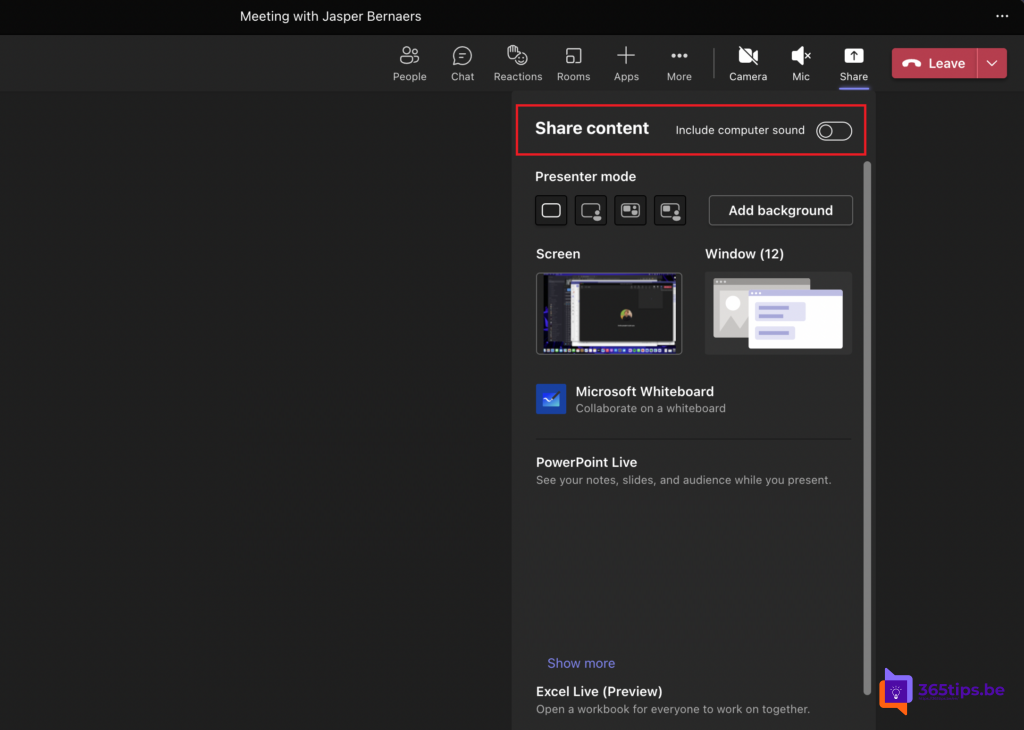
- Choose what to share:
- Screen: everything on your screen, including notifications.
- Window: just one app. Safer and often sharper.
- PowerPoint Live: your presentation with notes.
- Whiteboard: a digital board to draw on together.
- Turn on Include computer sound if you're showing a video.
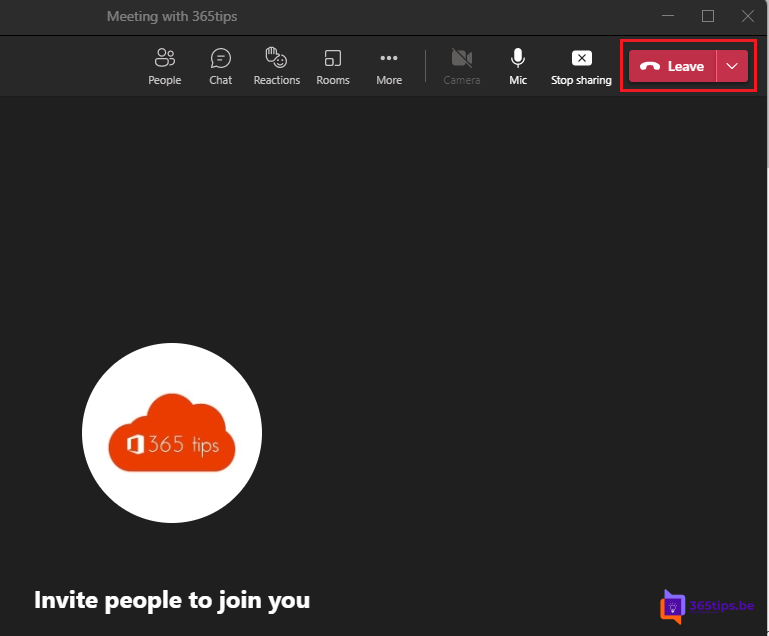
- Stop with Stop sharing in the bar at the top.


Give control
While sharing, select Give control at the top and pick a participant. They can then use your mouse and keyboard. Handy for support. Take it back with Take back control.
Tips
- Close confidential windows and set Do not disturb to hide notifications.
- Use a presenter mode to show your camera next to or in front of your content.
- On a Mac, give Teams permission for screen recording first.
Also see PowerPoint Live and black screen when sharing.
Read also
Present a PowerPoint in Teams with PowerPoint Live
Share your screen with computer sound in Microsoft Teams
Black screen when sharing your screen in Microsoft Teams: causes and fixes
Nederlandstalige versie: Je scherm, een venster of een whiteboard delen in Teams
More in English
▸Use presenter mode (Standout, Side-by-side, Reporter) in Microsoft TeamsStay visible with your slides using the Standout, Side-by-side and Reporter presenter modes in Teams. Plus…
▸Use Microsoft Whiteboard in Teams channels and meetingsAdd a whiteboard to a Teams channel or share it in a meeting. With templates, sticky notes, exporting and…
▸Share computer sound in Teams on a MacBook or iMacInstall the Teams audio driver and grant the right macOS permissions to share computer sound in a…
▸Make someone from outside your organization a presenter in TeamsMake an external speaker presenter in a Teams meeting, beforehand in meeting options or during the meeting…