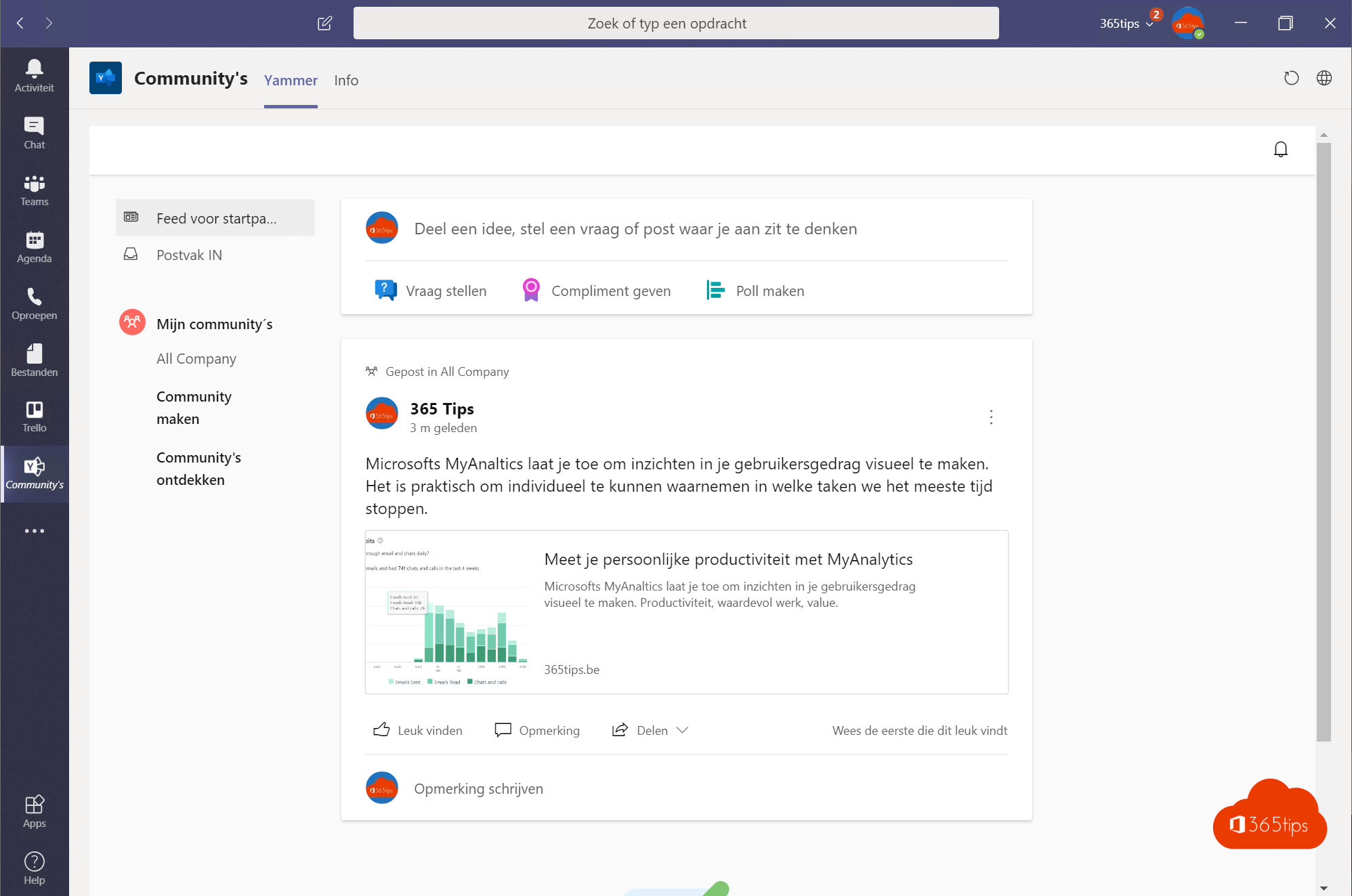
Yammer is now called Viva Engage. It's your organization's social network: communities, announcements from leadership and questions to colleagues outside your own team. With the Viva Engage app in Microsoft Teams you can follow all of it without switching apps. The former "Communities" app in Teams is now called Viva Engage as well. This article shows how to add the app, as a user and as an admin.
Why Viva Engage in Teams?
- Teams is ideal for quick conversations within your team and projects.
- Viva Engage is built for communication across the whole organization: communities, knowledge sharing and leadership communication.
- With the app in Teams, employees don't have to switch between two programs.
Add it as a user in 3 steps
- In Teams, click Apps on the left.
- Search for Viva Engage.
- Click Add. Right-click the icon in the left bar and choose Pin to keep it there.
In the app you see your feed, your communities, announcements and your storyline.
A community as a tab in a channel
- Open the channel and click + (Add a tab) at the top.
- Choose Viva Engage.
- Select the community you want to show and click Save.
Team members then see the community's conversations right in their channel.
Roll it out for everyone as an admin
- Go to the Teams admin center > Teams apps > Setup policies.
- Open the global policy or a policy for a specific group.
- Add Viva Engage to the installed apps and to the pinned apps.
- Save. It can take a few hours before users see the app.
Tips
- Agree on what belongs in Teams (teamwork) and what belongs in Viva Engage (organization-wide communication).
- Use announcements in Viva Engage for important news. Members get notified.
- Read more about the other Viva apps in getting started with Microsoft Viva.
Also see enabling Storyline in Viva Engage and team templates in the Teams admin center.
Nederlandstalige versie: Viva Engage, het vroegere Yammer, toevoegen in Microsoft Teams
Related articles
▸Enable and use Storyline in Viva Engage (Yammer)Turn on Storyline as a Viva Engage admin and post your first message on your personal timeline.
▸Get started with Microsoft Viva in Microsoft 365Which Viva apps exist today, what's included in your Microsoft 365 license and how to start with Viva…
▸Add a SharePoint page, site or list to Microsoft TeamsAdd a SharePoint page, list or full communication site as a tab in a Teams channel, or bring your intranet…
▸How is Microsoft Teams built technically?Teams, channels and files: see how Microsoft Teams works with Entra ID, SharePoint, Exchange, OneDrive and…
▸Official Microsoft Viva backgrounds for TeamsDownload official Microsoft Viva backgrounds for Teams, set them in the new Teams and learn briefly what Viva…