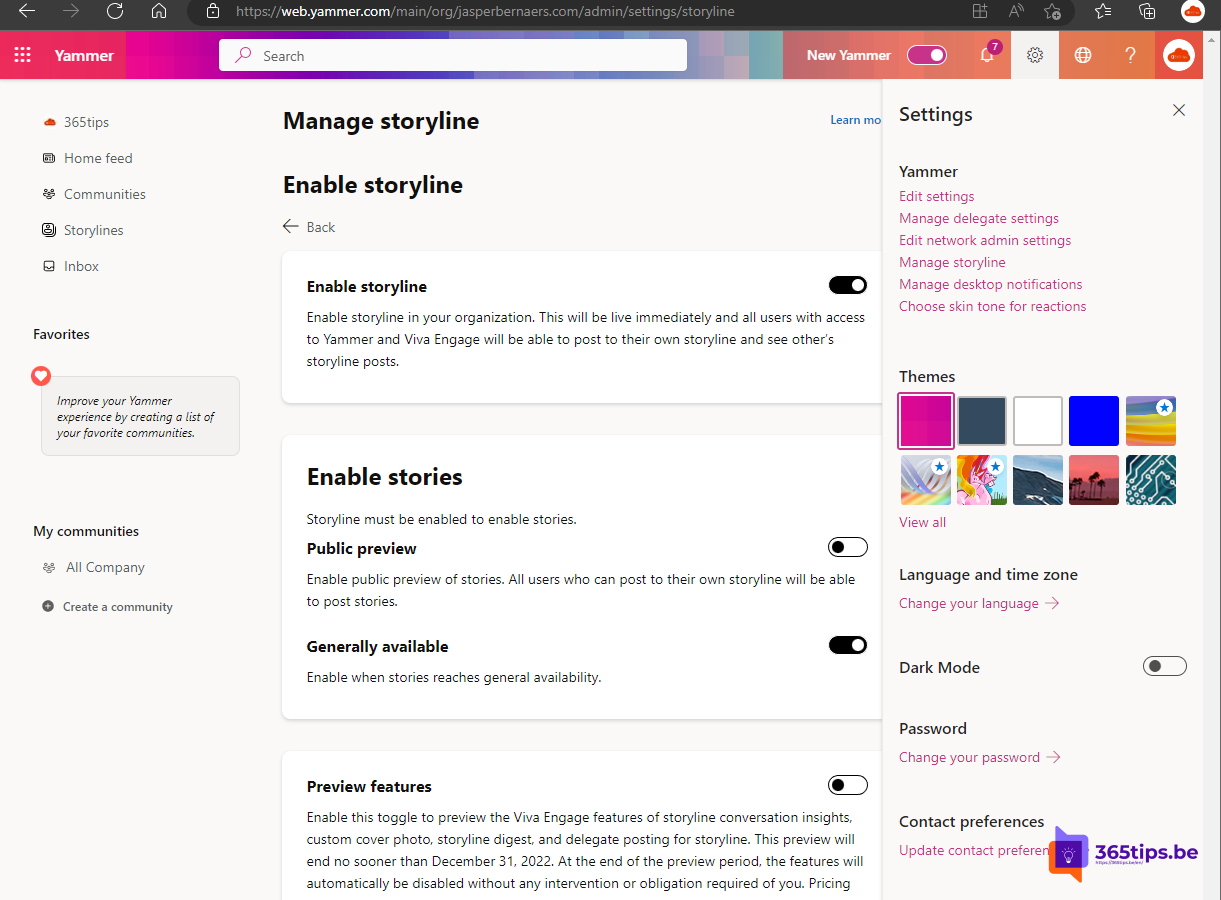
With Storyline in Viva Engage (formerly Yammer), every employee has a personal timeline. You share updates, experiences and knowledge with the whole organization there, without having to pick a community first. Colleagues can follow you and react. Settings now live in the Viva Engage admin center. The short videos (Stories) got a lot of attention when this feature launched; check in your own tenant whether that feature is still available, as Microsoft adjusts the lineup regularly. This article shows how an admin turns on Storyline and how to post your first message.
What is Storyline?
- A personal page where you share posts with your followers and the organization.
- Posts stay on your storyline until you delete them, so your knowledge isn't lost.
- Leaders often use Storyline for personal updates and blog-style posts.

Turn on Storyline as an admin
- Open Viva Engage in the browser or in Teams with an admin account.
- Click the gear or the three dots and choose Admin center.
- Go to the Storyline settings.
- Turn on Storyline for everyone or only for specific users.
- Save the change.
The exact location of the setting can shift a bit between versions of the admin center.


Post on your storyline
- Add the Viva Engage app in Teams, or go to Viva Engage in your browser.
- Open your storyline from your profile or the Storyline menu.
- Write your post. Add photos, videos or files if you like.
- Click Post. Your followers see it in their feed.


Tips
- Follow colleagues whose updates you want to see.
- Keep posts short and personal. For official announcements, an announcement in a community works better.
- Set clear guidelines on what employees share publicly within the organization.
Also see getting started with Microsoft Viva and sending praise in Teams.
Read also
Add Viva Engage, formerly Yammer, to Microsoft Teams
Get started with Microsoft Viva in Microsoft 365
Give a colleague a compliment with Praise in Teams
Nederlandstalige versie: Storyline activeren en gebruiken in Viva Engage (Yammer)