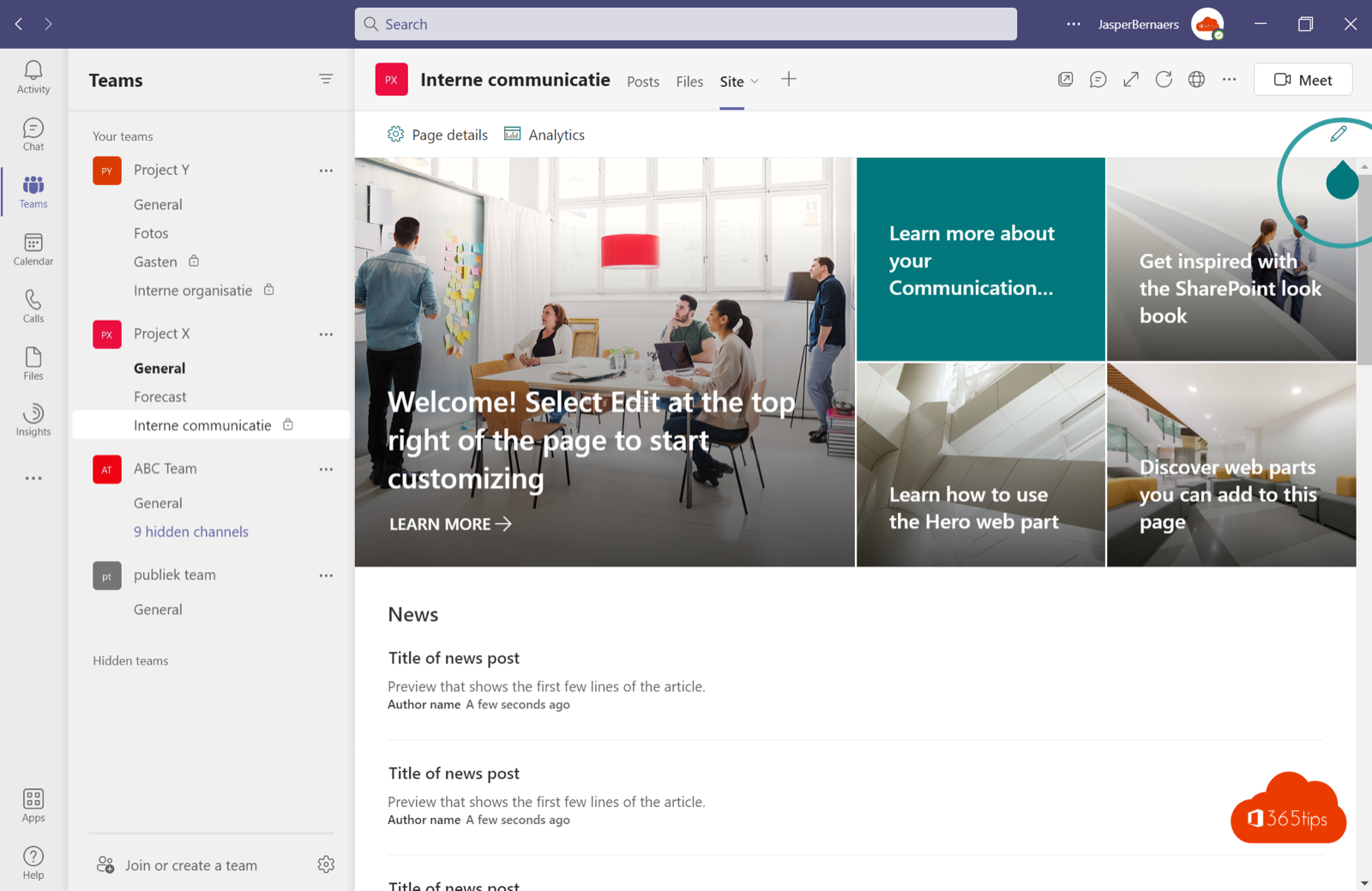
Your intranet, a news page or a SharePoint list sits apart from Teams, so hardly anyone visits it. Bring it to where people work: add a SharePoint page, site or list as a tab in a Teams channel. This article covers the three ways to do it, when to pick which, and how to put your intranet in Teams for the whole organization with Viva Connections.
Which option should you pick?
| Option | What you see in Teams | Good for |
|---|---|---|
| SharePoint tab | A modern page, news post or list, without SharePoint menus | Project info, procedures, a list |
| Website tab | Any web page, including a full SharePoint site | A communication site or external website |
| Viva Connections | Your intranet as an app in everyone's left bar | The whole organization's intranet |
A SharePoint page or list as a tab
- Go to the channel and select + (Add a tab) at the top.
- Choose SharePoint.
- Pick a page or list from the team's site, or select Add a SharePoint page link and paste the URL of a page from another site.
- Select Save.
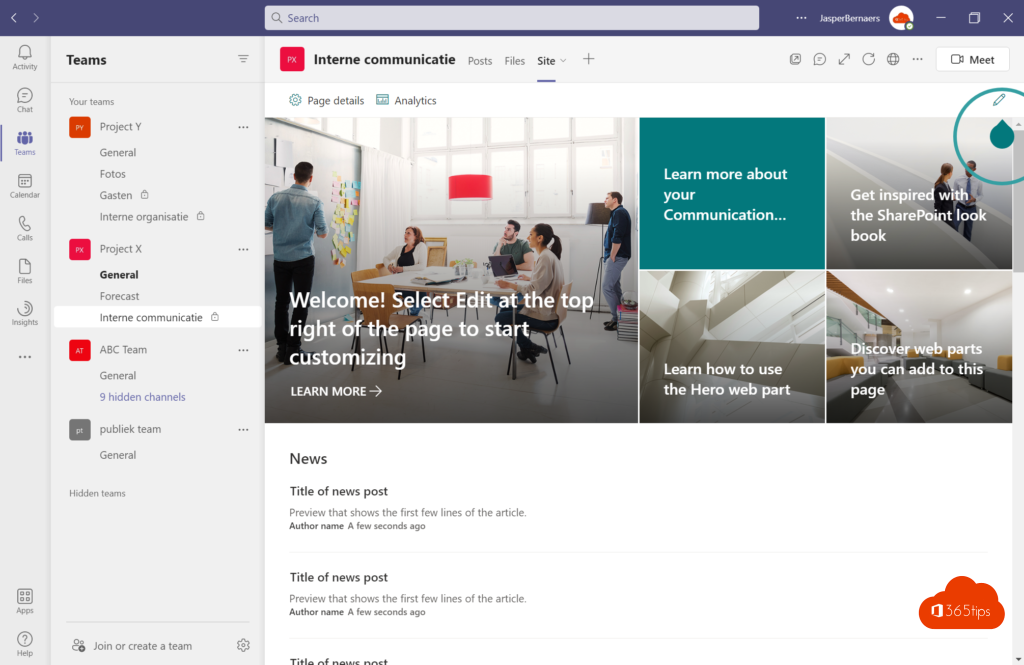
The page opens in Teams without SharePoint's navigation, so it looks like part of Teams. Changes in SharePoint show immediately.
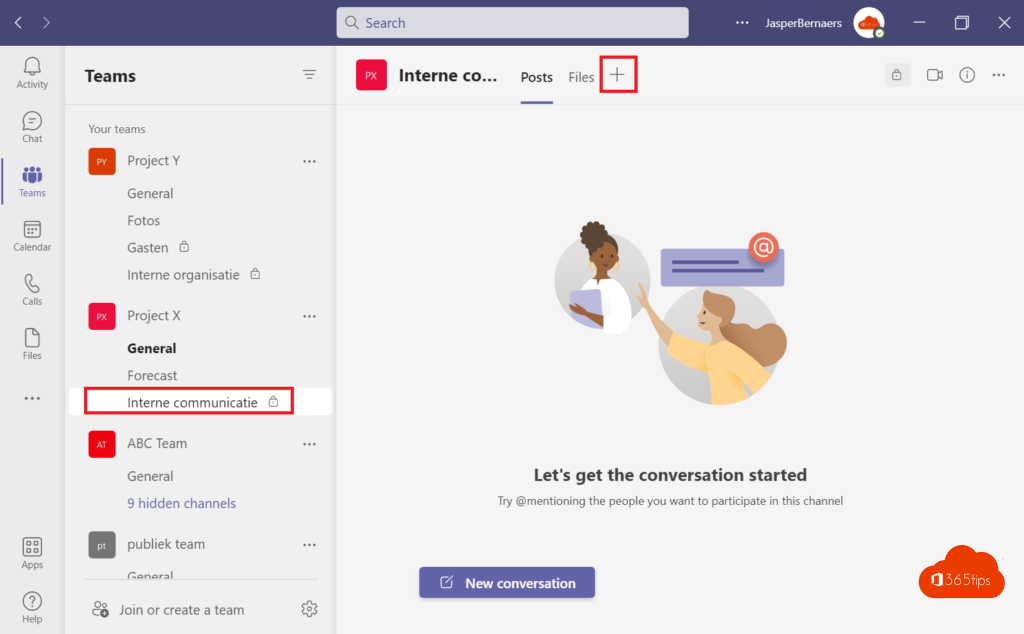
A full site with the Website tab
- Select + at the top of the channel and search for Website.
- Name the tab and paste the site URL, for example your communication site.
- Select Save.
You see the whole site, with menus. Some external websites can't be shown inside Teams; a button then opens the site in the browser.
Intranet for everyone: Viva Connections
With Viva Connections you put your intranet home site in Teams as an app for the whole organization. Employees get a dashboard with cards (for example leave, news, the canteen) and a feed with news from SharePoint and Viva Engage.
- Set a home site in the SharePoint admin center (Settings > Home site).
- In the Teams admin center, add the Viva Connections app and pin it at the top of the left bar in the setup policy.
- Customize the dashboard from the home site.
Basic Viva Connections is included in most Microsoft 365 plans.
Tips
- Put the most important tab on the left: people see it first.
- Make sure team members have access to the site you add, or they'll see Access denied.
- A list in a tab can be shown as a kanban board.
Read also
Create a kanban board with board view in Microsoft Lists
Create a Power App from a SharePoint list
Work in multiple windows with Microsoft Teams
Nederlandstalige versie: Een SharePoint-pagina, -site of -lijst toevoegen aan Microsoft Teams