A member accidentally deletes a channel, a tab with the project plan disappears, or apps nobody recognises show up in your team? As owner, you decide what members can do in a team with member permissions. This article explains the settings and how to set them.
Set member permissions
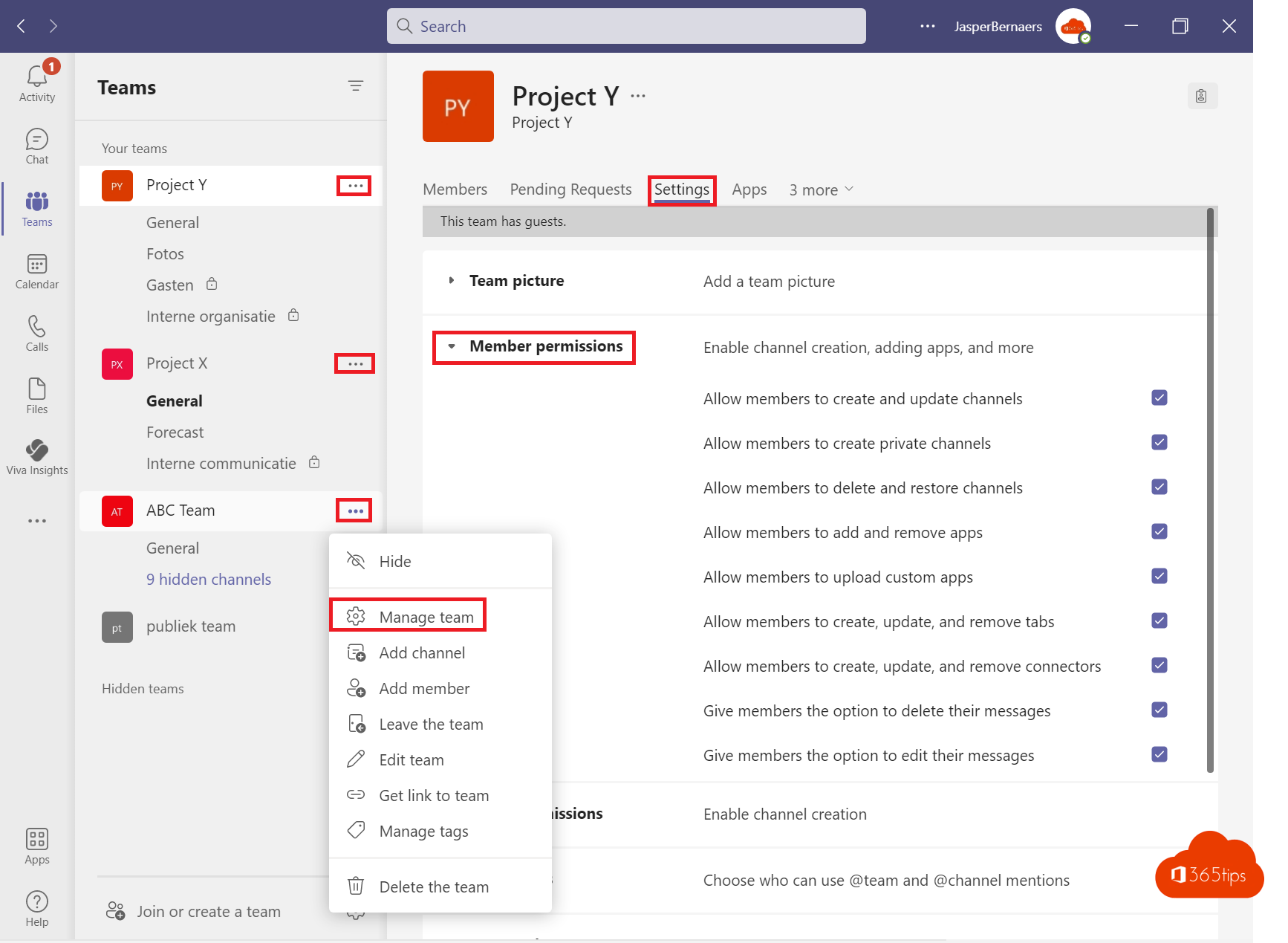
- Hover over the team name > More options (...) > Manage team.
- Open the Settings tab > Member permissions.
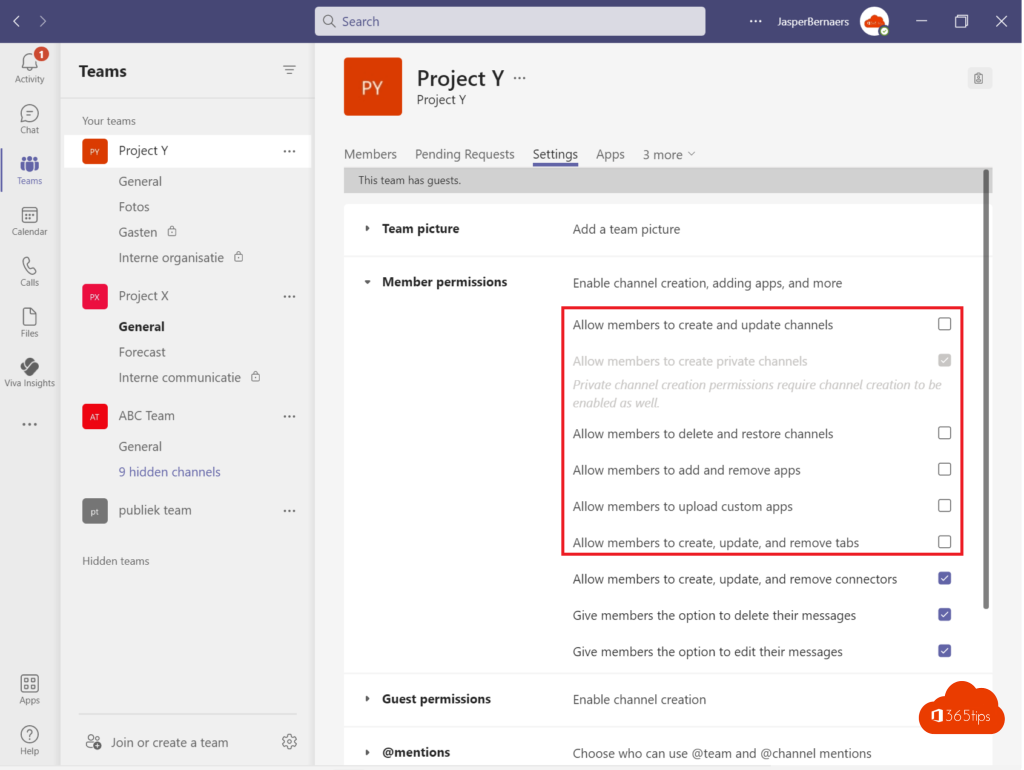
- Untick what members shouldn't be able to do.
The options
- Create and update channels, including private and shared channels.
- Delete and restore channels: turn this off to prevent accidental deletion.
- Add and remove apps, and upload custom apps.
- Create, update and remove tabs.
- Create, update and remove connectors.
- Allow members to delete or edit their messages, and allow owners to delete all messages.
Owners can always do everything, so don't make everyone an owner.
Guest permissions
On the same tab, under Guest permissions, choose whether guests can create, update or delete channels. By default they can't.
Something deleted anyway?
- Restore a channel within 30 days via Manage team > Channels > Deleted > Restore.
- Restore files from the SharePoint recycle bin. Read restore deleted files.
- Want to protect files too? Read create a read-only folder.
For admins
In the Teams admin center you centrally control which apps are allowed (App policies) and whether users can create private and shared channels (Teams policies). See also restrict who can create teams.
Read also
Create a read-only folder in Microsoft Teams
How to restore deleted files in Microsoft Teams and SharePoint
Restrict who can create a team in Microsoft Teams
Nederlandstalige versie: Voorkomen dat leden kanalen, tabbladen en apps verwijderen in Teams