Microsoft Viva is a set of apps for the employee experience: communication, knowledge sharing, learning, wellbeing and feedback. Most Viva apps work directly in Microsoft Teams. Viva has changed a lot since launch: Viva Topics has been retired, Viva Goals was phased out too, and Yammer is now Viva Engage. This article covers which apps exist today, which ones you can already use with your regular Microsoft 365 license and how to get started.
The Viva apps at a glance
| App | What it's for |
|---|---|
| Viva Connections | A home page in Teams with news, tasks and shortcuts from your intranet. |
| Viva Engage | Communities, announcements and conversations across the organization (the successor to Yammer). |
| Viva Insights | Personal insights into your work patterns, focus time and wellbeing; team insights for managers. |
| Viva Learning | Training from Microsoft Learn, LinkedIn Learning and other sources in one place. |
| Viva Pulse and Viva Glint | Short pulse surveys and employee surveys. |
| Viva Amplify | Planning and tracking internal communication campaigns. |
Which licenses do you need?
Part of Viva is already included in most Microsoft 365 plans, such as the basic features of Viva Connections, Viva Engage, Viva Learning and the personal insights in Viva Insights. For the extended features you need a separate Viva license or the full Viva suite. Exactly which features are included changes regularly; check with Microsoft or your licensing partner before promising anything to your users.
Get started with Viva Insights in Teams
- Open Microsoft Teams, in the app or in your browser.
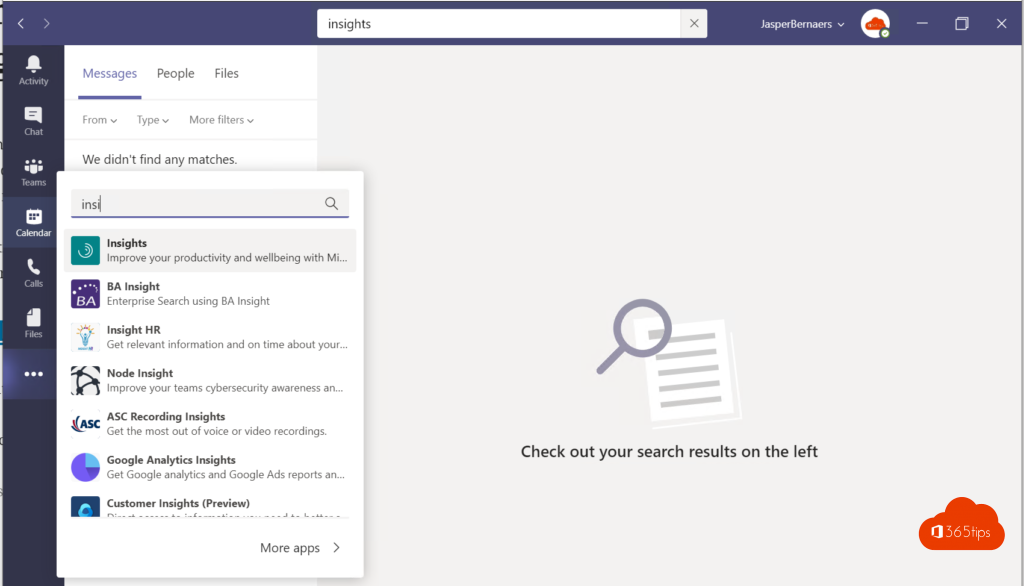
- Click Apps on the left and search for Viva Insights.
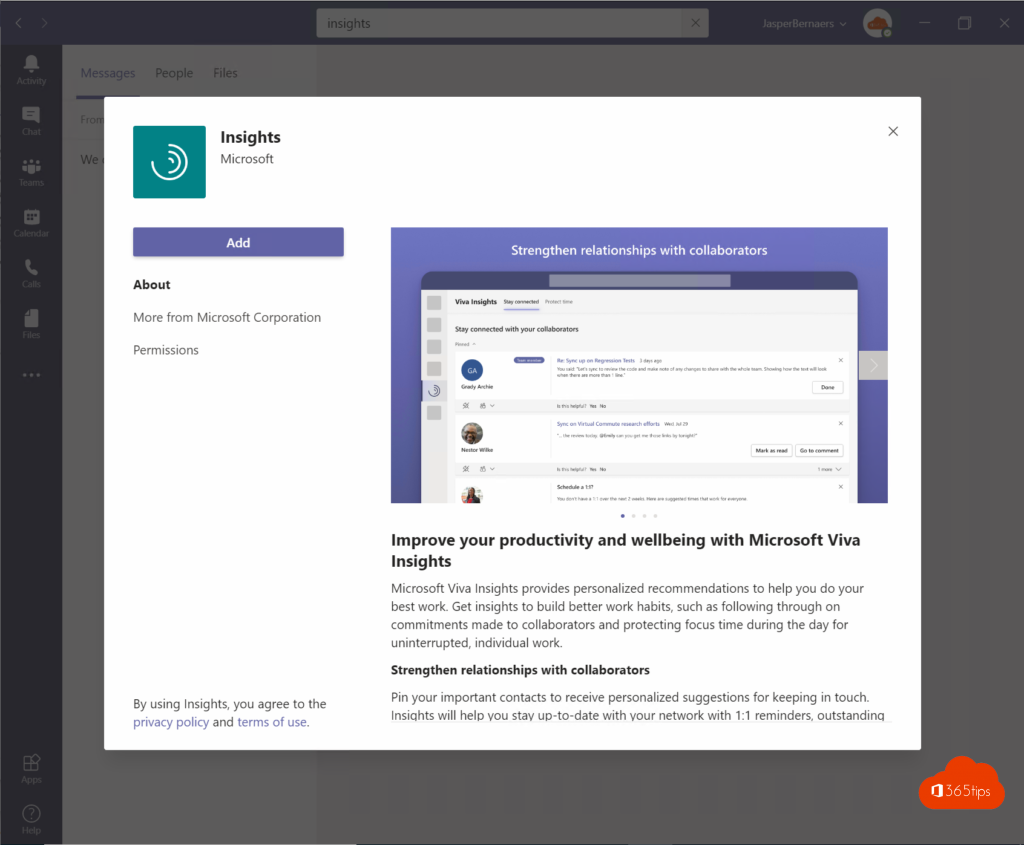
- Click Add. Optionally right-click the icon and choose Pin.
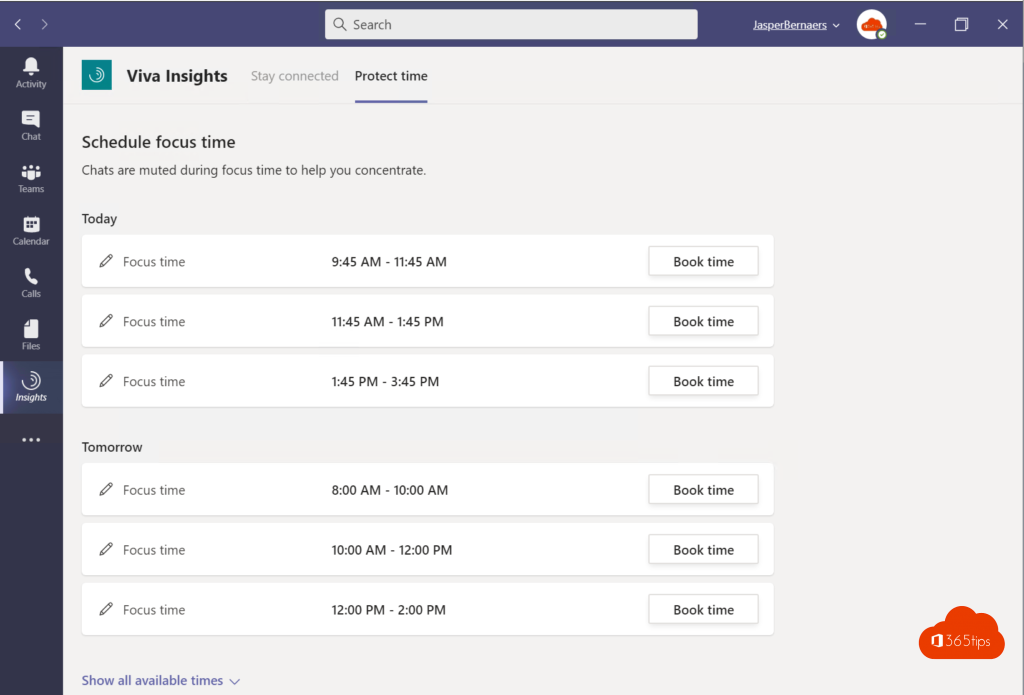
- Explore the features, such as scheduling focus time in your calendar, sending praise and a moment of reflection.

Roll out Viva for everyone
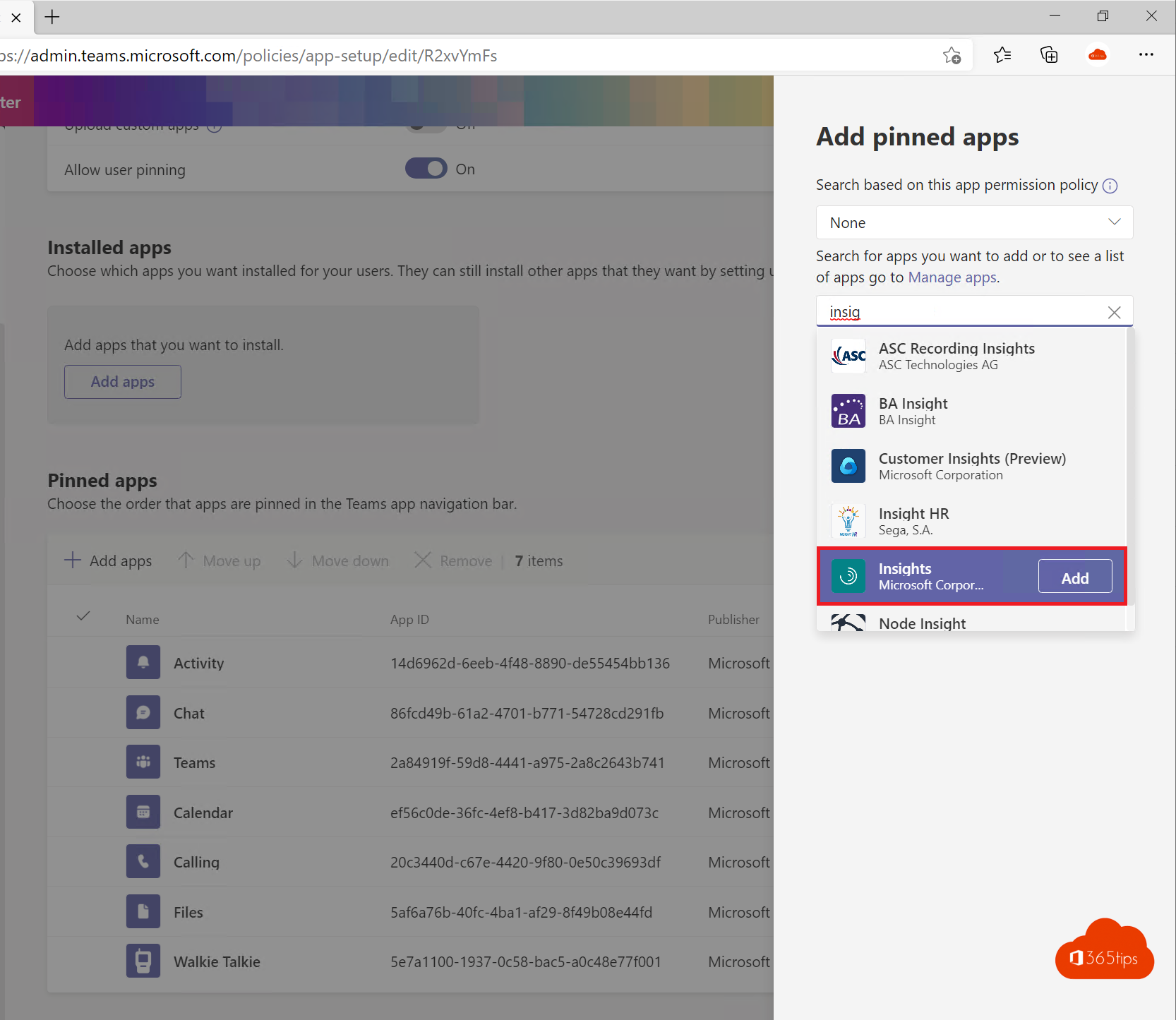
- As an admin, go to the Teams admin center > Teams apps > Setup policies.
- Add the Viva apps you want to use to the policy and pin them for your users.
- Set up Viva Connections with your SharePoint home site as the basis.
- Tell your employees what each app does and why you're starting with it.
Start small, for example with Viva Connections and Viva Engage, and expand once those are well used.
Also see adding Viva Engage to Microsoft Teams and Viva Insights and MyAnalytics.
Read also
Add Viva Engage, formerly Yammer, to Microsoft Teams
Track your personal productivity with Viva Insights (formerly MyAnalytics)
Enable and use Storyline in Viva Engage (Yammer)
Nederlandstalige versie: Aan de slag met Microsoft Viva in Microsoft 365