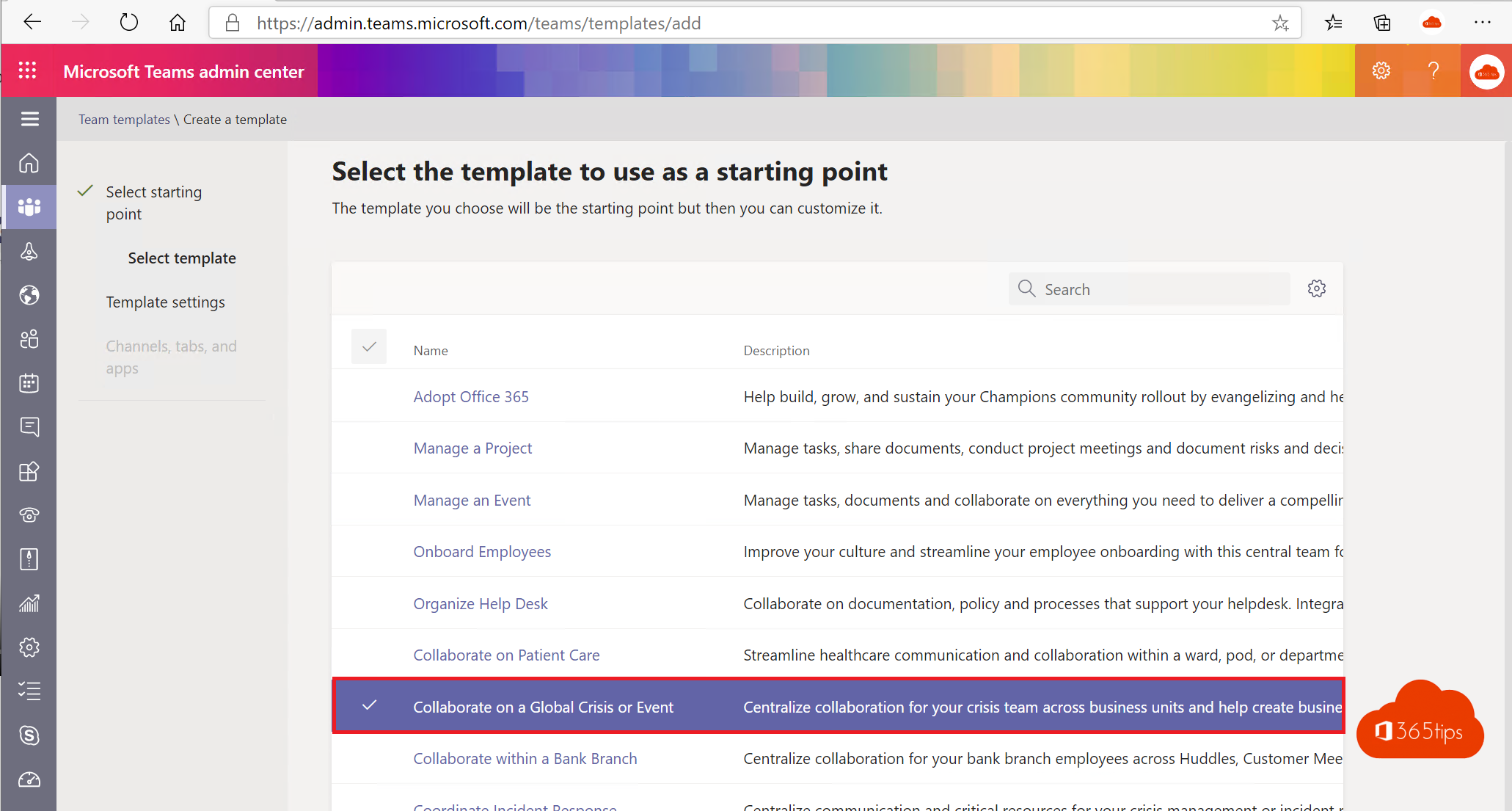
Do project teams in your organization keep creating the same channels and tabs? With a team template you define that structure once. Users pick the template when they create a team and get the right channels, tabs and apps straight away.
Create a template
- Open the Teams admin center > Teams > Team templates.
- Select Add and choose Create a brand new template, Use an existing team as a template or Start with an existing template.
- Enter a name, short and long description, and language.
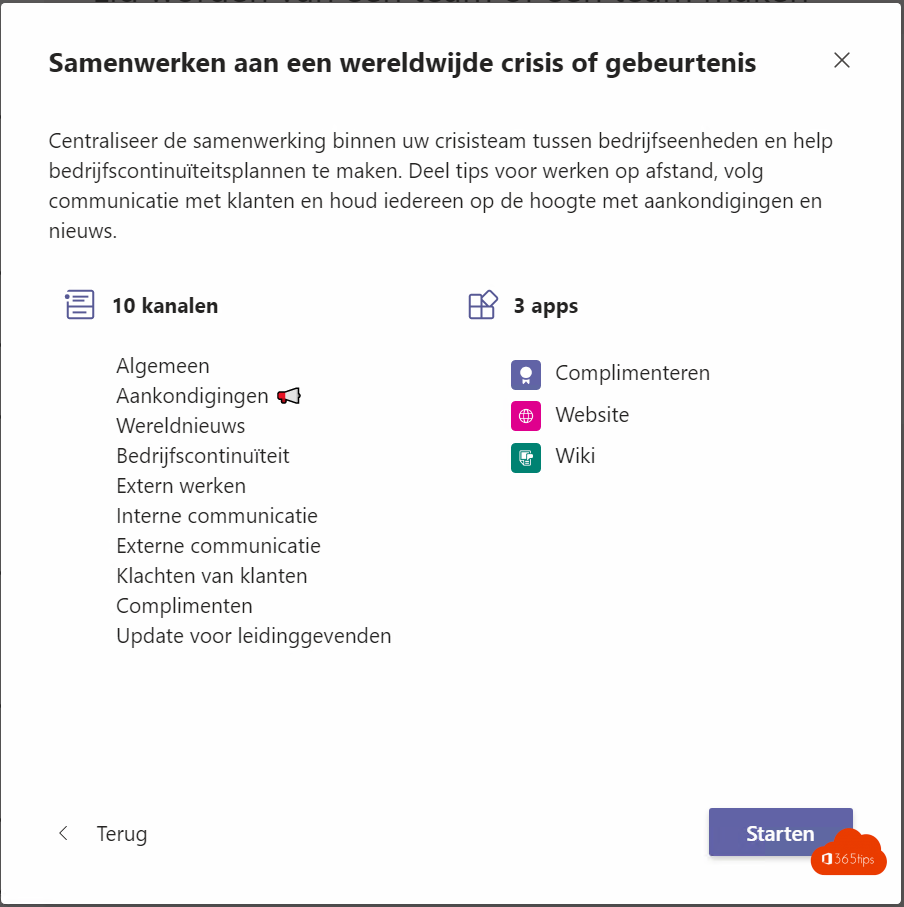
- Add channels, with tabs per channel (for example Planner, OneNote or a website).
- Add apps and select Submit.

Who sees which templates?
Under Teams > Templates policies you hide templates you don't want used, such as some of Microsoft's default templates. Assign a policy to a department to show only their templates.
Use the template
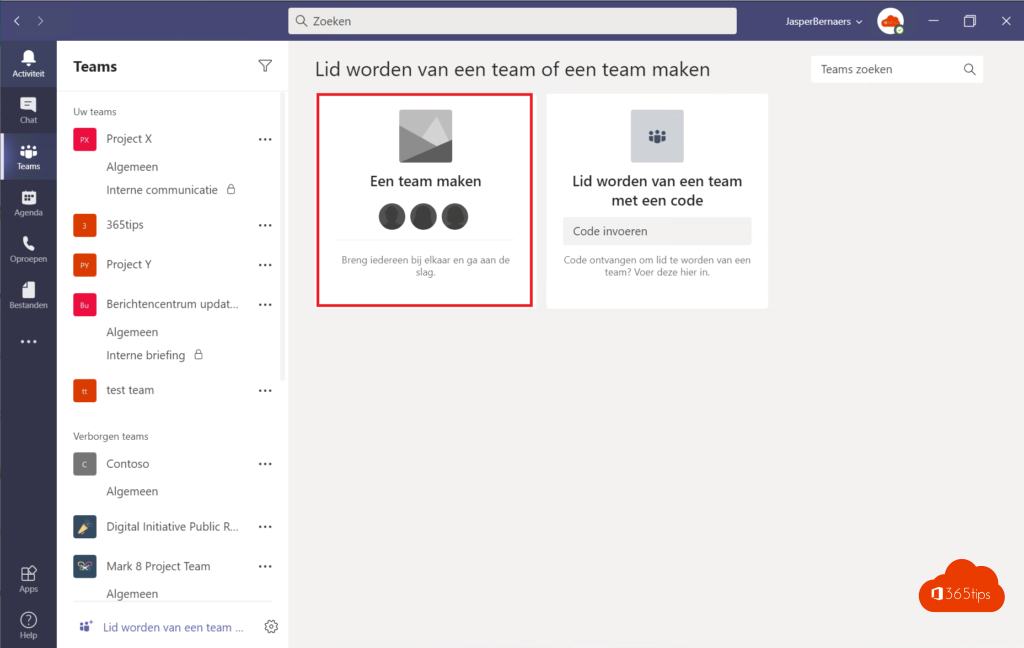
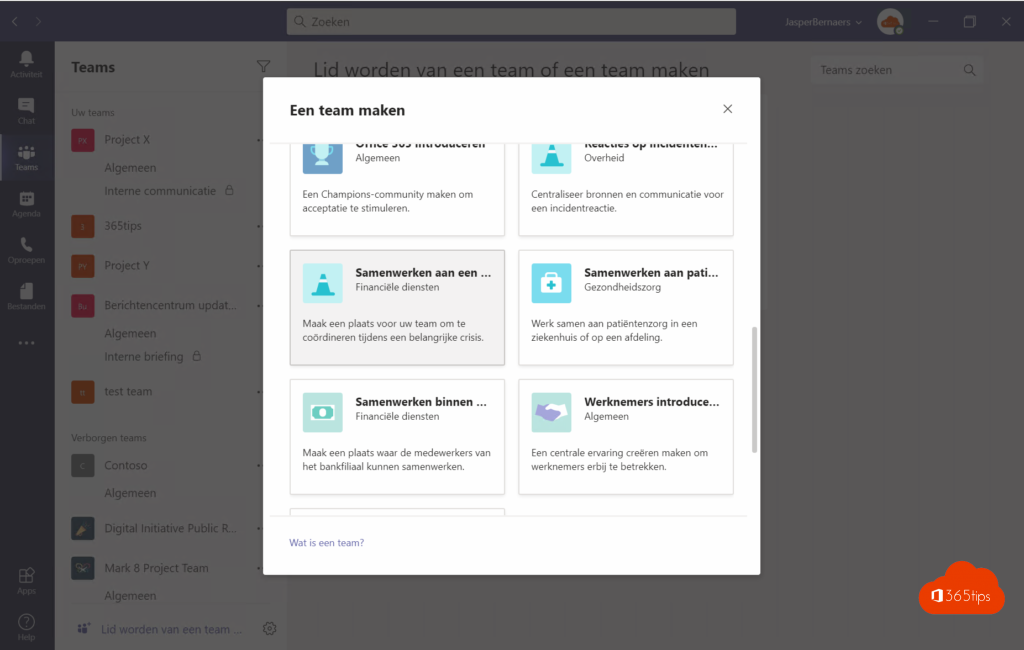
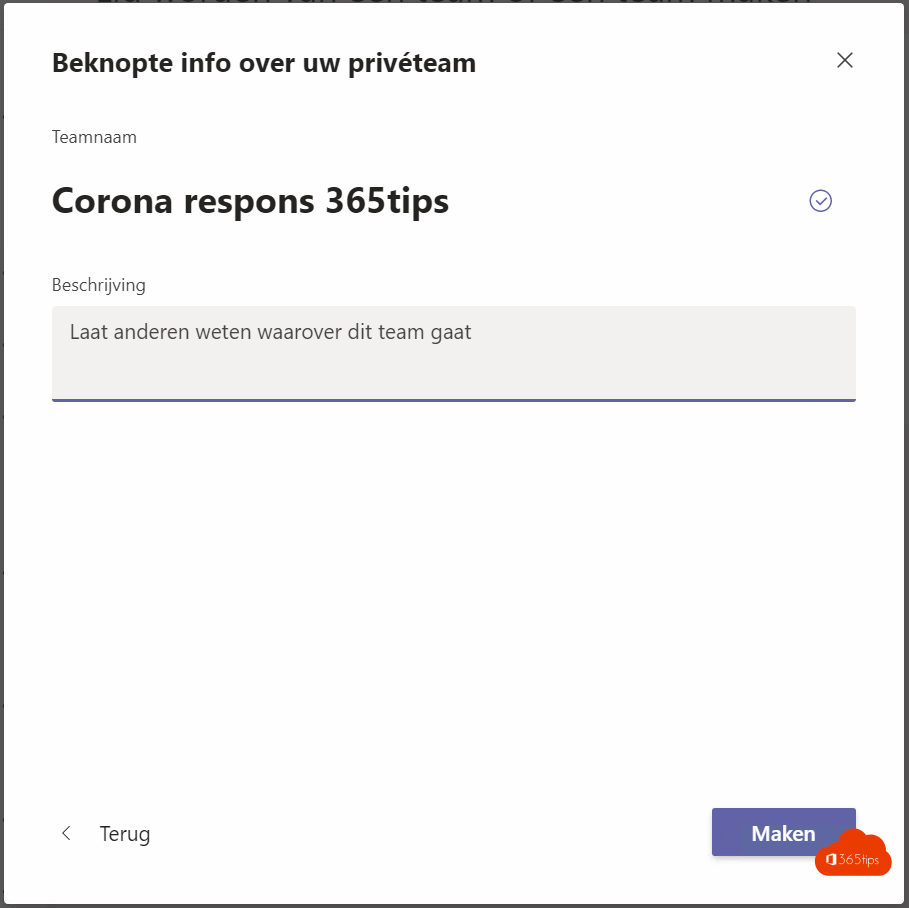
Users select + > Create team in Teams and pick the template. The team gets all the channels and tabs, but no files or messages. It can take a few hours before a new template shows up.

Also see the Teams admin center and create a team.
Read also
A tour of the Microsoft Teams admin center
Create and organise a team in Microsoft Teams
Restrict who can create a team in Microsoft Teams
Nederlandstalige versie: Teamsjablonen maken en beheren in het Teams-beheercentrum