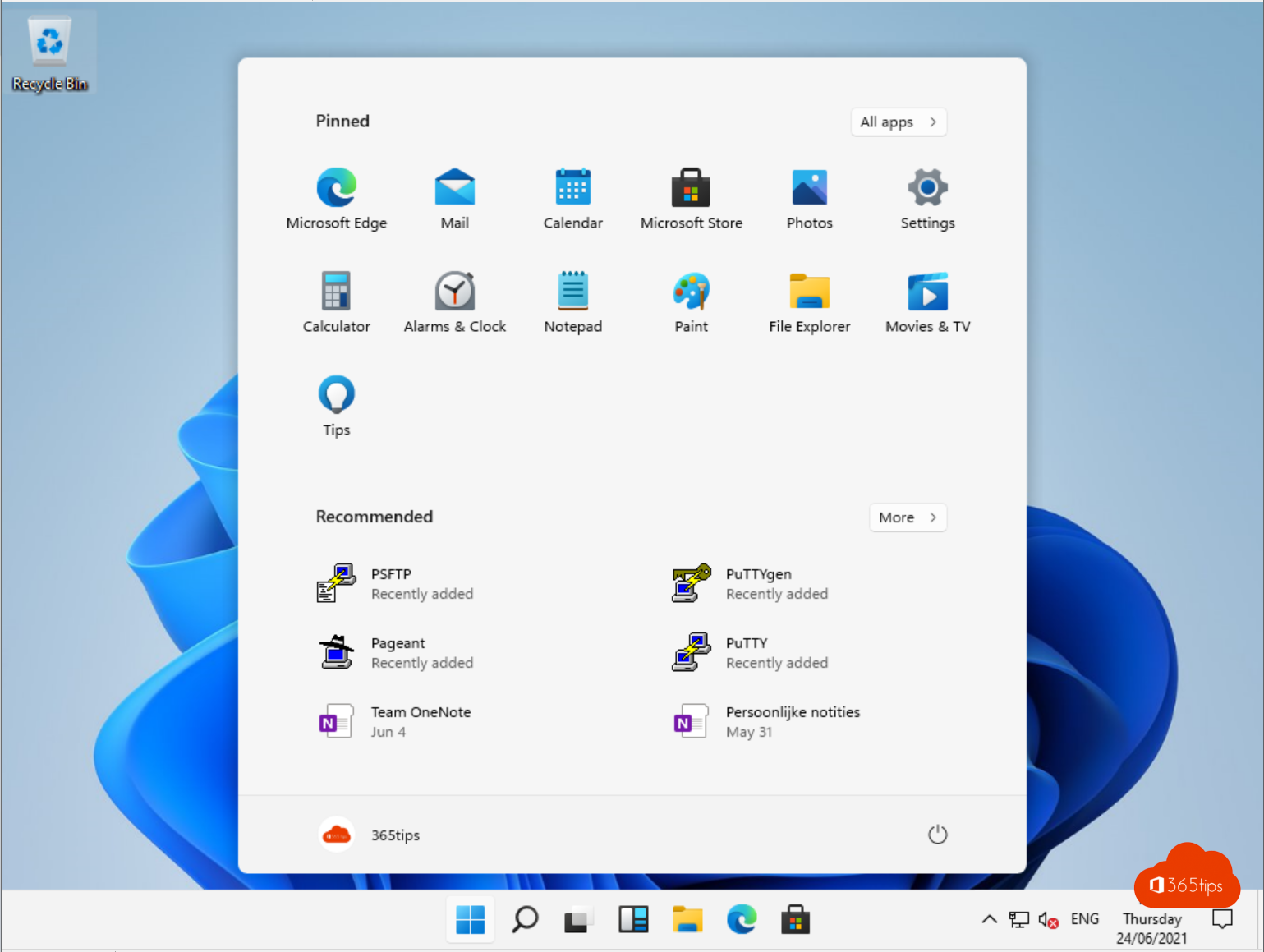
When Windows 11 launched, the taskbar had a Chat button with Microsoft Teams, meant for personal conversations. That built-in version has since disappeared. This article explains how Teams works on Windows 11 today, for work and personal use.
What was the Chat button?
Early versions of Windows 11 had a Chat icon on the taskbar. It opened a simple version of Teams for personal accounts. Microsoft replaced that integration with a regular Teams app you install yourself.
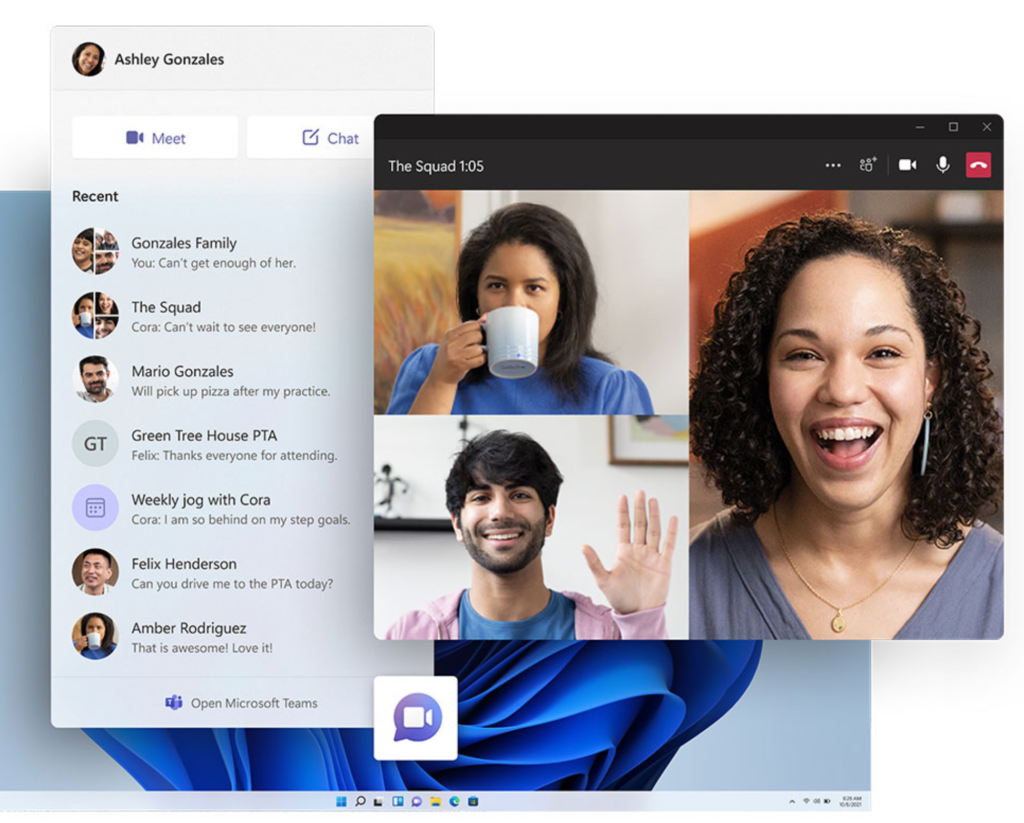

Teams on Windows 11 today
- Install Microsoft Teams from the Microsoft Store or via the download page.
- In one app you sign in with your work account and, if you like, a personal Microsoft account too. Switch via your profile picture.
- On work computers, IT usually installs Teams automatically.
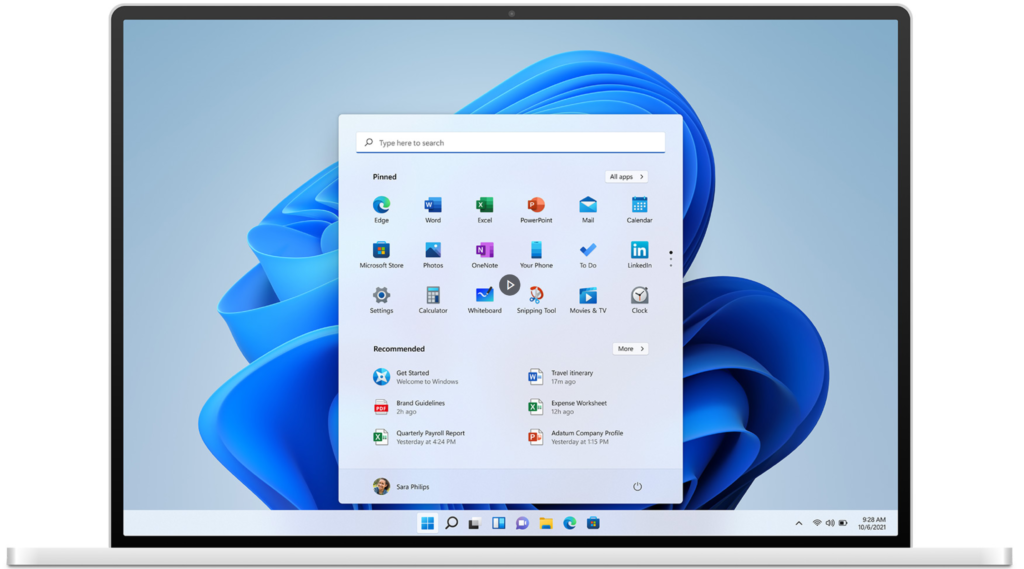

Handy in Windows 11
- Pin Teams to the taskbar for quick access.
- Use Snap to put your meeting and notes side by side.
- Don't want Teams to start automatically? Read stop Teams starting automatically.
Also see multiple accounts in Teams and uninstall Teams in Windows 11.
Read also
Download and install Microsoft Teams on Windows, Mac and mobile
Use multiple accounts at once in Microsoft Teams
Disable, uninstall or block Microsoft Teams in Windows 11
Nederlandstalige versie: Microsoft Teams in Windows 11: wat er veranderd is