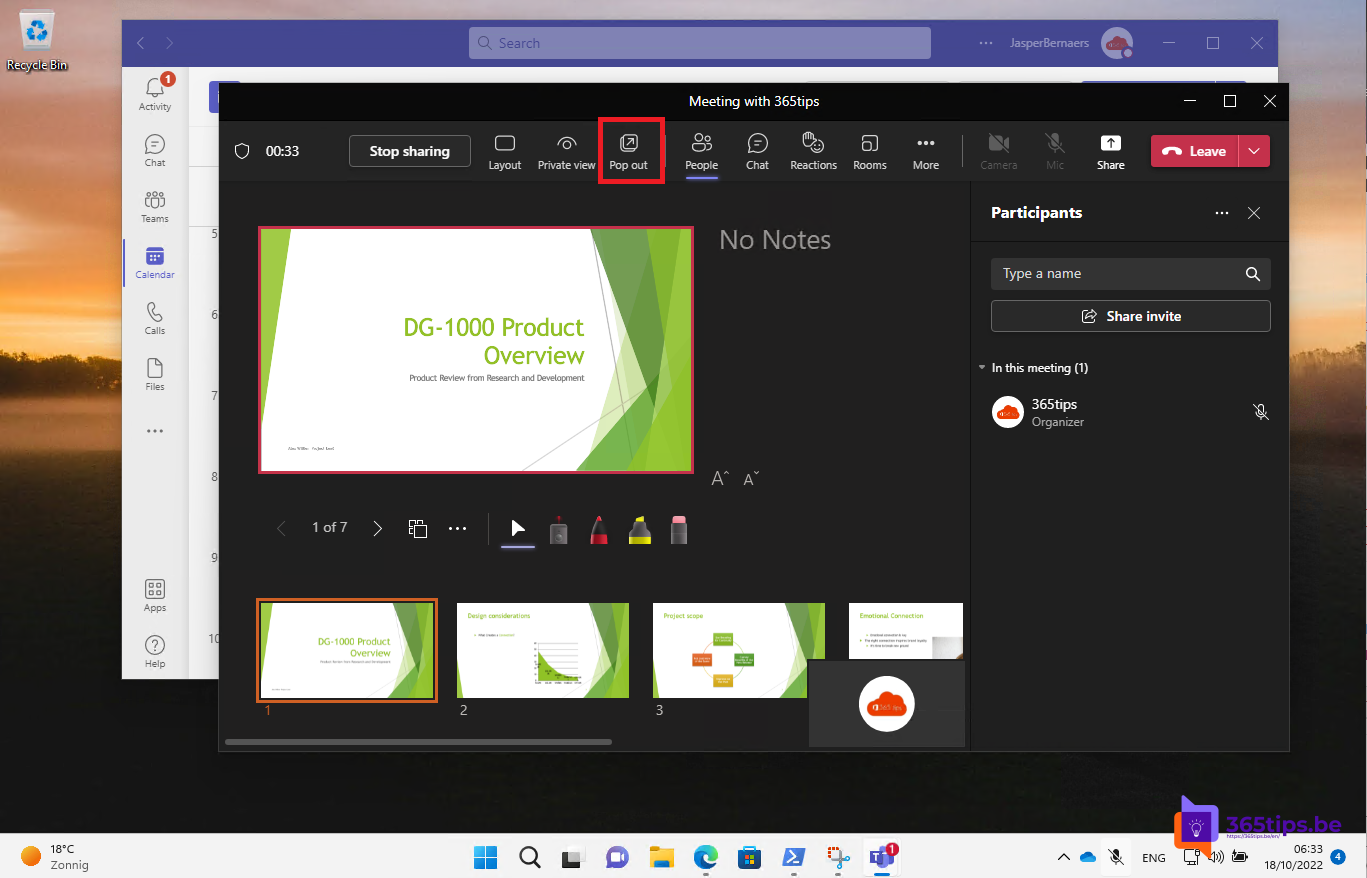
A meeting on one screen, a chat with a colleague on the other and a shared presentation full size: in Microsoft Teams you can open chats, meetings, shared content and even channels in a separate window. No more clicking back and forth. This article shows what you can pop out, how to do it and how to run Teams side by side for a second account.
What can you open in a separate window?
| Item | How |
|---|---|
| Chat | Double-click the chat, or select the pop-out icon |
| Channel or post | ... next to the channel > Open in new window |
| Meeting | Opens in its own window by default |
| Shared content | Pop out above the shared screen |
| File | ... > Open in desktop app or browser |
A chat in a separate window
- Double-click a chat in the list, or hover over it and select the Pop out chat icon (square with an arrow).
- Drag the window anywhere, including to a second screen. Open as many chats as you like.
During a meeting you can pop out the meeting chat as well, so the video stays large.
A channel or post in a separate window
In the new Teams, select ... next to a channel and choose Open in new window. Handy for keeping a project channel open while you work in a chat. A long channel conversation opens with ... on the post > Open in new window, when your version offers it.
Meetings
In the new Teams, a meeting always opens in its own window, separate from your chats and channels, so you can keep using the main window. Minimize the meeting window and a small floating window with the speaker appears, so you keep following the meeting.
Pop out shared content
- When someone shares their screen or a presentation, hover over the shared content.
- Select Pop out at the top.
- The content opens in its own window. Drag it to your second screen and make it as large as you like.
The meeting window then shows the participants large, and the other window the presentation. Close the popped-out window and the content returns to the meeting.


Two accounts side by side
Working for two organizations? In the new Teams, add a second work or school account via your profile picture > Add another account. Each account opens in its own window. You can also open Teams in the browser at teams.microsoft.com with a different browser profile.
Tips for two screens
- Press Windows key + arrow keys to snap a window to the left or right. See snap windows side by side in Windows 11.
- When you present, share a single window instead of your whole screen, so others don't see your popped-out chats.
Read also
How to put windows side by side in Windows 11 with Snap
Black screen when sharing your screen in Microsoft Teams: causes and fixes
Open Word, Excel and PowerPoint from Teams in the desktop app or browser
Nederlandstalige versie: In meerdere vensters werken met Microsoft Teams