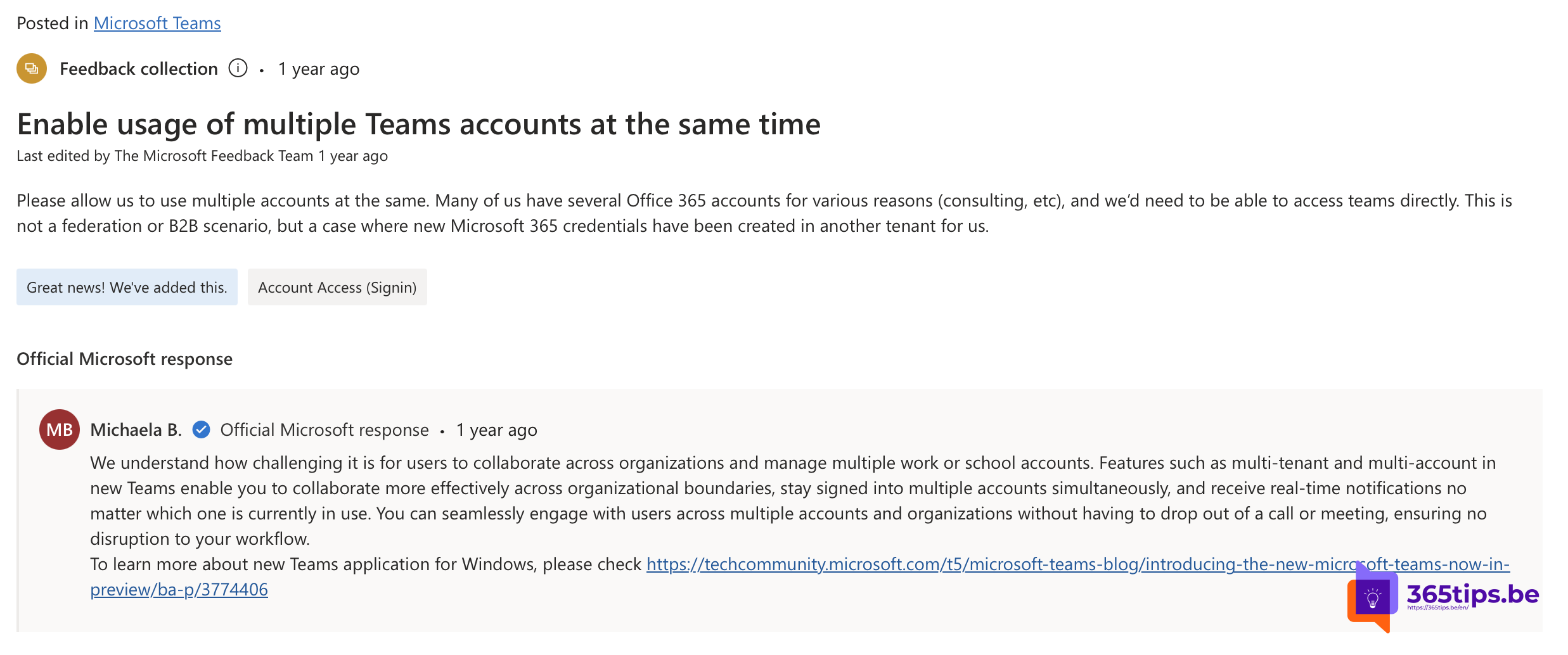
Working for two organisations, a guest at a customer, or want your personal Teams next to your work account? The new Teams app lets you use multiple accounts at once without signing out. This article shows how to add an account and switch between them.
Add an account
- Select your profile picture at the top right.
- Select Add another account.
- Sign in with the other work, school or personal account.
Switch between accounts
Select your profile picture and choose the other account. Each account opens in its own window, so you can keep them side by side. You get notifications from all accounts, even while working in another window.
Guest in another organisation
Are you a guest at another organisation with the same account? That organisation also appears under your account at your profile picture. Select it to switch; no second account needed.
Work and personal
You can add a personal Microsoft account for Teams (free) too. Chats with family and friends stay separate from your work chats. Read create a free Teams account.
Remove an account
Select your profile picture, hover over the account and choose Sign out. The account disappears from the list.
Tips
- Give each account a recognisable profile photo, so you see which window you're in.
- Set status and notifications per account.
- It works on mobile too: tap your profile picture and add an account.
Read also
Download and install Microsoft Teams on Windows, Mac and mobile
How to create a free Microsoft Teams account
Set your status in Microsoft Teams: available, busy or do not disturb
Nederlandstalige versie: Meerdere accounts tegelijk gebruiken in Microsoft Teams