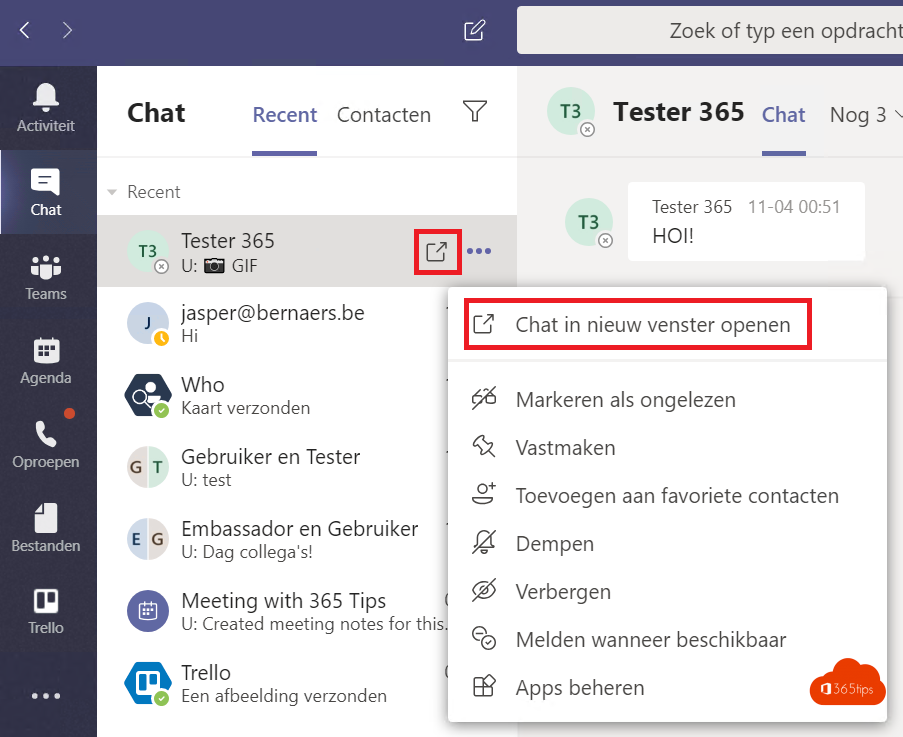
You're in a meeting and want to send a colleague a quick message without losing sight of the meeting. Or you want to see two chats side by side. Then open a chat in a separate window.
A chat in a separate window
- In Chat, hover over a conversation in the list.
- Select More options (...) > Open chat in new window. Or double-click the chat.
- You can move, resize and place the window next to your other windows.

During a meeting
A meeting opens in its own window. The main Teams window stays free, so you can keep chatting there. Want the meeting chat itself in a separate window? Open it from Chat in the main window and pop it out as above.


Tips
- Use Windows + left or right arrow to snap windows side by side. See snap windows in Windows 11.
- You can also open a file or an app like Planner in a separate window. Read work in multiple windows in Teams.
Read also
Work in multiple windows with Microsoft Teams
How to put windows side by side in Windows 11 with Snap
Chatting in Microsoft Teams: four scenarios and when to use each
Nederlandstalige versie: Een chat in een apart venster openen in Teams, ook tijdens vergaderingen
More in English
▸How to chat with yourself in Microsoft TeamsYour own chat in Teams works as a personal scratchpad: notes, links and files from your phone to your laptop.…
▸The most useful Microsoft Teams features in one listTips for chat, meetings and productive work in Teams, each with a link to a full…
▸The most useful Microsoft Teams keyboard shortcuts for Windows and MacThe most useful shortcuts for the new Teams app: navigation, chat, mute, camera, raise hand and screen…
▸Mark a message as unread in Microsoft TeamsMark a Teams chat or channel message as unread to follow up later, and view all unread messages with the…