After you sign in to your computer, Microsoft Teams often pops open straight away, even when you don't need it. That slows down startup and uses memory. This article shows how to stop Teams from starting automatically on Windows and macOS, and how admins can control it centrally.
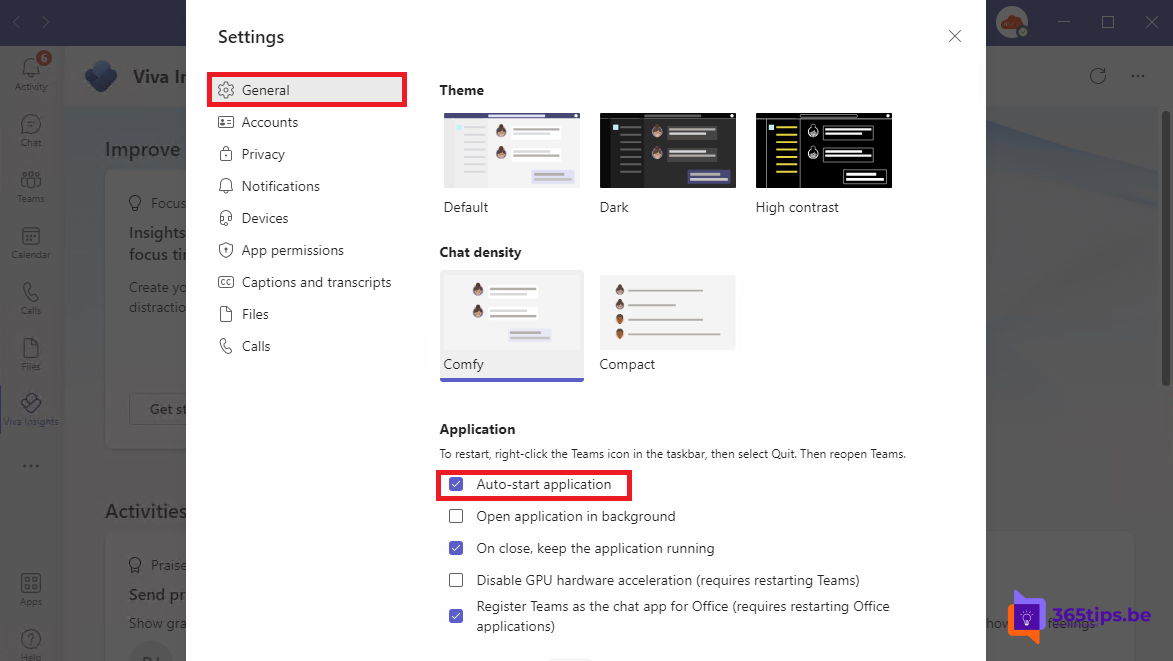
In Teams settings
- In Teams, select the three dots next to your profile picture > Settings.
- Open General.
- Under System, turn off Auto-start Teams.
In the same menu you choose whether Teams keeps running in the background when you close the window. If you turn that off, you won't get notifications once Teams is closed.
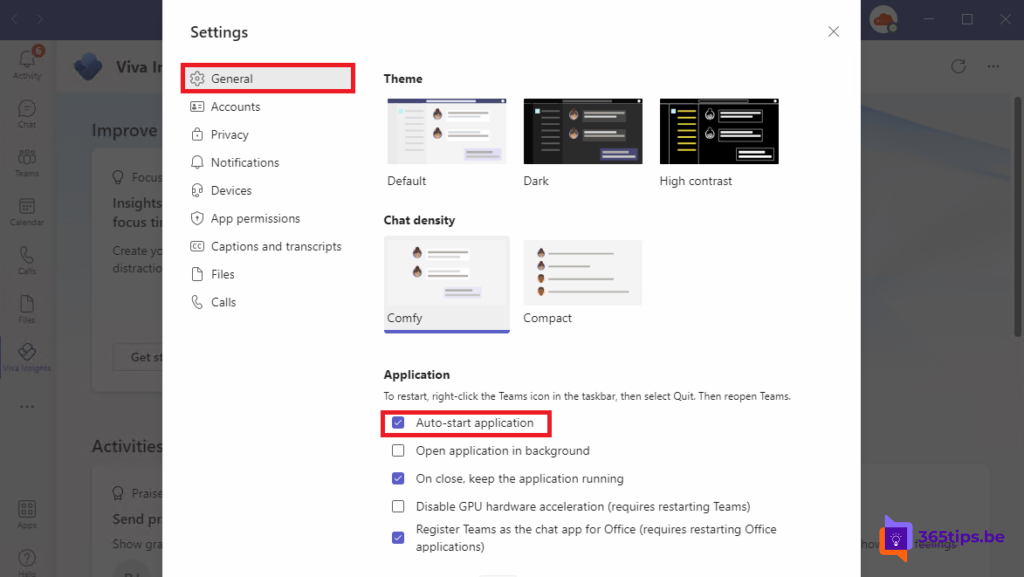
Through Windows 11
- Settings > Apps > Startup and turn off Microsoft Teams.
- Or open Task Manager (Ctrl + Shift + Esc) > Startup apps, right-click Teams and choose Disable.
If you also installed the free (personal) Teams app, it's listed separately.

On a Mac
- Open System Settings > General > Login Items.
- Select Microsoft Teams under Open at Login and click the minus sign.
Or right-click the Teams icon in the Dock > Options and untick Open at Login.
For admins
The new Teams app starts automatically by default on managed Windows devices. To change that for everyone, use the Teams administrative templates in Intune or Group Policy. Users can still change the setting themselves unless you lock it.
Tip
Teams slow or crashing at startup? Clear the cache. Want Teams gone entirely? Read how to uninstall Teams on Windows 11.
Read also
Clear the Microsoft Teams cache on Windows and Mac
Disable, uninstall or block Microsoft Teams in Windows 11
Mute Microsoft Teams notifications during meetings and set them up smartly
Nederlandstalige versie: Automatisch opstarten van Microsoft Teams uitschakelen in Windows en macOS