A 2 GB video, a folder of hundreds of photos or a large design file: far too big for an email attachment. With OneDrive you share large files with a link, and you decide who can open them, for how long and whether they can be downloaded. This article shows how to send large files securely.
Share a large file
- Put the file in OneDrive (drag it to your OneDrive folder or upload it at onedrive.com). Files up to 250 GB are allowed.
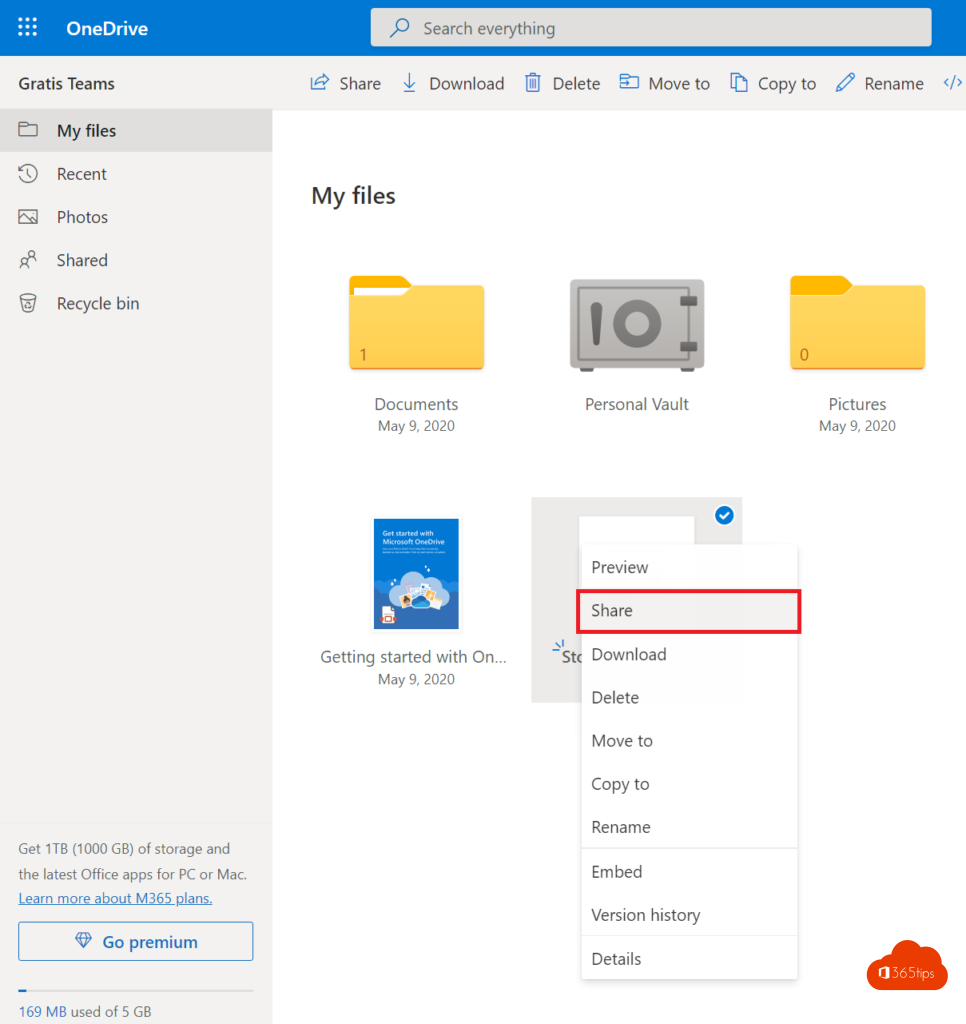
- Select the file and choose Share.
- Select the gear or Link settings and choose who gets access (see below).
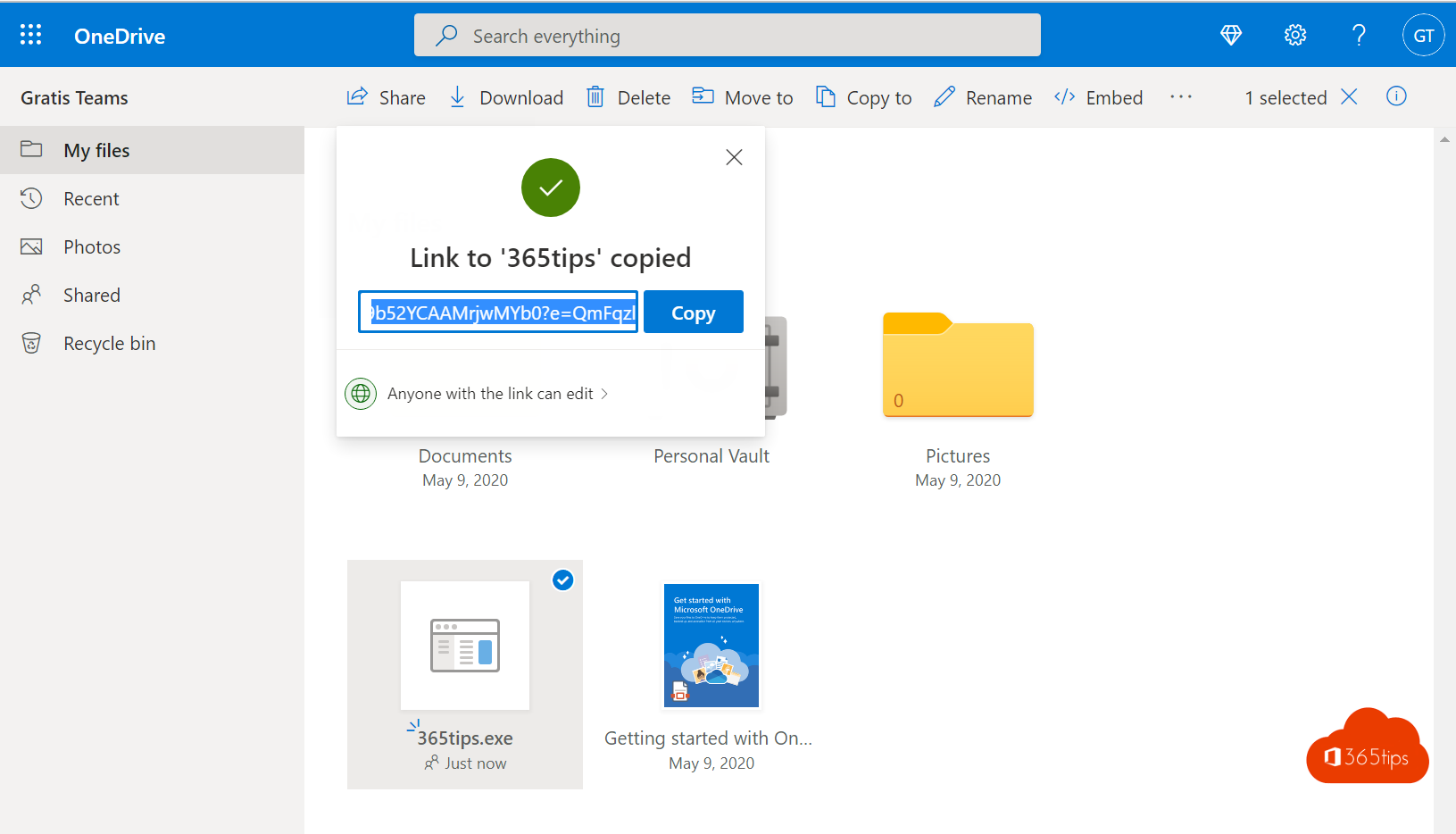
- Type the recipient's email address or select Copy link.
Who gets access?
- Specific people: only those you invite. External people verify with an emailed code. The safest choice.
- People in your organization: colleagues only.
- Anyone with the link: no sign-in needed. Only for non-sensitive files, and only if your admin allows it.
Extra security
- Expiration date: the link stops working after that date.
- Password: the recipient must enter a password (for anyone links). Send the password through another channel, such as text message.
- Block download: the recipient can only view the file.
- Can view instead of Can edit.

Revoke access
Right-click the file > Manage access. You see all links and people and can remove a link. The Shared view lists everything you've shared.
Receive large files
Need someone to send you a large file? Create a file request: they upload into your folder without seeing the rest. Read also restore deleted OneDrive files and change the OneDrive storage limit.
Read also
Restore deleted OneDrive files up to 93 days after deletion
How to change the OneDrive storage of a single user
Save email attachments to OneDrive automatically
Nederlandstalige versie: Grote bestanden veilig delen en versturen met OneDrive