Microsoft 365 offers many ways to share a file: as a link, as an attachment, in a Teams chat or in a channel. Which one should you pick? It depends on who you share with and whether you want to collaborate or just send a copy. This article covers the main ways and when to use each.
The options at a glance
| Method | Best for |
|---|---|
| Link from OneDrive | One or a few people, including external; working on the same version |
| In a Teams channel | Files for the whole team, stored in SharePoint |
| In a Teams chat | Quick sharing with the people in that chat, stored in your OneDrive |
| Link in Outlook | An email with a link instead of a heavy attachment |
| Attachment as a copy | A final version, or someone without access to your environment |
| File request | Receiving files from others |
Share with a link
- Select the file in OneDrive, SharePoint or Teams and choose Share.
- Choose who gets access: specific people, people in your organization or anyone.
- Choose Can edit, Can review or Can view.
- Send or copy the link.

In Outlook: link or copy?
When you add a file from OneDrive to an email, Outlook asks whether to share a link or attach a copy. With a link everyone works in the same file and your email stays small.
What's been shared with me?
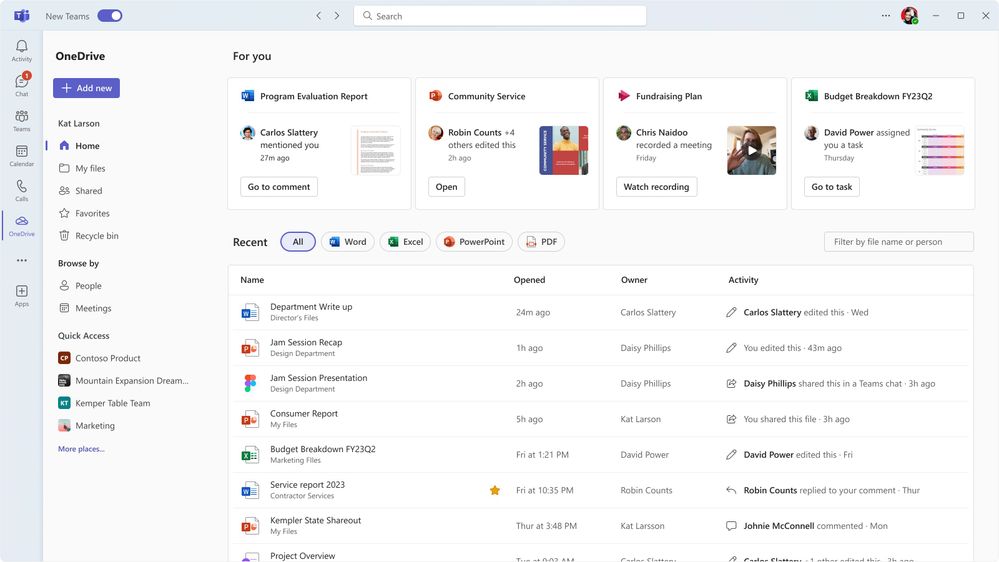
In OneDrive and at microsoft365.com, the Shared view shows everything others shared with you and everything you shared. You also revoke access there.
Tips
- Always share confidential files with specific people and set an expiry date. Read share files securely.
- Feedback without edits to your text? Read share in review mode.
- Options greyed out? Read sharing options greyed out.
- Need files from someone else? Use a file request.
Nederlandstalige versie: Bestanden delen in Microsoft 365 en Teams: de manieren op een rij
Related articles
▸Share files in a Teams chat, channel or via a linkShare files in Microsoft Teams in a chat, a channel or via a link, and learn where they're stored and who can…
▸Share and send large files securely with OneDriveShare files up to 250 GB securely with OneDrive. Choose who gets access and set an expiration date, password…
▸Work on one file with several people at the same timeEdit Word, Excel and PowerPoint files at the same time as colleagues through OneDrive, SharePoint or Teams…
▸Receive files with a file request in OneDriveCreate a file request in OneDrive so others can upload files into your folder without seeing its contents or…
▸Share a Word document in review mode with Can reviewShare a Word document with the Can review permission. Recipients add suggestions and comments that you accept…