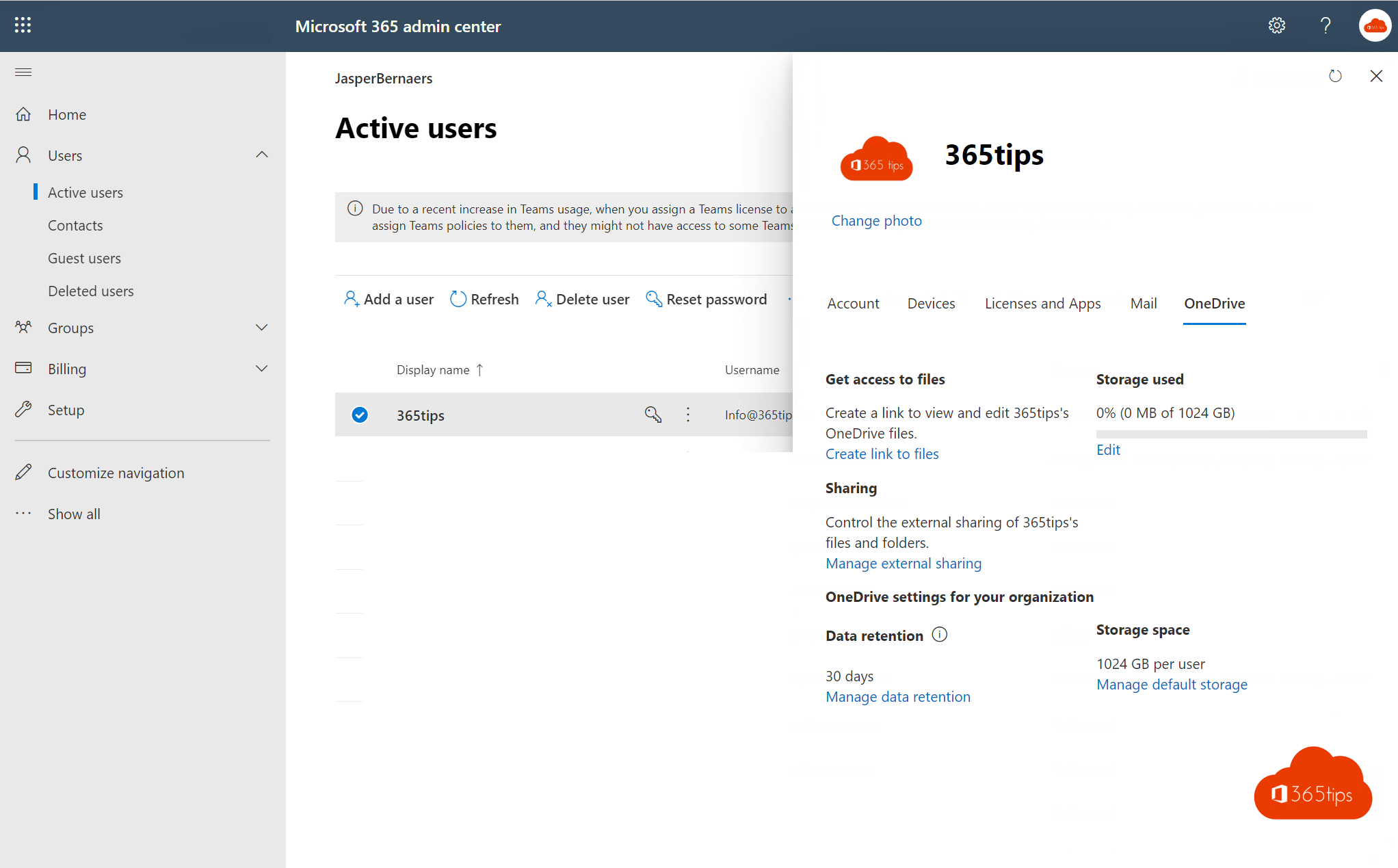
Is one colleague's OneDrive filling up while others barely use theirs? As an administrator you can change the storage of a single OneDrive user, or change the default for everyone. This article shows how in the Microsoft 365 admin center, the SharePoint admin center and with PowerShell, how much storage a user can get, and how users can free up space themselves.
How much storage does a OneDrive have?
- In most business plans each user gets 1 TB by default.
- In plans that allow it, an administrator can raise storage per user up to 5 TB.
- With the paid Microsoft 365 OneDrive Storage add-on you can give a user more than their licence includes.
- With Office 365 A1 (education) storage is limited to 100 GB.
What exactly your plan includes is in the OneDrive service description on Microsoft Learn.
Change one user's storage in the admin center
- Sign in to the Microsoft 365 admin center.
- Go to Users > Active users and click the user.
- Open the OneDrive tab.
- Under Storage used, click Edit.
- Choose Maximum storage for this user, enter the amount in GB or TB and click Save.

You need the SharePoint Administrator or Global Administrator role.
Change the default for all new users
- Open the SharePoint admin center (
https://yourtenant-admin.sharepoint.com). - Go to Settings and click OneDrive - Storage limit.
- Enter the default storage and click Save.
The new default applies to new OneDrives and to existing ones still using the old default. Users with their own custom limit keep it.
With PowerShell
Install the SharePoint Online Management Shell and connect to your tenant. Values are in MB:
Connect-SPOService -Url https://yourtenant-admin.sharepoint.com
Set-SPOSite -Identity https://yourtenant-my.sharepoint.com/personal/jan_yourcompany_com `
-StorageQuota 2097152 -StorageQuotaWarningLevel 1887436| Storage | Value in MB |
|---|---|
| 1 TB | 1048576 |
| 2 TB | 2097152 |
| 3 TB | 3145728 |
| 5 TB | 5242880 |
You find a user's OneDrive URL in the admin center on the user's OneDrive tab, or with Get-SPOSite -IncludePersonalSite $true -Limit All -Filter "Url -like '-my.sharepoint.com/personal/'".

Does the setting revert?
If the storage goes back to the old value after a while, or raising it fails, use the diagnostic in the admin center: search for OneDrive Storage Quota under Help & support and run the test. Also check that the user's licence allows more storage.
As a user: free up space yourself
- See your usage in OneDrive on the web via the gear icon > OneDrive settings > More settings > Storage Metrics.
- Empty the OneDrive recycle bin: deleted files count until they are permanently gone.
- Move shared project files to a team or SharePoint site, where they belong to the team rather than to you.
- On your PC, free up disk space with Free up space (right-click a folder). That doesn't change your OneDrive storage in the cloud; see also finding large files in Windows.
Read also
How to restore deleted files in Microsoft Teams and SharePoint
Find and delete large files in Windows 11 and 10: 5 ways
Which Microsoft 365 licence do I have? How to check
Nederlandstalige versie: De OneDrive-opslag van één gebruiker wijzigen