You can send a large file with WeTransfer, but then you have little control: anyone with the link can download it. With Google Drive you decide who gets access, what they can do and when you take that access away again. Here's how to do it step by step.
What you need
- A Google account. Don't have one yet? Create one at accounts.google.com > Create account.
- Enough storage. A free Google account gets 15 GB, but that space is shared with Gmail and Google Photos. You can buy more through Google One.

Upload a file
- Go to drive.google.com and sign in.
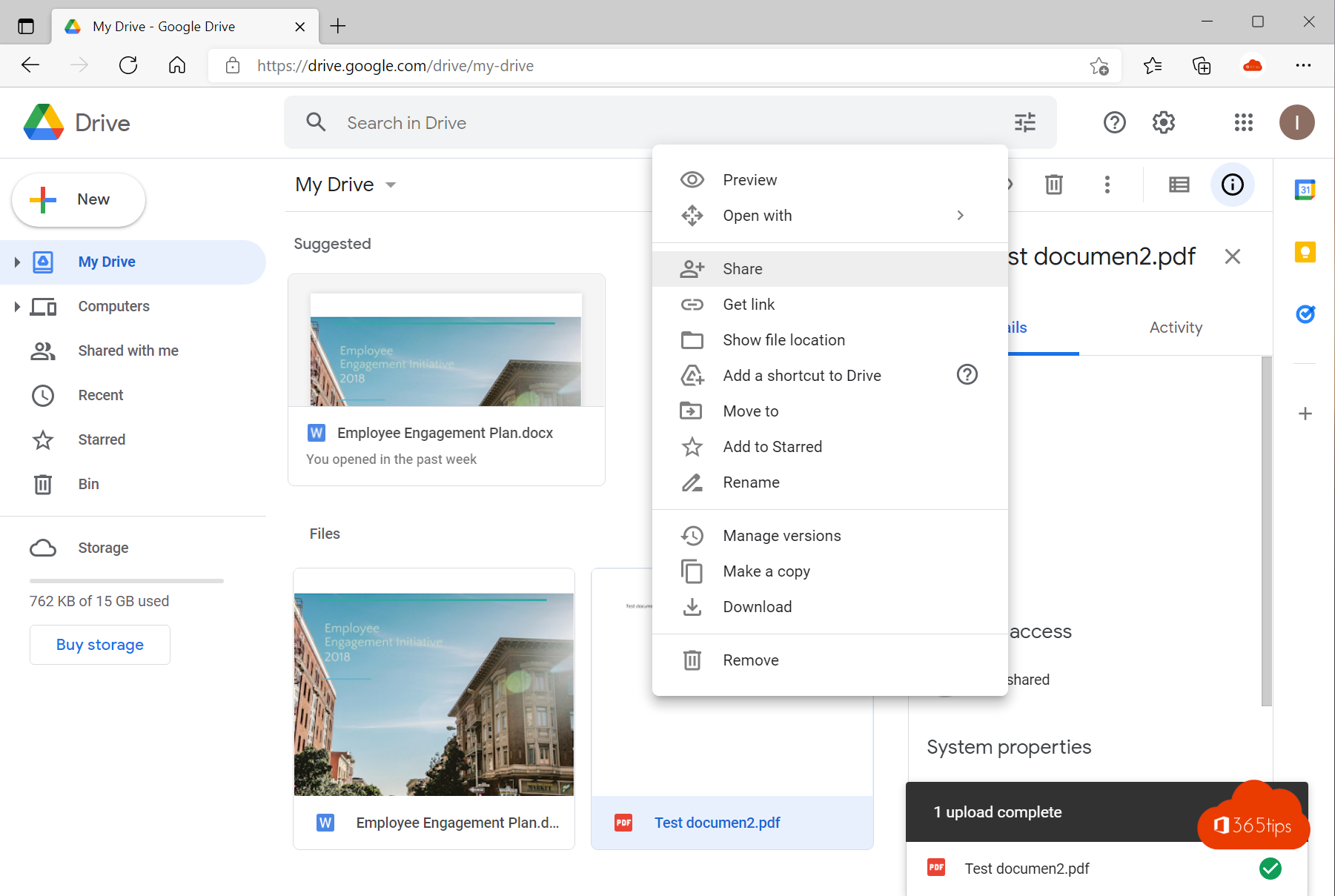
- Select New at the top left and choose File upload or Folder upload. You can also drag files into the browser window.
- Wait until the upload finishes. You'll see the progress at the bottom right. For very large files, keep the browser window open.
Upload large files often? Install Google Drive for desktop. It syncs in the background and resumes the upload if your connection drops for a moment.

Share the file
- Right-click the file and choose Share.
- Type the email addresses of the people who may open the file.
- Pick their role: Viewer, Commenter or Editor.
- Under General access, choose who can use the link: Restricted (only the people you add) or Anyone with the link.
- Select Send or Copy link.

Stay in control
- Remove access: open Share again and remove the person, or set General access back to Restricted.
- Limit downloads: in the share settings you can stop viewers and commenters from downloading, printing or copying the file.
- Expiration date: some accounts, mainly paid Google Workspace accounts, let you set an expiration date for access. Whether you can depends on your account.

Tip for organizations
For work files, use the storage your organization manages. In Microsoft 365 that's OneDrive or SharePoint, where your company's sharing rules and retention policies apply. Also see share large files securely with OneDrive and the Google Drive guide.
Read also
Share and send large files securely with OneDrive
Guide: everything you need to know about Google Drive
Share large files with Dropbox and request files
Nederlandstalige versie: Grote bestanden delen met Google Drive en zelf de controle houden