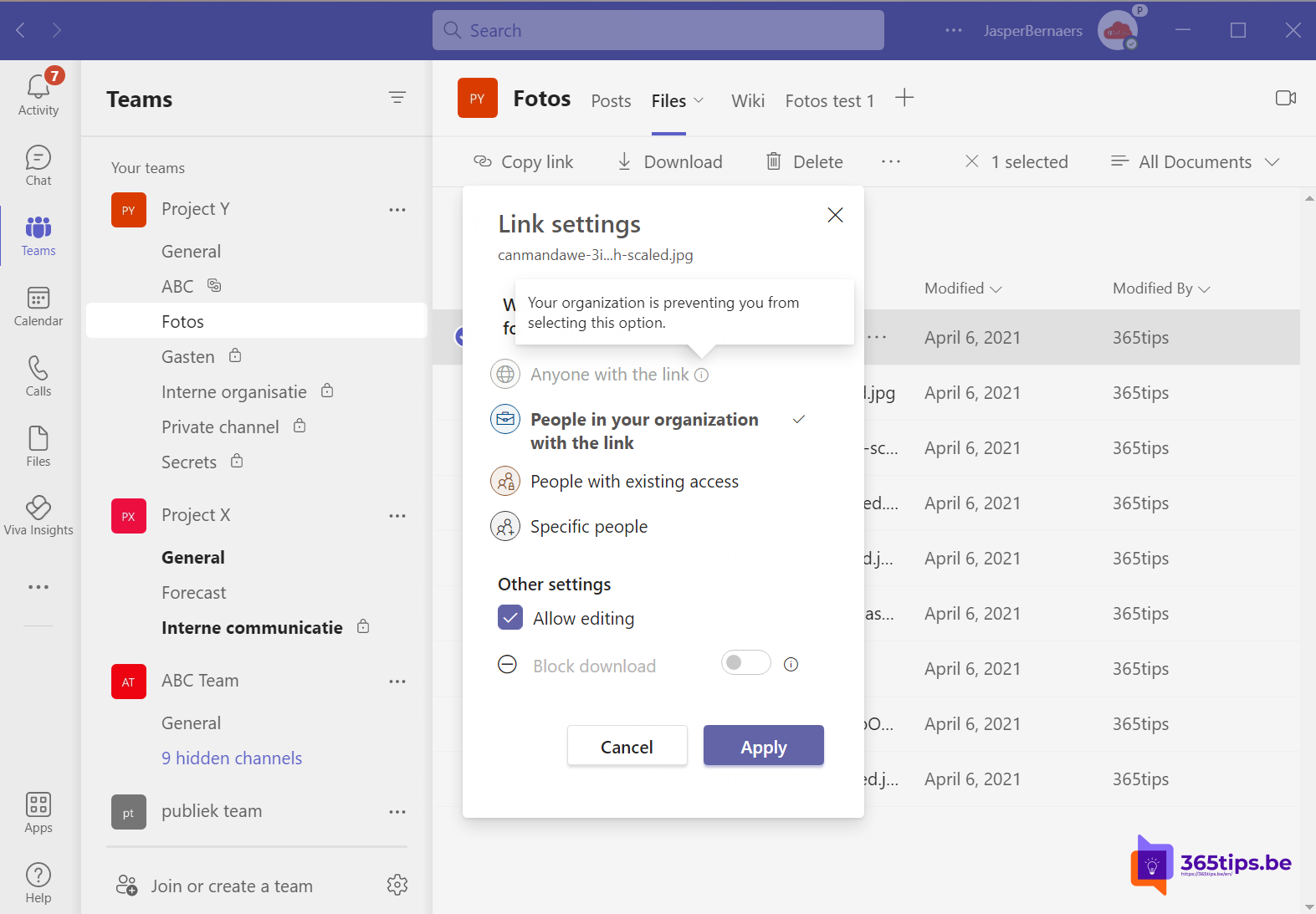
You want to share a file with a customer, but Anyone with the link or People outside your organization is greyed out. That's not a bug: a setting at one of the levels in Microsoft 365 is blocking it. This article shows where to look and how an admin fixes it.
Possible causes
- Organisation: external sharing is restricted in the SharePoint admin center.
- Site: the team's SharePoint site has stricter sharing settings than the organisation.
- Sensitivity label: a label on the team or file limits sharing.
- Permissions: you're not an owner, and the site only lets owners share.
- Guest access is off for the team's Microsoft 365 group.
1. Check the organisation level
Go to the SharePoint admin center > Policies > Sharing. Set the sliders for SharePoint and OneDrive to the level you want: Anyone, New and existing guests, Existing guests or Only people in your organization. OneDrive can never be more permissive than SharePoint.

2. Check the site
In the admin center, go to Sites > Active sites, choose the team's site > Settings tab > External file sharing > More sharing settings. The site shouldn't be stricter than you need.

3. Sensitivity labels
Is there a label such as Confidential on the team or file? It may block external sharing. Check in Microsoft Purview > Information protection > Labels what the label enforces.
4. Can members share?
In the site: Settings > Site permissions > Change sharing settings. There you choose whether members can share or only owners.
Tip
Don't simply turn on Anyone with the link organisation-wide. Prefer New and existing guests: external people verify with an emailed code. Read share files securely with OneDrive and add guests to Teams.
Read also
Share and send large files securely with OneDrive
How to add external guests in Microsoft Teams
Receive files with a file request in OneDrive
Nederlandstalige versie: Opties voor delen zijn grijs in Teams, SharePoint of OneDrive: zo los je het op