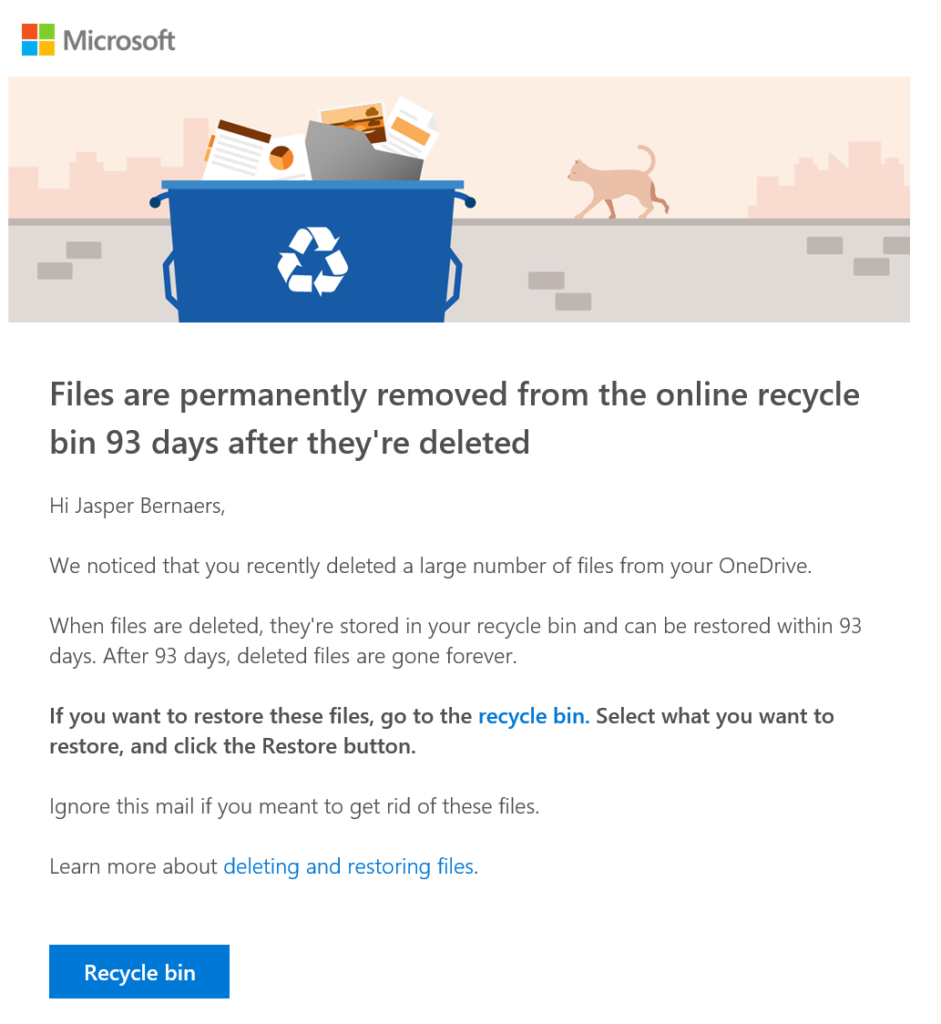
Deleted a folder you still needed, or hit by ransomware that encrypted all your files? In OneDrive for work or school you can bring deleted files back for up to 93 days, and even restore your entire OneDrive to an earlier point in time. This article shows how.
Step 1: the recycle bin
- Go to onedrive.com (or open OneDrive from the Microsoft 365 app launcher).
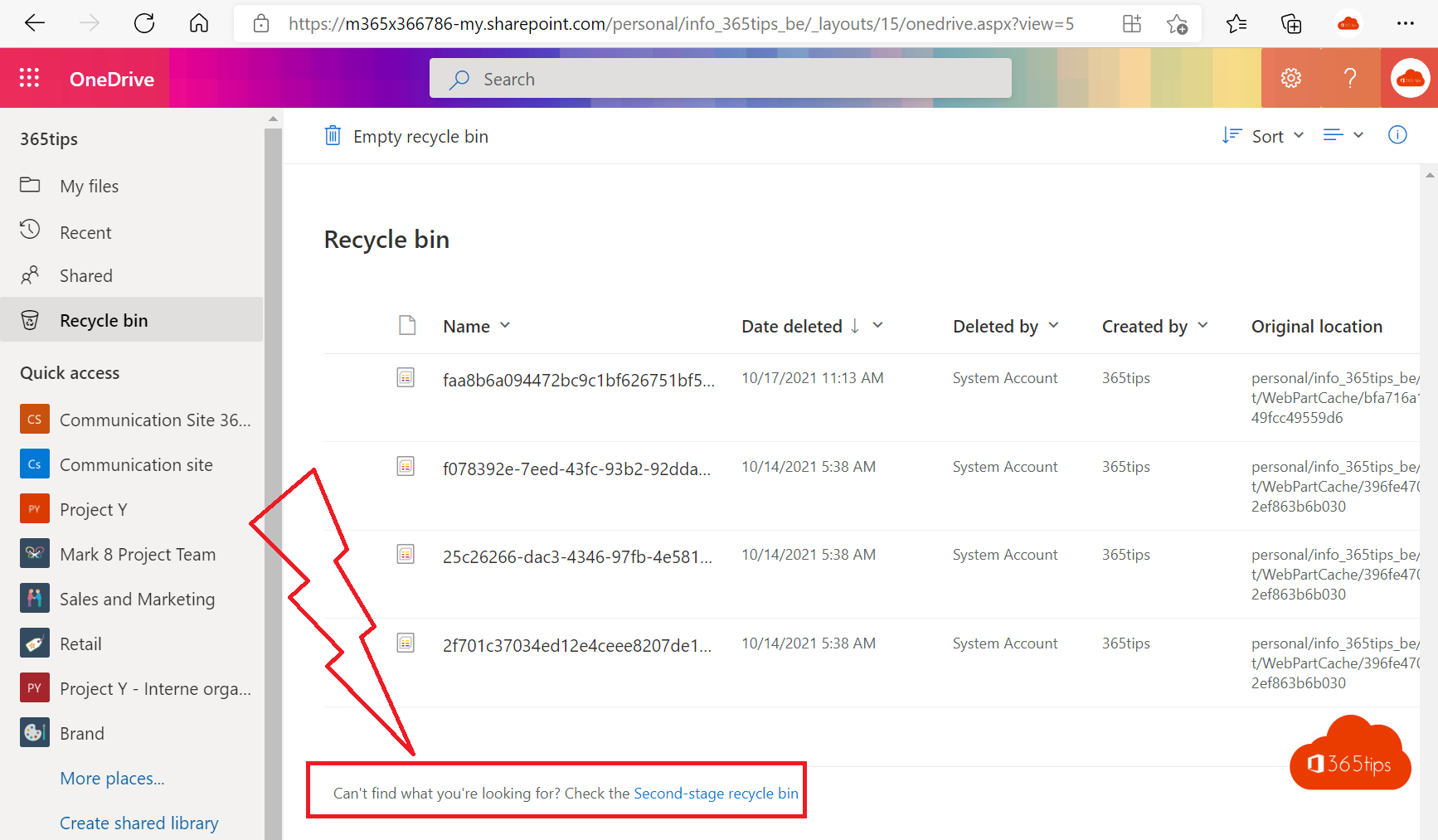
- Select Recycle bin on the left.
- Select the files or folders and choose Restore.
They return to their original location. On your computer, also check the Windows Recycle Bin: files you deleted in File Explorer go there.

Step 2: the second-stage recycle bin
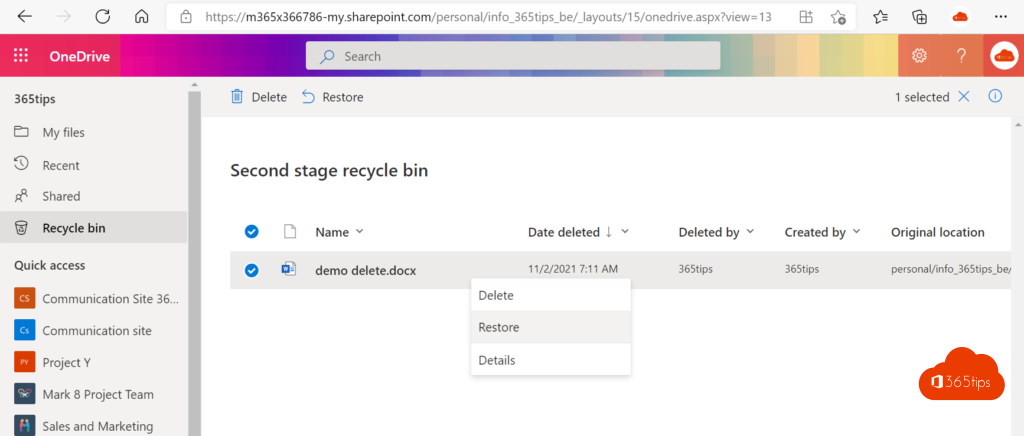
Not there? Scroll to the bottom of the recycle bin and select Second-stage recycle bin. Items removed from the first recycle bin land there. Together, both bins keep items for up to 93 days after the original deletion.
Restore your entire OneDrive
Many files deleted, overwritten or encrypted at once?
- In OneDrive, select the gear > Settings > Restore your OneDrive.
- Choose a date, such as Yesterday or Custom date and time (up to 30 days back).
- Use the chart and activity list to pick the right moment.
- Select Restore.
All changes after that moment are undone. You can undo the restore itself too.
And in Teams or SharePoint?
Team files live in SharePoint, where it works the same way. Read restore deleted files in Teams or SharePoint.
Tip
Only need an older version of one file? Use version history. For protection beyond 93 days you need a retention policy or a backup tool.
Read also
Restore an earlier version with version history in OneDrive and SharePoint
How to restore deleted files in Microsoft Teams and SharePoint
Recover deleted emails in Outlook and Exchange Online
Nederlandstalige versie: Verwijderde OneDrive-bestanden herstellen tot 93 dagen na verwijdering