A customer needs to send you documents, attendees share event photos or students hand in an assignment? With a file request in OneDrive you create a link that lets others upload files into your folder, without seeing what's in it. This article shows how.
Create a file request
- Open OneDrive on the web.
- Create a new folder, for example Submissions customer X.
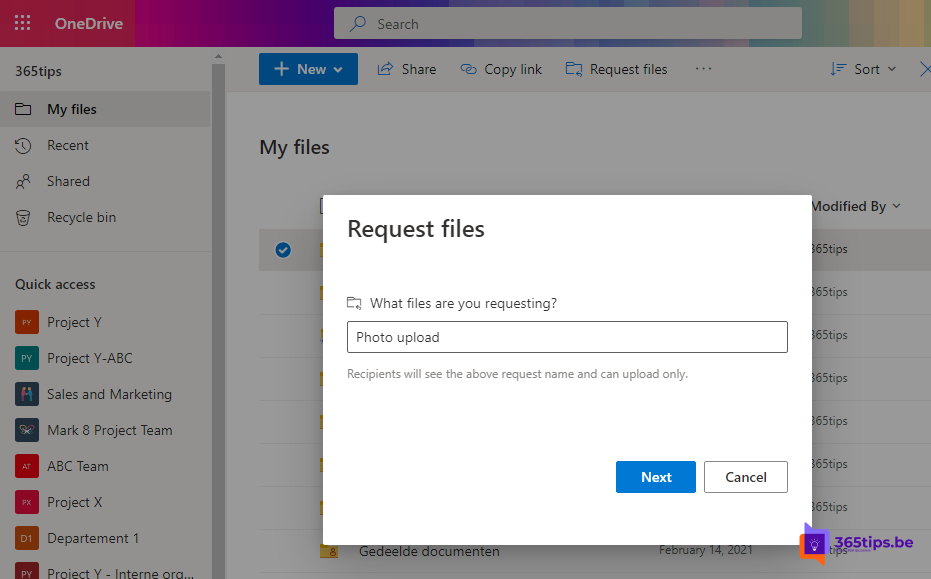
- Right-click the folder (or select the three dots) > Request files.
- Type a short description, such as Upload your quote and the signed agreement here, and select Next.
- Copy the link or type the email addresses of the people who need to upload.

For the uploader
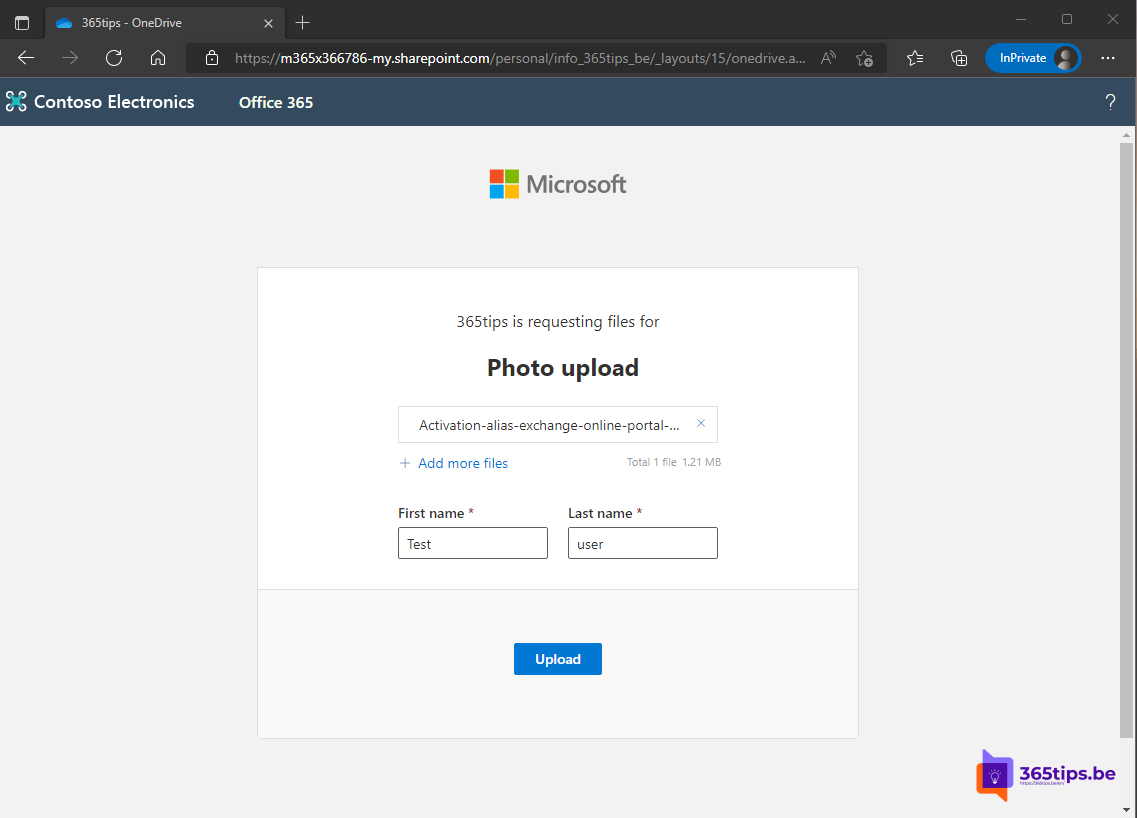
The recipient opens the link, chooses files, types their name and selects Upload. They don't need a Microsoft account and can't see other files in the folder. You get a notification for each upload.
Don't see the option?
File requests only work if your organisation allows Anyone links in the SharePoint admin center. Read sharing options greyed out.
Stop the request
Right-click the folder > Manage access and remove the file request link. After that nobody can upload.
Tips
- Use a separate folder per request so submissions don't get mixed up.
- Set an expiry date on the link where possible.
- People uploading the same file name? OneDrive adds a number; nothing is overwritten.
- Sending rather than receiving? Read share large files securely.
Read also
Share and send large files securely with OneDrive
Sharing options greyed out in Teams, SharePoint or OneDrive: how to fix it
Share files in Microsoft 365 and Teams: all the options
Nederlandstalige versie: Bestanden ontvangen met een bestandsaanvraag in OneDrive