Dropbox is a cloud service to store files online, sync them between your devices and share them with others. A handy feature is Request files (file request): other people can upload files to your Dropbox, even if they don't have a Dropbox account. Here's how it works.
Install Dropbox
Use Dropbox in your browser at dropbox.com, or install the app for Windows, macOS, Android or iOS. With the desktop app, a Dropbox folder appears in File Explorer or Finder and syncs automatically. The free Basic account gives you 2 GB of storage.
Upload files
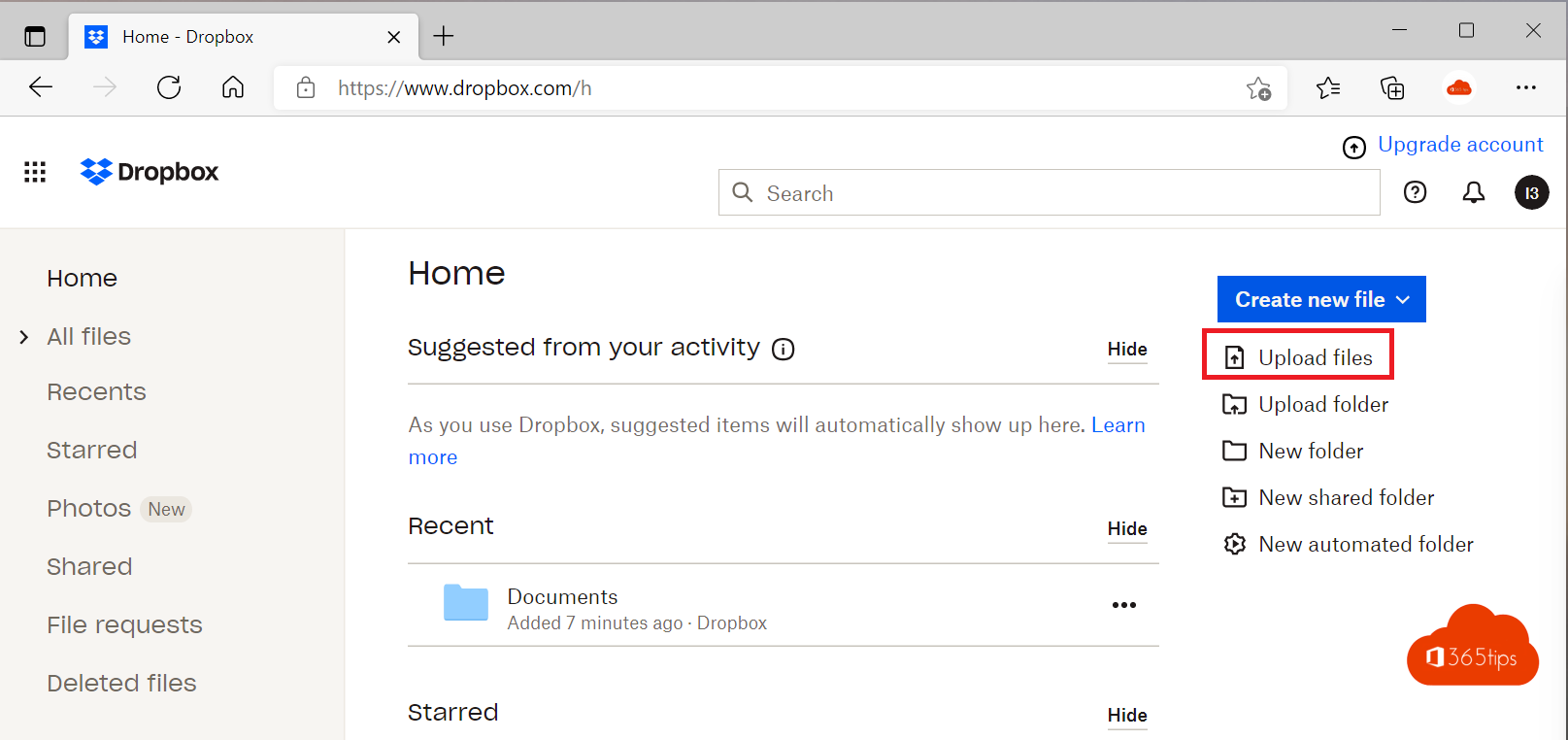
- In the browser: select Upload, choose Files or Folder and pick what you want to upload.
- With the desktop app: drag the file into the Dropbox folder on your computer.
- On your phone: tap the plus sign in the app and choose what to upload.
Share a file or folder
- Hover over the file or folder and select Share.
- Add the recipients' email addresses, or copy the link.
- Choose whether they can view or edit. On paid plans you can also add a password or expiration date to the link.

Want to send one large file once? Also look at Dropbox Transfer. How large that file can be depends on your plan.
Request files with a file request
- In the web version, open Request files (sometimes under More or the plus sign).
- Give the request a title and choose the folder where the files will land.
- Optionally set a deadline and select Create.
- Share the link or invite people by email. They upload without an account and can't see each other's files.

Note: uploaded files count toward your storage. A free account fills up quickly.
Change your password
Select your profile picture at the top right, choose Settings and go to Security. There you change your password and turn on two-step verification.
Working in Microsoft 365?
OneDrive has a similar feature that falls under your organization's management. Also see request files with OneDrive and share large files with Google Drive.
Nederlandstalige versie: Grote bestanden delen met Dropbox en bestanden aanvragen