You schedule a Teams meeting in a few clicks, from Teams or from Outlook. Everyone gets an invitation with a link, and the meeting lands in everyone's calendar. This article shows how to schedule a meeting, share the link and when to use a channel meeting or Meet now.
In Teams
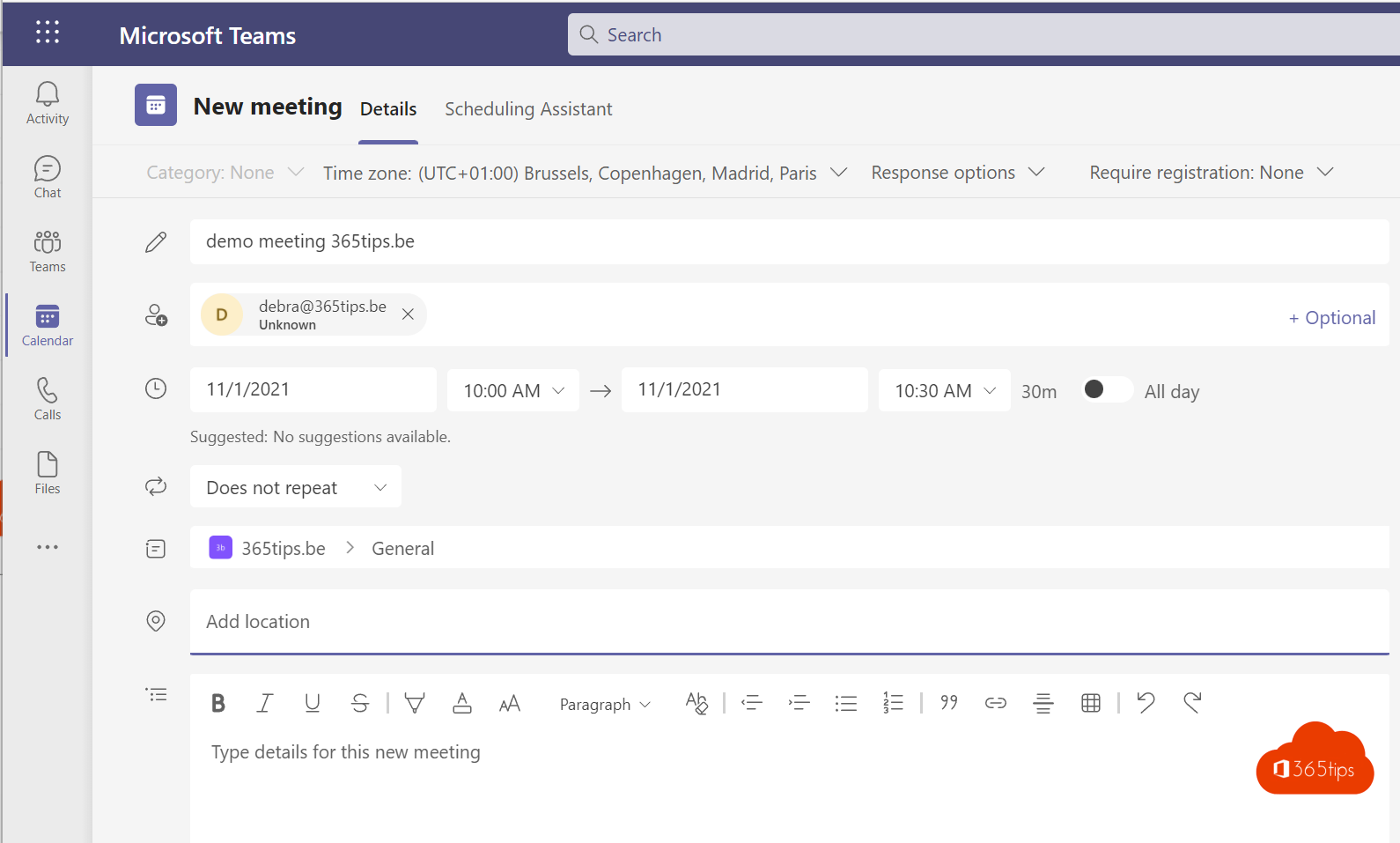
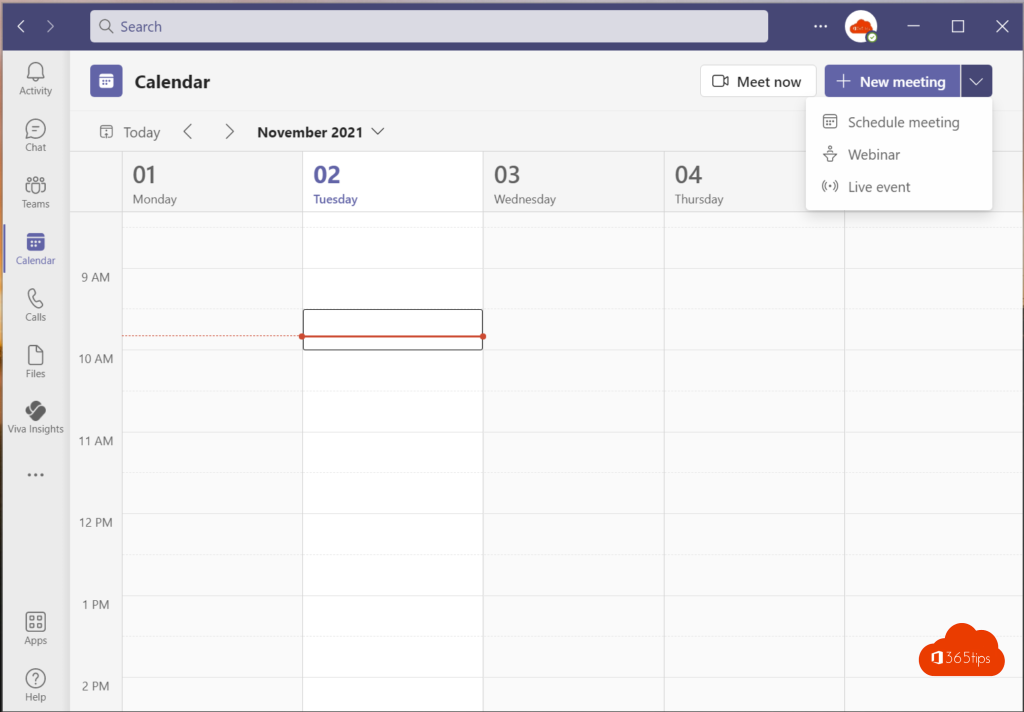
- Open Calendar and select New meeting.
- Enter a title and add attendees, including external email addresses.
- Choose date and time. The Scheduling Assistant shows when everyone is free.
- Optionally choose Repeat for a recurring meeting.
- Add an agenda in the description and select Send.
In Outlook
Create a new appointment or meeting and turn on Teams meeting (in the new Outlook, the toggle is at the top). The link is added automatically.
Share the link
Open the meeting in your calendar and select Copy link (or right-click the meeting). Paste the link in an email, chat or on your website.
Other ways
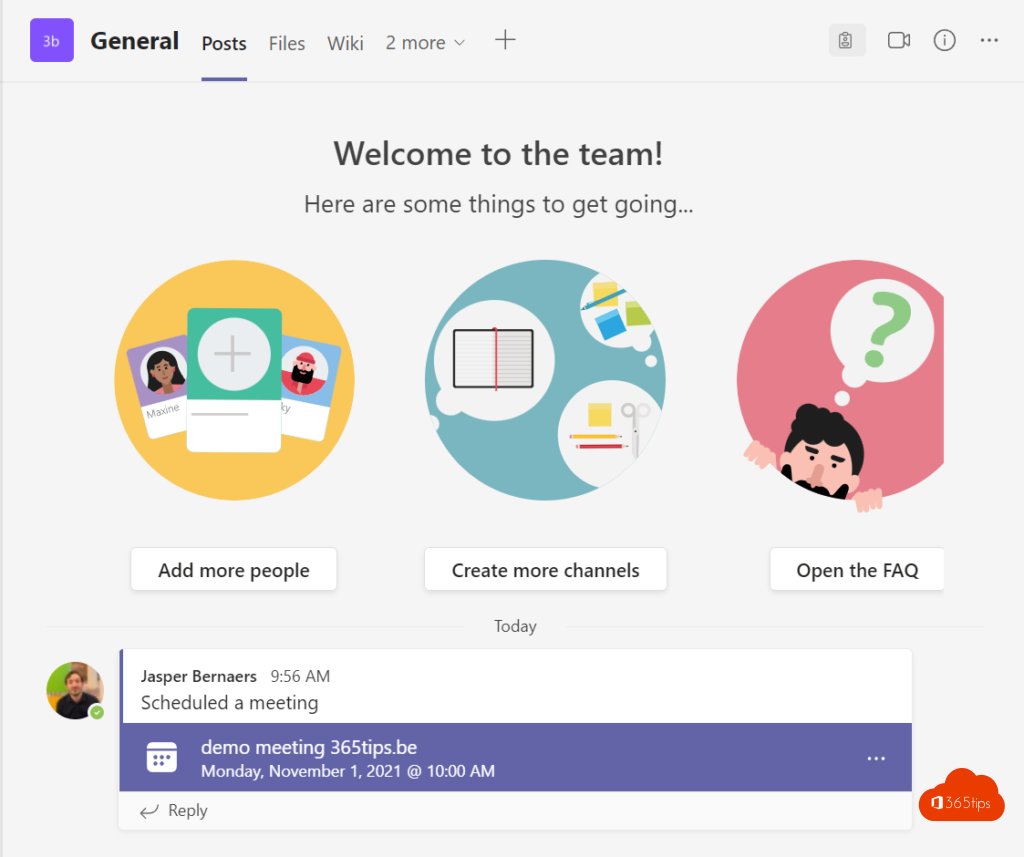
- Channel meeting: under Add channel, choose a channel. Everyone in the team sees the meeting and the chat lives in the channel.
- Meet now: select Meet now in Calendar for a spontaneous meeting and share the link.
- Webinar or town hall: for larger audiences. Read host a webinar.
- Find a time with external people: use a scheduling poll.
Next: meeting options
After scheduling, select Options to set the lobby, presenters, recording and chat. Read meeting roles in Teams.
Nederlandstalige versie: Een Microsoft Teams-vergadering inplannen in je agenda
Related articles
▸Schedule a Teams meeting and share the link in one clickCopy the link or join info of a Teams meeting, or create a link right away with Meet now.
▸Block or allow channel meetings in Microsoft TeamsUse a meeting policy to decide whether users can schedule or start meetings in channels.
▸Schedule and host a webinar with Microsoft TeamsRun a webinar in Microsoft Teams with a registration page, speakers, Q&A and reports. Plus how it compares to…
▸From Teams Live Events to town halls: plan a large eventTeams Live Events are retired. Learn what a town hall is, how to schedule one and what admins need to allow.
▸Invite a distribution list or Microsoft 365 group to a Teams meetingInvite a whole department with a distribution list or Microsoft 365 group, and see how replies, the lobby and…