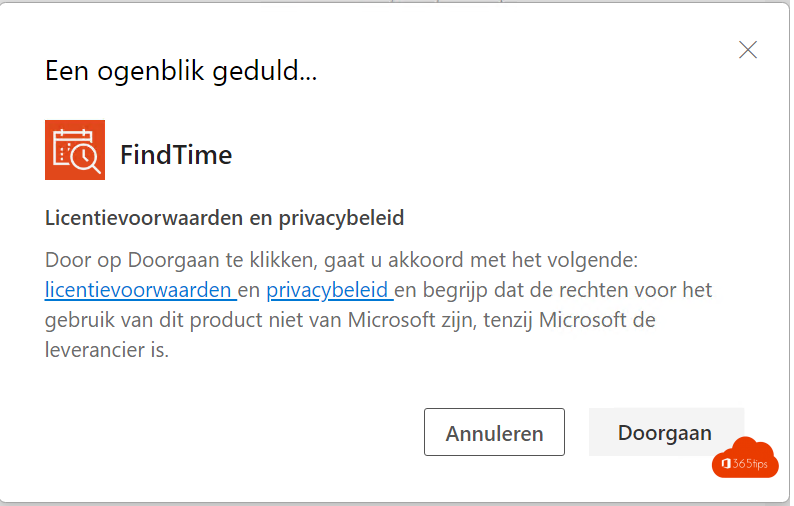
Scheduling a meeting with five busy people, two of them outside your organization, quickly turns into an endless email thread. FindTime solved that with a vote on possible times. Today the feature is called Scheduling poll and it's built into Outlook. This article shows how to create a poll, how attendees vote, which options you have and what an admin does when the button is missing.
Create a scheduling poll
- Create a new email and add the attendees in To. Don't use a meeting invite: the poll starts from an email.
- Select Scheduling poll on the ribbon. In the new Outlook and on the web, the button may be under Apps or ....
- Choose the meeting duration. Outlook suggests times based on colleagues' calendars; external attendees have no availability.
- Select the times you want to propose and choose whether it's a Teams meeting.
- Select Next and then Insert to email. The poll appears as a block in your email.
- Send the email.

Useful options
| Option | What it does |
|---|---|
| Schedule when attendees reach consensus | Outlook books the meeting automatically once all required attendees agree on a time |
| Hold times on calendar | Places tentative holds in your calendar for all proposed times, so nobody books them meanwhile |
| Notify me on each vote | You get an email every time someone votes |
| Lock poll | Attendees can't propose new times |
| Require attendees to verify identity | Attendees must confirm who they are before voting |
How do attendees vote?
Attendees select Vote in the email. A web page opens with the proposed times, where they choose Yes, If need be or No per time. They don't need a Microsoft 365 account: external attendees with Gmail can vote too. They also see what others chose.
Schedule the meeting
If automatic scheduling is off, open the poll from the link in your email, or in Outlook via Scheduling poll > My polls. Pick the time with the most votes and select Schedule. Outlook sends a regular meeting invitation to everyone and removes the tentative holds.
For admins: button missing
- In the new Outlook and on the web, Scheduling poll is available by default for Exchange Online mailboxes.
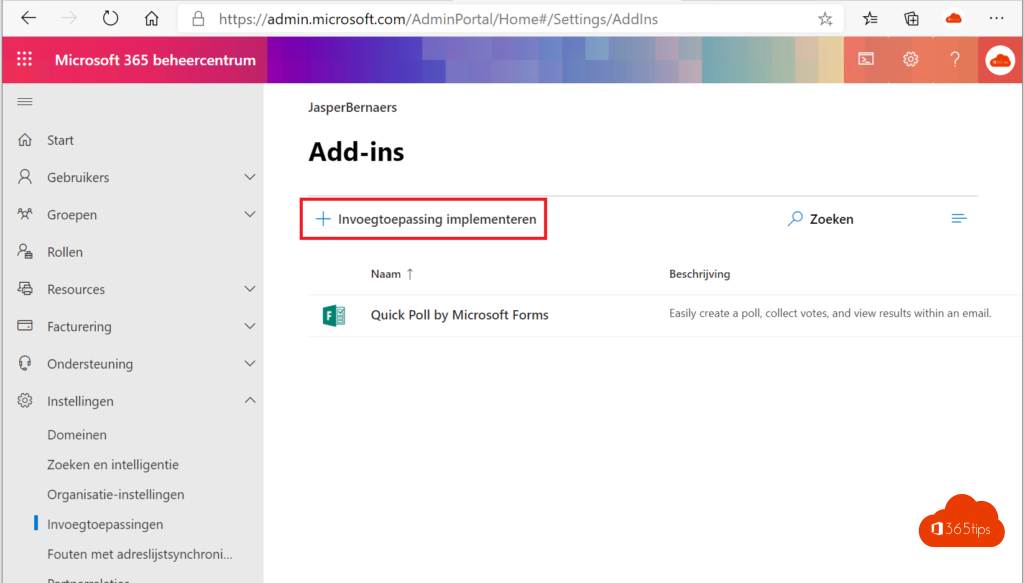
- If the button is missing in classic Outlook, deploy the add-in via the Microsoft 365 admin center > Settings > Integrated apps > Get apps, search for Scheduling Poll and assign it to the whole organization. It can take up to 24 hours to appear.
- Also check that users are allowed to use add-ins in their Exchange Online user role policy.
Read also
Share an Outlook email to a Teams chat or channel
How to record and transcribe a Teams meeting automatically from the start
Who can bypass the lobby in Microsoft Teams: every option explained
Nederlandstalige versie: Een planningspeiling (vroeger FindTime) gebruiken in Outlook