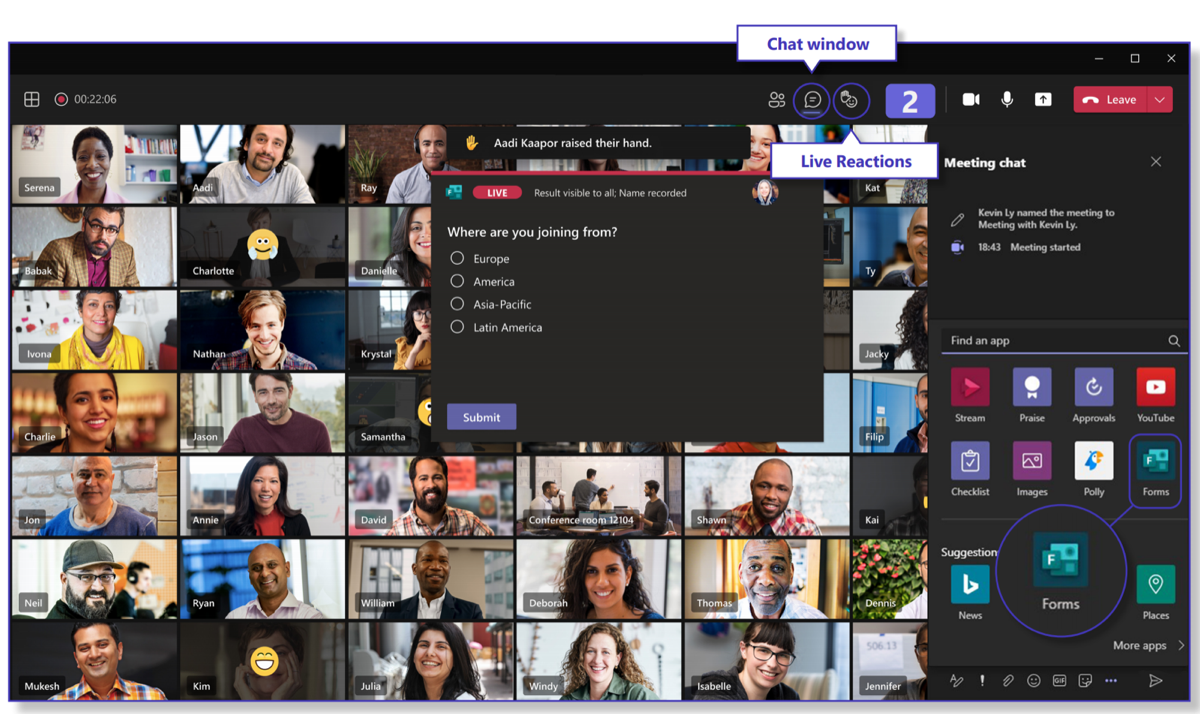
A product demo, an information session or a training for external people: with a webinar in Microsoft Teams, attendees register in advance, you present with a team of speakers and you get a report afterwards. This article shows how to create a webinar, what the registration page does and when a town hall is the better choice.
Create a webinar
- Open Calendar in Teams.
- Select the arrow next to New meeting > Webinar.
- Fill in title, date, time, description and speakers, including external speakers.
- Choose whether the webinar is public (anyone with the link) or only for your organisation.
- Select Save. Teams automatically creates a registration page.
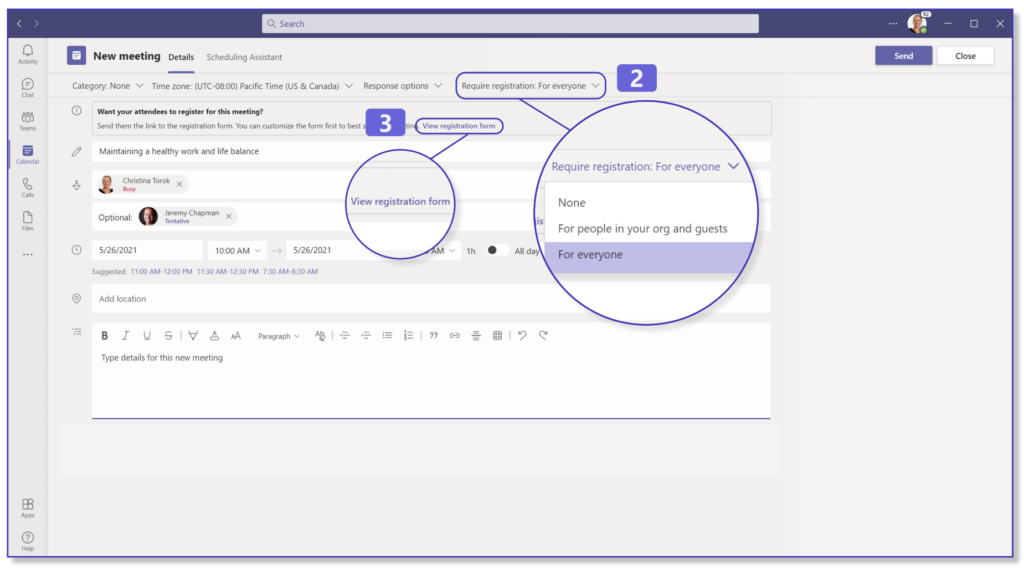
The registration page
- Customise the page with a banner, logo and a short text about the speakers.
- Add extra questions, such as company or job title.
- Select Publish site and Copy registration link to share it.
- After registering, attendees automatically get a confirmation with a personal link.

During the webinar
- Attendees are muted with cameras off by default. Read mute everyone.
- Use Q&A for questions and polls for interaction.
- Let a co-organizer manage the lobby and questions.
Afterwards
The Reports tab shows who registered and who attended. Read the attendance report. Send a recording to those who couldn't make it.
Webinar, town hall or Premium?
| Type | Best for |
|---|---|
| Webinar | Up to 1,000 attendees with interaction and registration |
| Town hall | Large presentations for thousands of viewers, limited interaction |
| Teams Premium | Waitlist, registration approval, custom emails, green room and more |
Read also
Collect questions with Q&A in Microsoft Teams meetings
Track attendance with the Microsoft Teams attendance report
The co-organizer role in a Microsoft Teams meeting
Nederlandstalige versie: Een webinar inplannen en hosten met Microsoft Teams
More in English
▸Collect questions with Q&A in Microsoft Teams meetingsTurn on Q&A in a Teams meeting, town hall or webinar. Attendees ask and upvote questions; you moderate and…
▸Create polls in Microsoft Teams with Polls and Microsoft FormsCreate a poll in a Teams chat, channel or meeting with the Polls app. Prepare questions, use quizzes and word…
▸Record, find and share a Microsoft Teams meetingRecord a Teams meeting with transcription. Who can record, where the recording is stored in OneDrive or…
▸Everything about breakout rooms in Microsoft TeamsCreate breakout rooms in a Teams meeting, assign attendees, set a timer, use room managers and bring everyone…