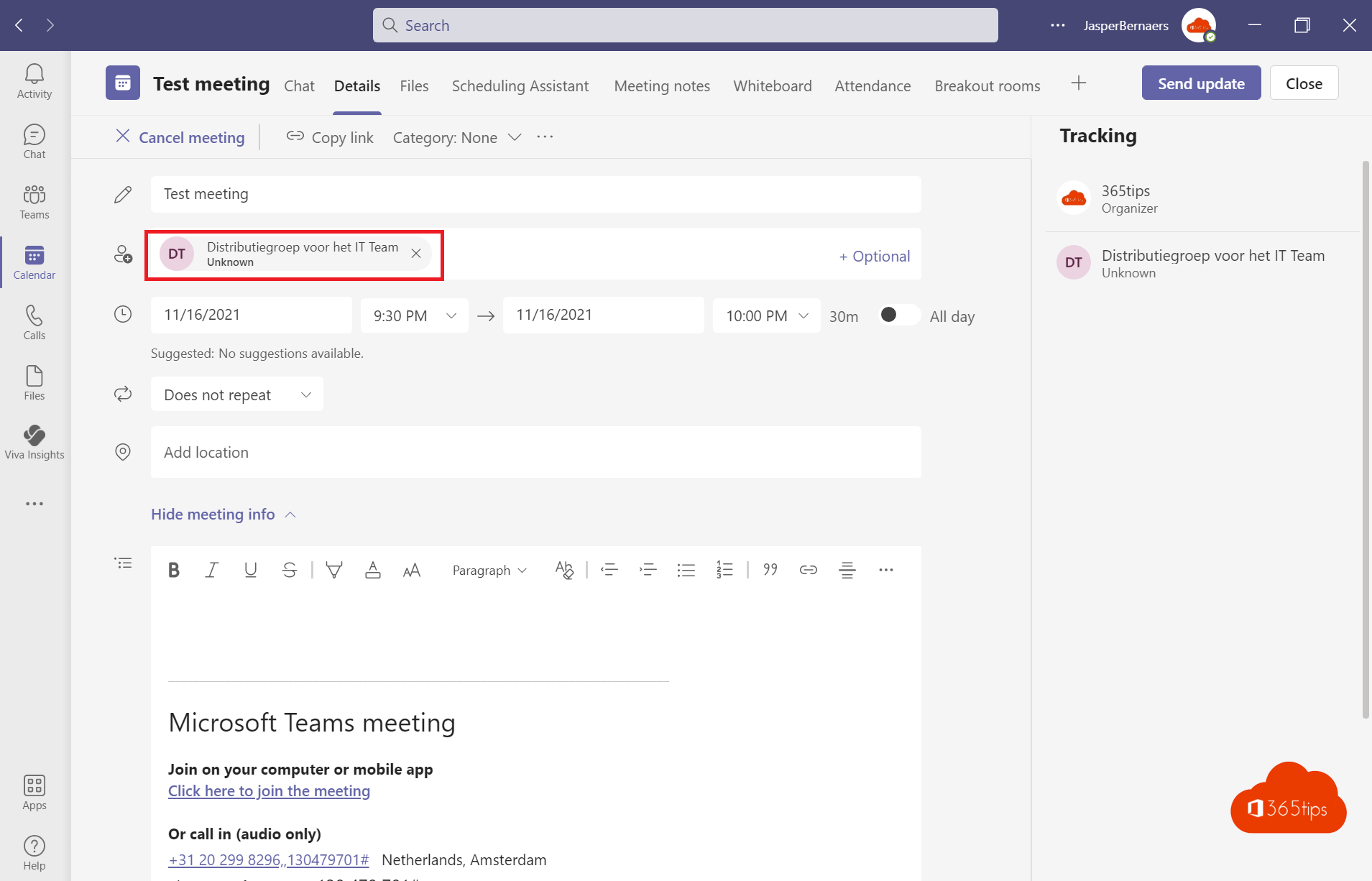
Scheduling a meeting for a whole department doesn't have to mean fifty separate names. Just add a distribution list or Microsoft 365 group as an attendee. Everyone in the group gets the invitation with the Teams link.
Invite a group
- Create a new meeting in Teams or Outlook.
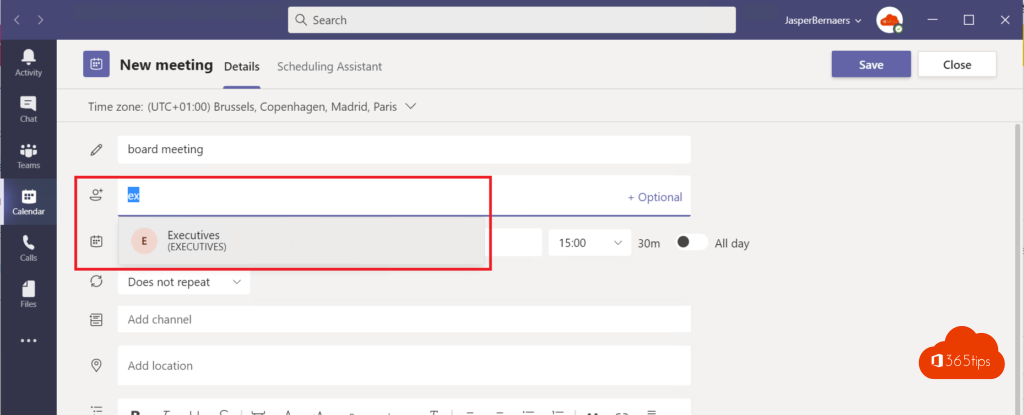
- In the attendees field, type the name or email address of the distribution list or Microsoft 365 group.
- Fill in the rest and select Send.

Expand a group
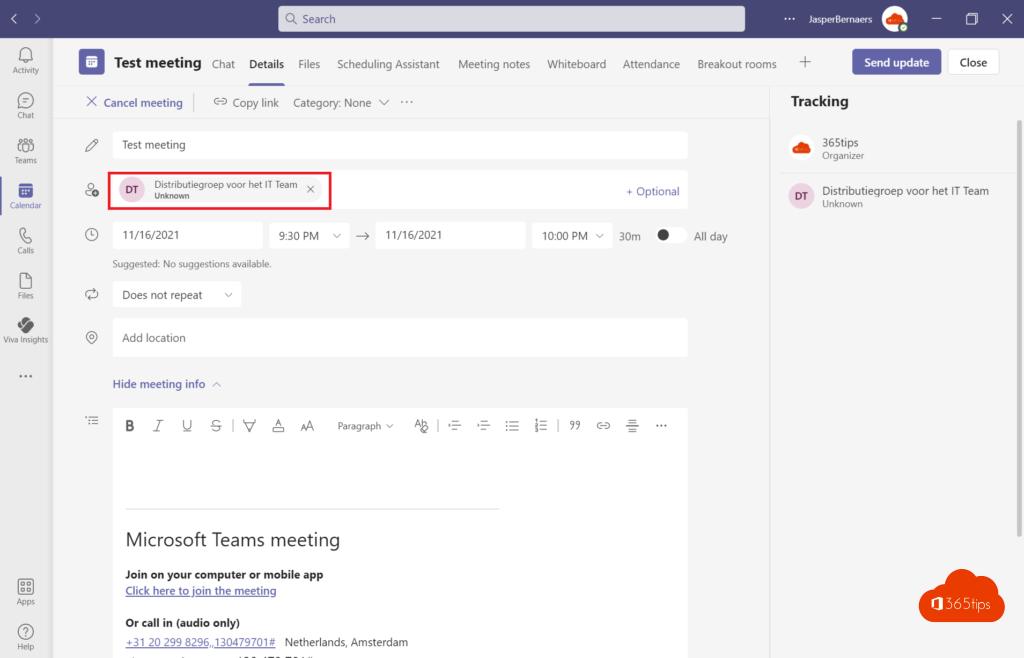
In Outlook you can select the plus sign next to a distribution list to put its members on the invite one by one. Then you see per person who accepted. That works best with smaller groups.
Good to know
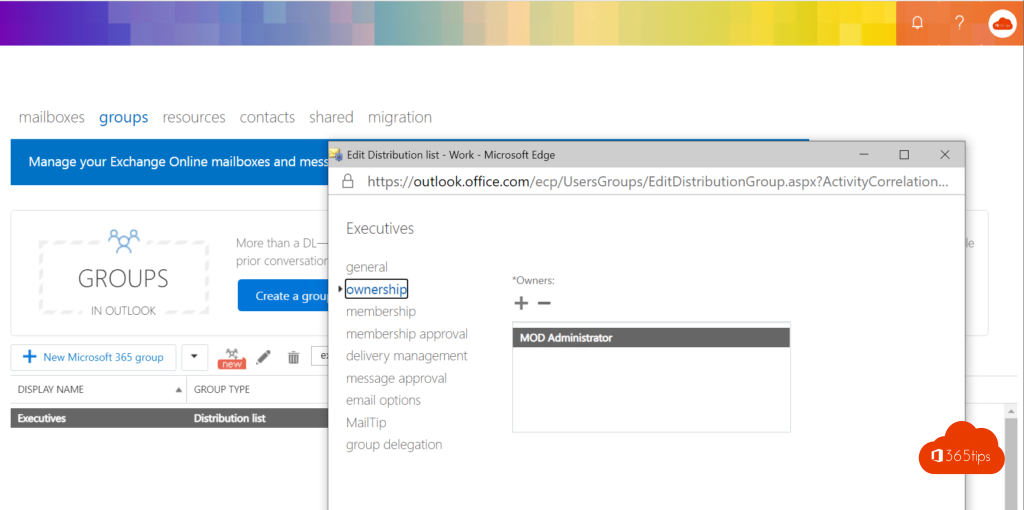
- Group members can skip the lobby when they count as People I invite.
- New members who join the group later don't automatically get an existing recurring meeting in their calendar.
- For a Microsoft 365 group, the meeting also lands in the group calendar when you add the group as an attendee.
- For a meeting with a fixed team you can also schedule a channel meeting.
Also see create a distribution list in Microsoft 365 and dynamic distribution groups.
Read also
How to create a distribution list in Microsoft 365 and use it in Teams
Create a dynamic distribution group in Exchange Online
Schedule a Microsoft Teams meeting in your calendar
Nederlandstalige versie: Een distributielijst of Microsoft 365-groep uitnodigen voor een Teams-vergadering