Want to quickly see someone instead of writing a long email? With Microsoft Teams you start a video call with one colleague or a whole group in a few clicks, on your computer or phone. This guide shows how.
Video call from a chat
- Open the chat with your colleague or with a group.
- Select the camera icon (Video call) at the top right. For audio only, choose the phone icon.
- The others get a call and answer with video or audio only.
Or start a meeting
For more people or a fixed time, a meeting works better. In the Calendar, select Meet now for a meeting that starts right away, and share the link. Read schedule a Teams meeting.
During the call
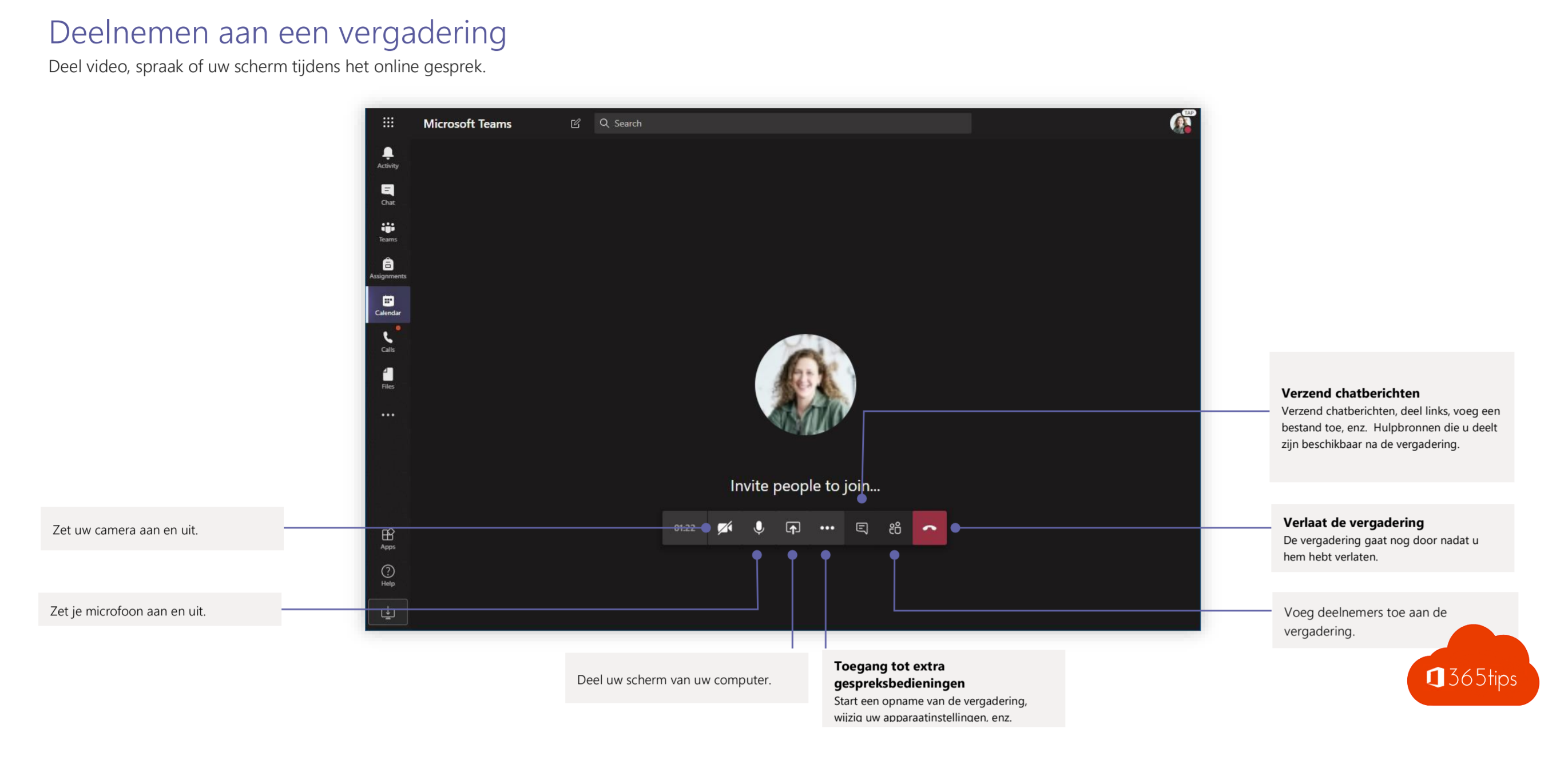
- Turn the camera and microphone on or off.
- Blur or replace your background via Video options. See custom backgrounds in Teams.
- Share to show your screen or a PowerPoint.
- People to add someone else.
On your phone
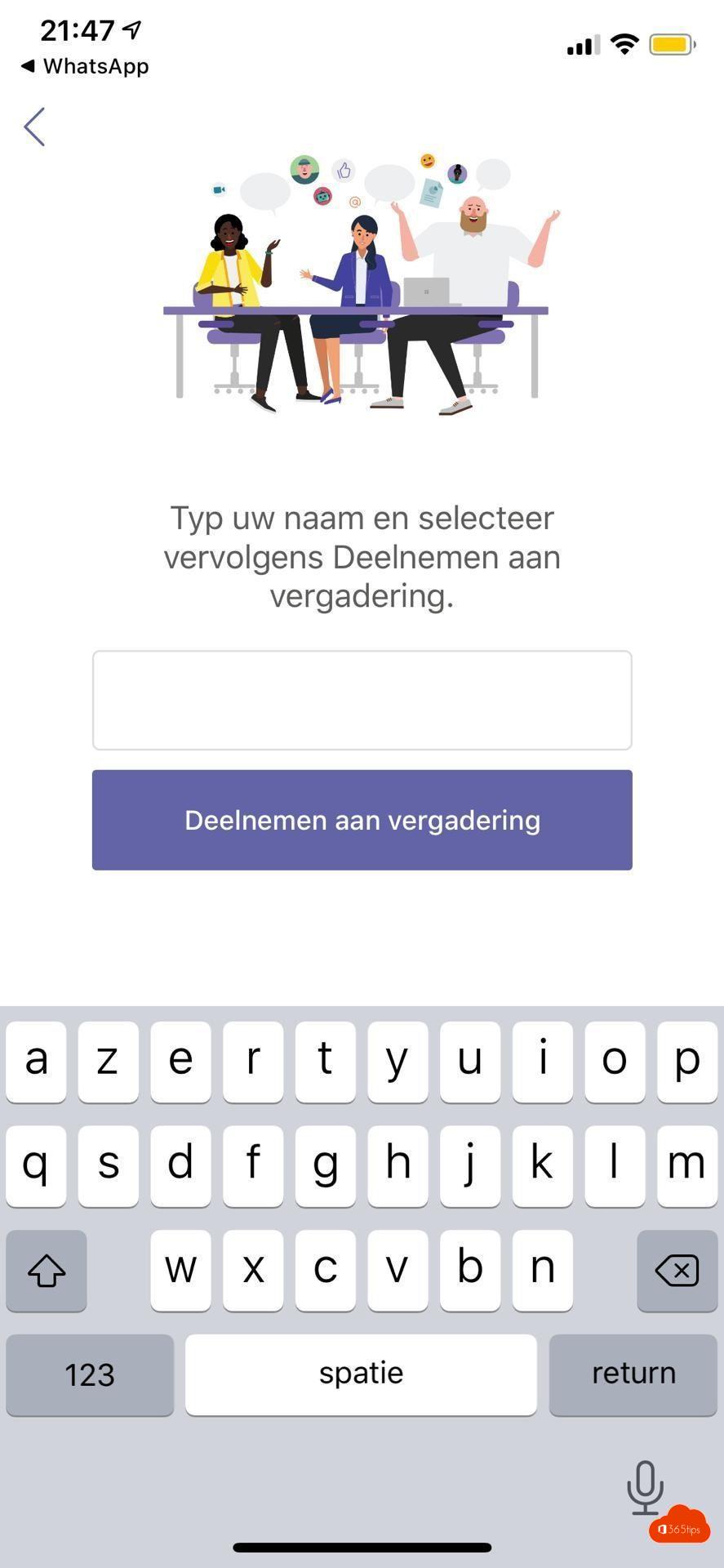
The Teams mobile app works the same way: open a chat and tap the camera icon. Use headphones for the best sound.
Tips for a good call
- Put your camera at eye level and make sure the light comes from the front.
- Use noise suppression in a noisy environment.
- Test your camera and sound beforehand via Settings > Devices > Make a test call.
Also see make phone calls with Teams.
Read also
Phone calls with Microsoft Teams: everything you need to know
Schedule a Microsoft Teams meeting in your calendar
Set up noise suppression and voice isolation in Microsoft Teams
Nederlandstalige versie: Videobellen met Microsoft Teams: zo werkt het