Is your PC slow, cluttered or are you passing it on to someone else? Then reset Windows 11 to factory settings. Windows reinstalls itself, with or without your personal files. This article explains which option to choose, how it works and what to sort out first.
Before you start
- Make a backup of your files, for example with OneDrive backup.
- Write down your BitLocker recovery key; you may need it.
- Plug your laptop into power.
- Installed programs are removed. You'll need to reinstall them afterwards.
Reset Windows 11
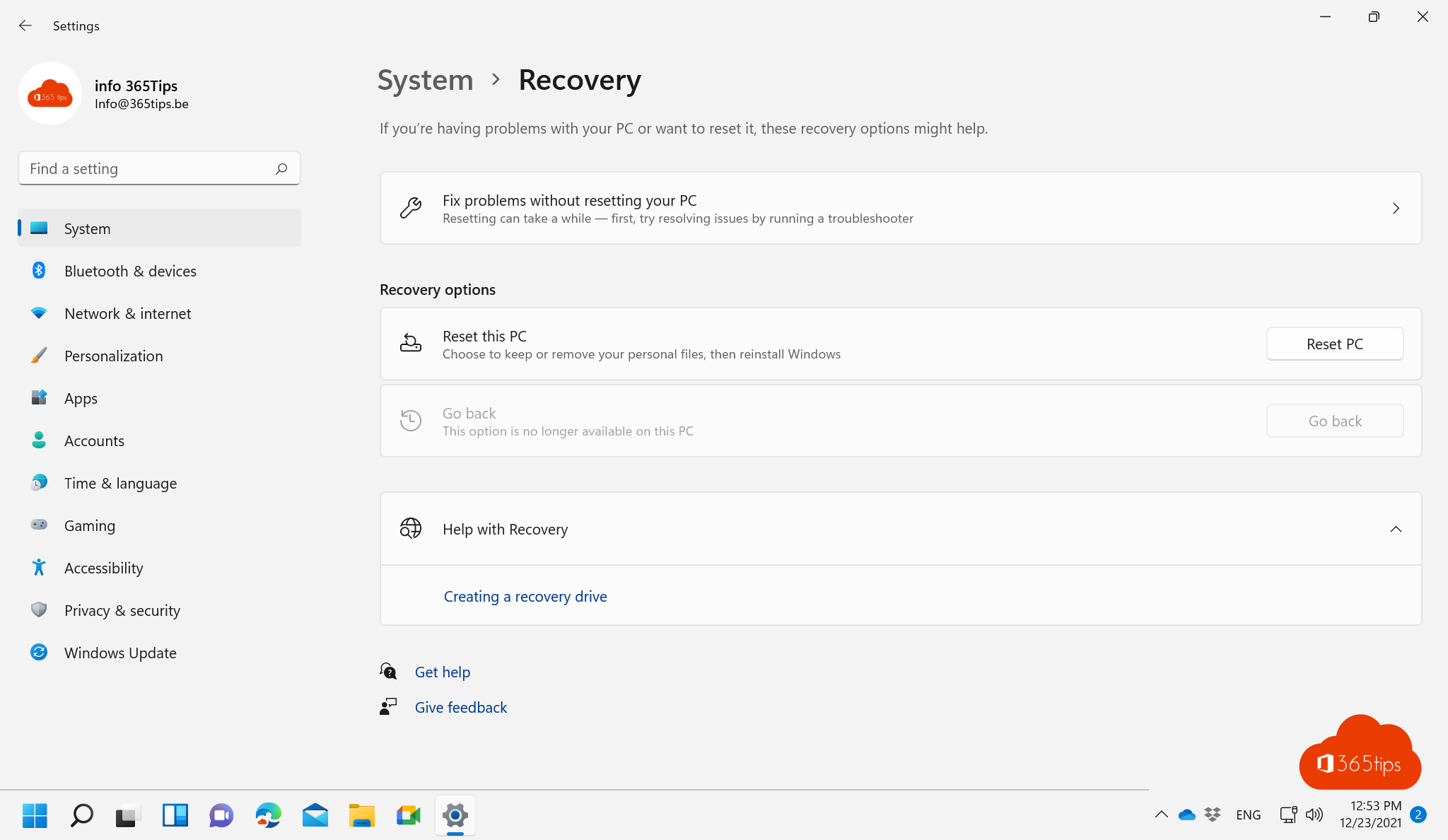
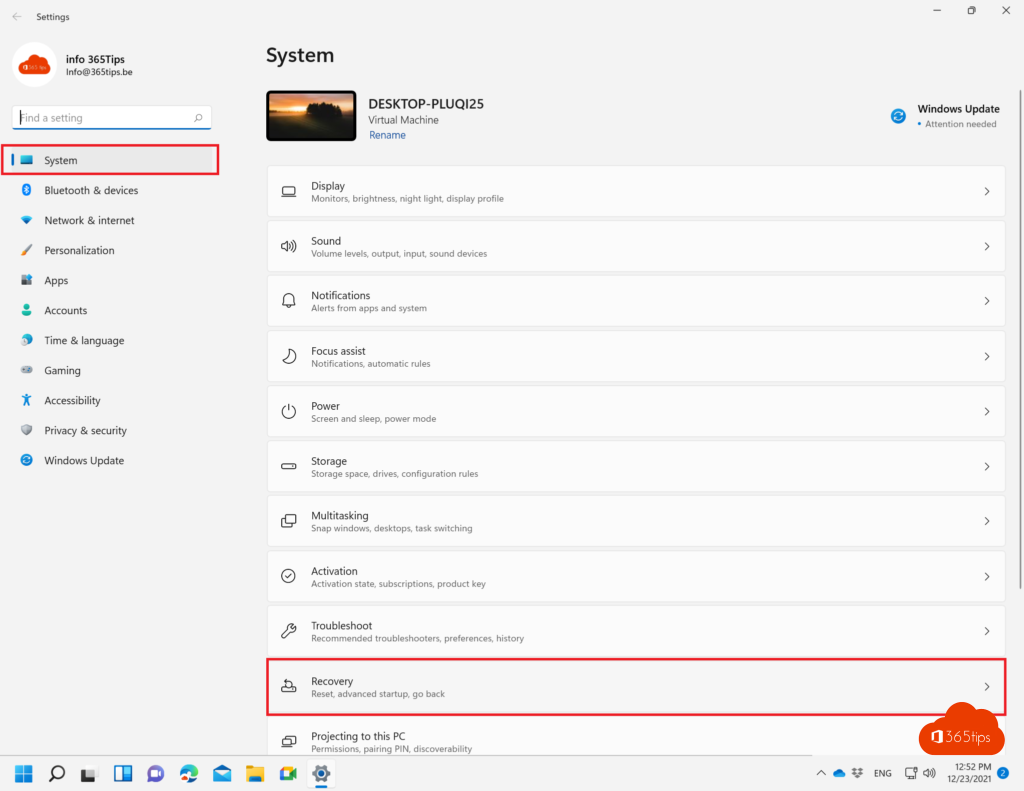
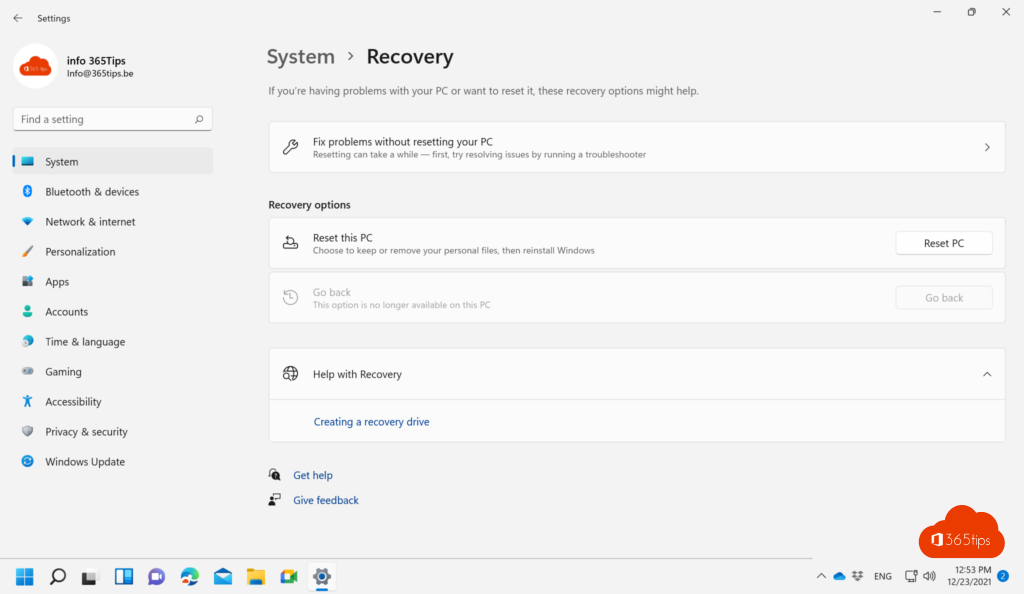
- Open Settings > System > Recovery.
- Next to Reset this PC, select Reset PC.
- Choose Keep my files or Remove everything.
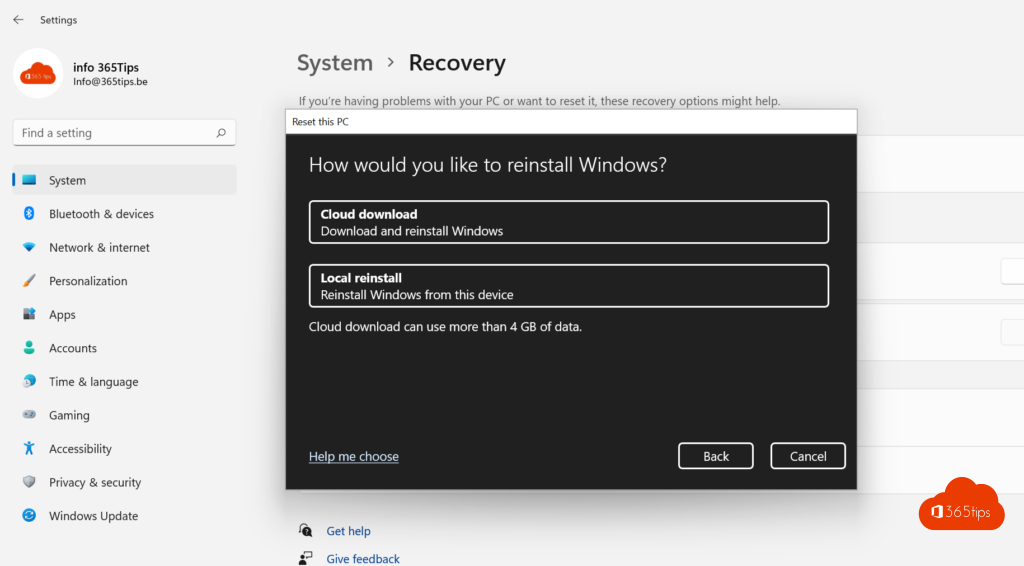
- Choose Cloud download (a fresh copy of Windows, about 4 GB) or Local reinstall (faster, using files on your PC).
- Giving the PC away? Under Additional settings, also choose Clean data. It takes longer but makes recovering your files practically impossible.
- Select Reset. The PC restarts a few times.
Windows won't start?
On the sign-in screen, hold Shift and select Power > Restart. Then choose Troubleshoot > Reset this PC. If that doesn't start either, use an installation USB.
Work laptop?
A work device in Intune is better reset from the admin center: Wipe or Autopilot Reset. The PC then comes back under management with the right settings and apps. Read Windows Autopilot explained.
Read also
Create a bootable Windows 11 USB drive
Turn on BitLocker in Windows 11 and keep your recovery key safe
Windows Autopilot: what it is and how to set it up in 4 steps
Nederlandstalige versie: Een Windows 11-pc terugzetten naar de fabrieksinstellingen