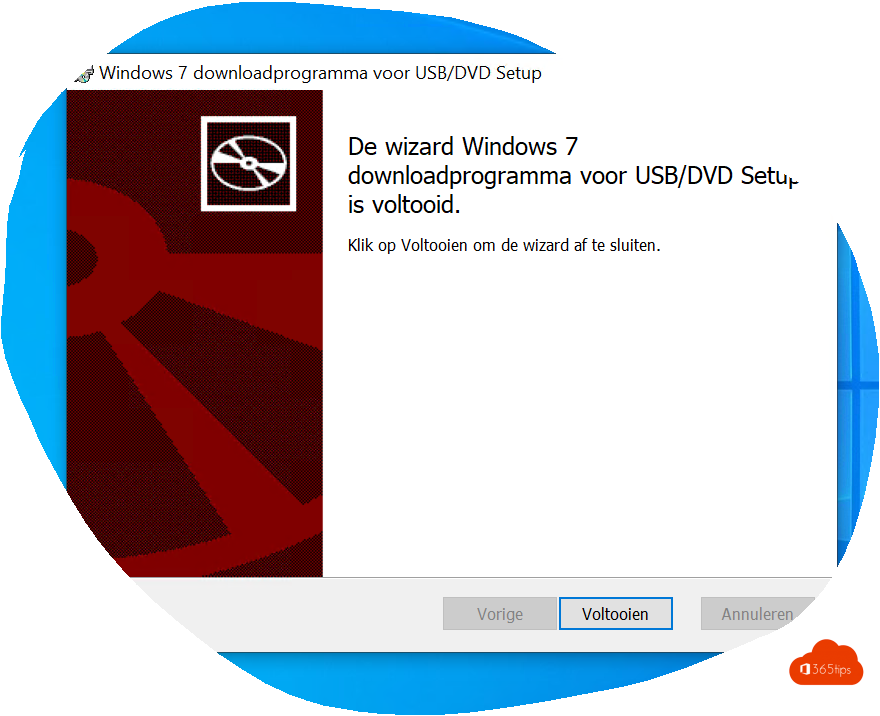
A bootable USB drive with Windows is the handiest tool for a clean install, setting up a PC without an operating system, or repairing a computer that no longer starts. With Microsoft's Media Creation Tool you create one for free in a few clicks. This article covers what you need, how to create the drive for Windows 11, how to boot from it and what to do when it doesn't work.
What do you need?
- A USB drive of at least 8 GB. Everything on it will be erased.
- A working Windows PC with internet to create the drive.
- A license for the PC you install on. A PC that was already activated with Windows 10 or 11 usually reactivates automatically.
Create the USB drive
- Go to microsoft.com/software-download/windows11.
- Under Create Windows 11 Installation Media, select Download Now and open mediacreationtool.exe.
- Accept the license terms.
- Choose the language and edition. Clear Use the recommended options for this PC if you're making the drive for another PC or in another language.
- Choose USB flash drive, select your drive and select Next.
- The tool downloads Windows and writes the drive. That takes 15 to 45 minutes depending on your connection.

Boot from the USB drive
- Plug the drive into the PC you want to install and turn it on.
- Immediately press the boot menu key repeatedly: often F12, F11, Esc or F9, depending on the brand.
- Pick the USB drive (often with UEFI in the name).
- Follow setup: language, Install now, product key (or I don't have a product key), and choose Custom for a clean install.
Alternative: Rufus and an ISO file
The same download page also offers an ISO file. The free tool Rufus writes that ISO to a USB drive. Rufus is handy when you want more control over the partition scheme or need to prepare several drives. Only download Rufus from its official website, rufus.ie.
Troubleshooting
- The PC doesn't boot from the drive: enable USB boot in the UEFI/BIOS settings, or move the drive to the top of the boot order.
- "This PC doesn't meet the requirements": Windows 11 needs TPM 2.0, Secure Boot and a supported processor. Check with the PC Health Check app.
- The Media Creation Tool stops with an error code: try another USB port or drive, temporarily disable your antivirus and run the tool as administrator.
- The drive only shows a few MB afterwards: reformat it in Disk Management or with diskpart > clean.
Want to upgrade an existing PC instead of a clean install? See upgrade with the Windows 11 Installation Assistant.
Read also
Upgrade from Windows 10 to Windows 11 with the Installation Assistant
How to update drivers in Windows 11 and 10
How to pause or delay Windows 11 updates and prevent restarts
Nederlandstalige versie: Een opstartbare USB-stick met Windows 11 maken