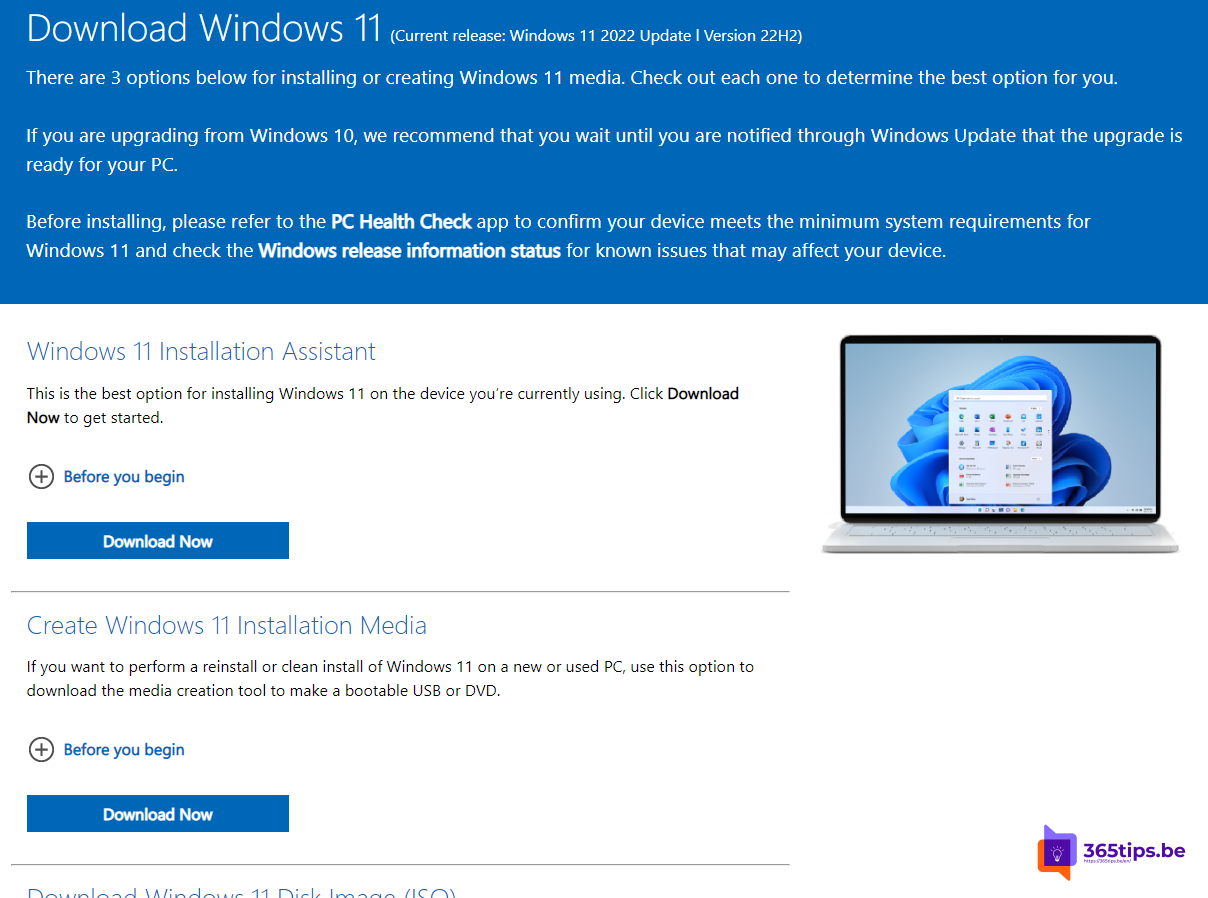
Waiting for a new version of Windows 11 that doesn't show up in Windows Update yet? Or is the automatic update stuck? Then you can download and install the latest version yourself with the Windows 11 Installation Assistant. Your files and apps are kept. The assistant always installs the newest Windows 11 version; older versions such as 22H2 no longer receive updates.
Which version do you have?
Press Windows + R, type winver and press Enter. You'll see the version, for example 24H2 or later.
First: Windows Update
- Go to Settings > Windows Update.
- Turn on Get the latest updates as soon as they're available if you want new features quickly.
- Click Check for updates. If the new version appears, choose Download & install.
Manually with the Installation Assistant
- Go to the official Windows 11 download page on microsoft.com.
- Under Windows 11 Installation Assistant choose Download Now.
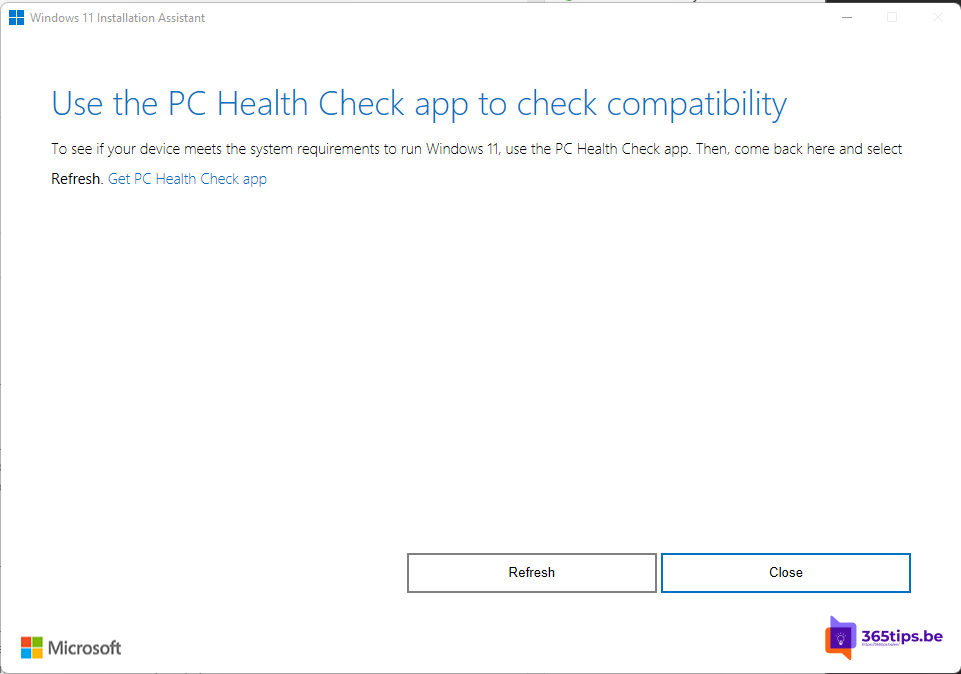
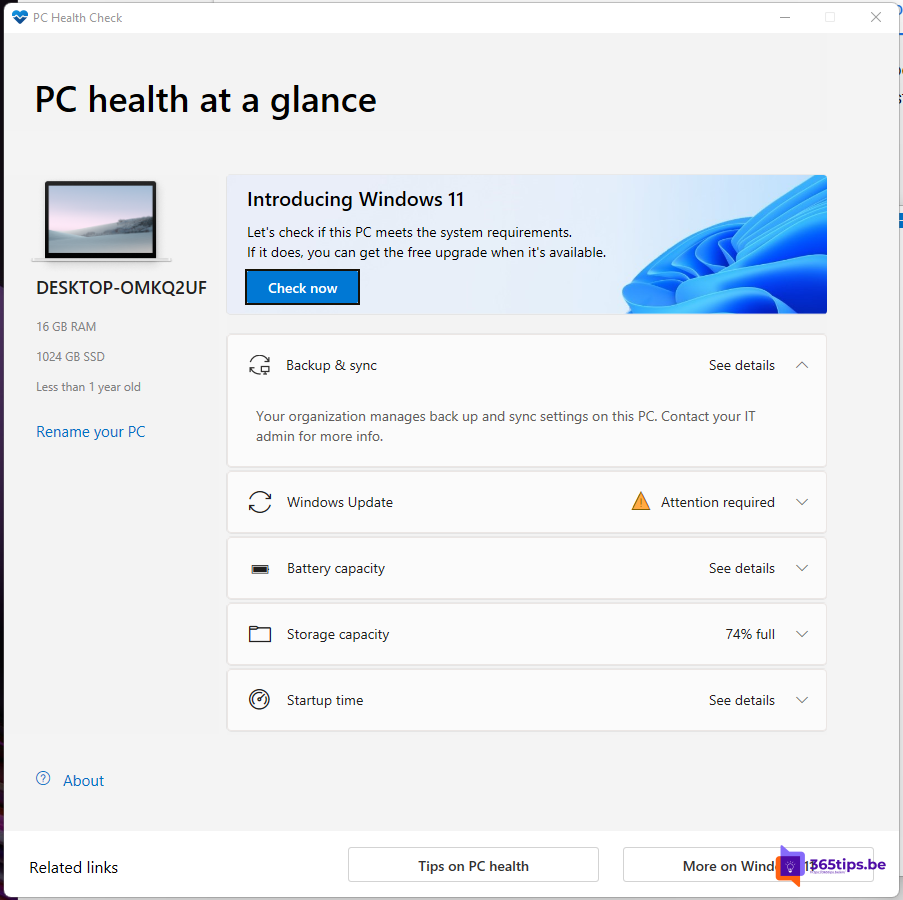
- Run the file. The assistant checks whether your PC is compatible. If it asks for the PC Health Check app, install it and click Check now.
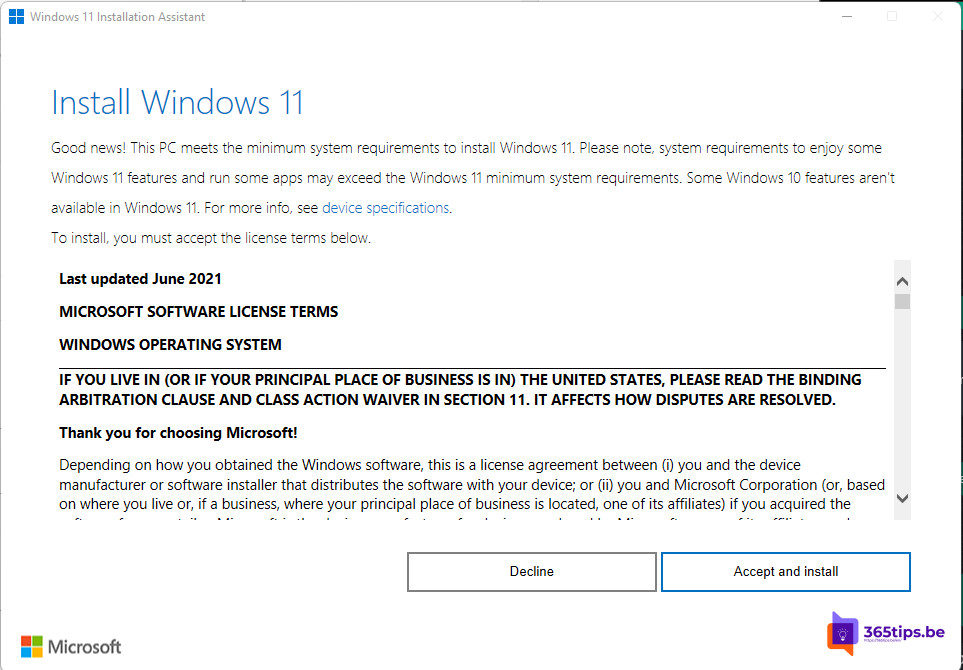
- Click Accept and install.
- The assistant downloads, verifies and installs the update. You can keep working until it asks you to restart.

Tips
- Make a backup first or make sure your files are in OneDrive.
- Plug a laptop into power.
- On a work PC your IT department often decides when a new version arrives, for example through Intune. Follow their arrangements.
- Prefer a clean install? Use an ISO file or a USB drive instead.
Also see upgrade with the Windows 11 Installation Assistant and install Windows 11 from an ISO.
Read also
Upgrade from Windows 10 to Windows 11 with the Installation Assistant
Install or upgrade Windows 11 with an ISO file
How to pause or delay Windows 11 updates and prevent restarts
Nederlandstalige versie: De nieuwste versie van Windows 11 handmatig downloaden en installeren