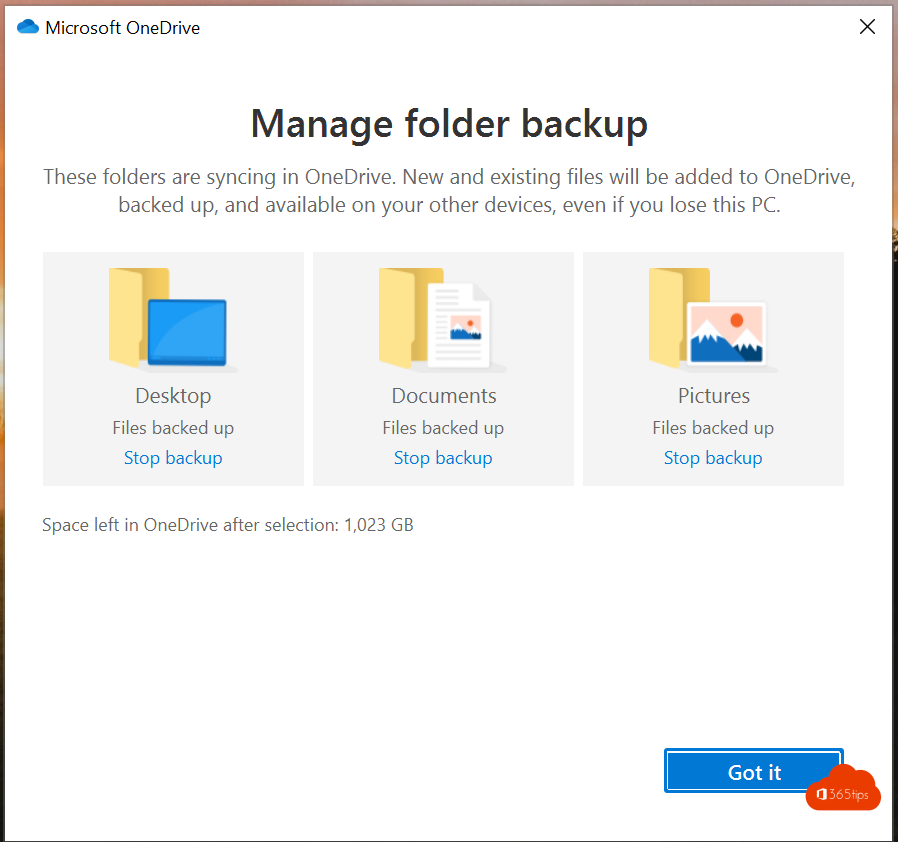
If your laptop crashes or gets stolen, without a backup you lose every file on your desktop. With OneDrive backup (folder backup), your Desktop, Documents and Pictures folders are automatically in the cloud. On a new PC you sign in and everything is back. This article shows how to turn it on.
Turn on backup
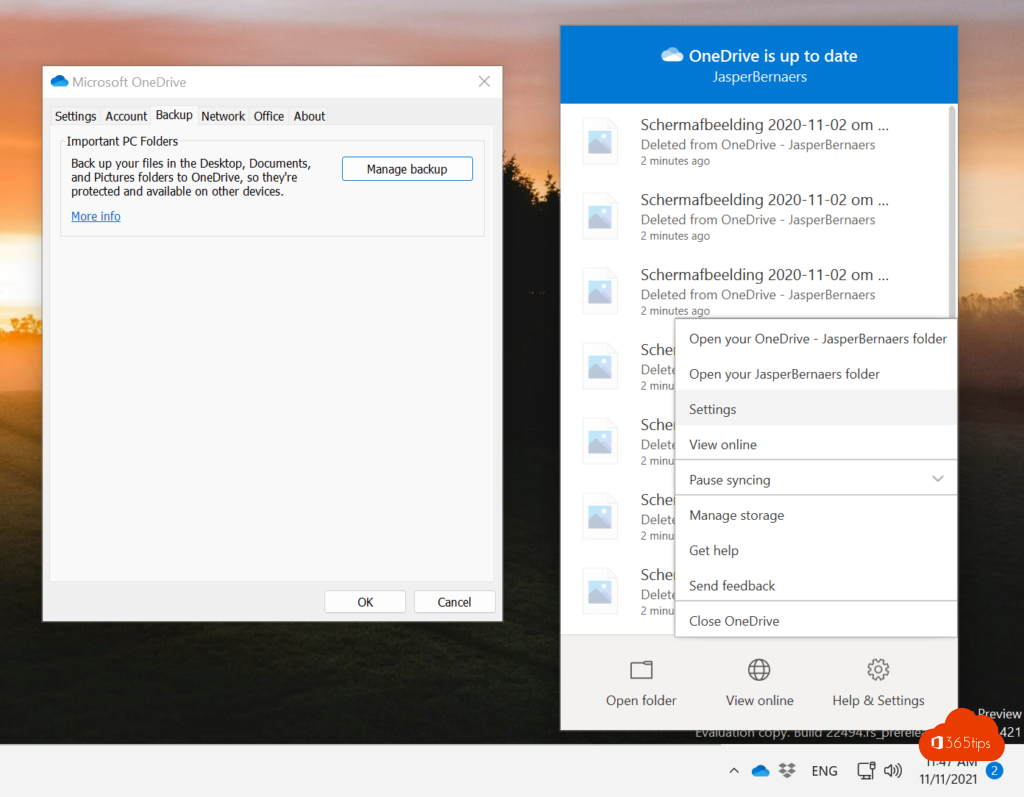
- Select the OneDrive cloud in the system tray > the gear > Settings.
- Open Sync and back up > Manage back up.
- Turn on the folders you want to protect: Desktop, Documents, Pictures and optionally Music and Videos.
- Select Save changes or Start backup.
Your files stay in the same place in File Explorer. They're just in OneDrive as well now.
What does it give you?
- Files are safe from theft, a broken drive or ransomware.
- Open them on any device and at onedrive.com.
- You get version history and a 93-day recycle bin.
- A new PC is ready right after signing in.
Watch your storage
A work account usually has 1 TB or more. A free Microsoft account only has 5 GB. Turn on Files On-Demand so your PC doesn't fill up: rarely used files then live online only.
For admins
Turn on folder backup (Known Folder Move) for everyone automatically through Intune or Group Policy, with the setting Silently move Windows known folders to OneDrive. Users don't need to do anything.
Stop
Go back to Manage back up and turn the folder off. Choose whether to restore the files locally; they stay in OneDrive too. Related: change a user's OneDrive storage.
Read also
Restore an earlier version with version history in OneDrive and SharePoint
Restore deleted OneDrive files up to 93 days after deletion
How to change the OneDrive storage of a single user
Nederlandstalige versie: Automatisch een back-up maken van je bureaublad, documenten en afbeeldingen met OneDrive