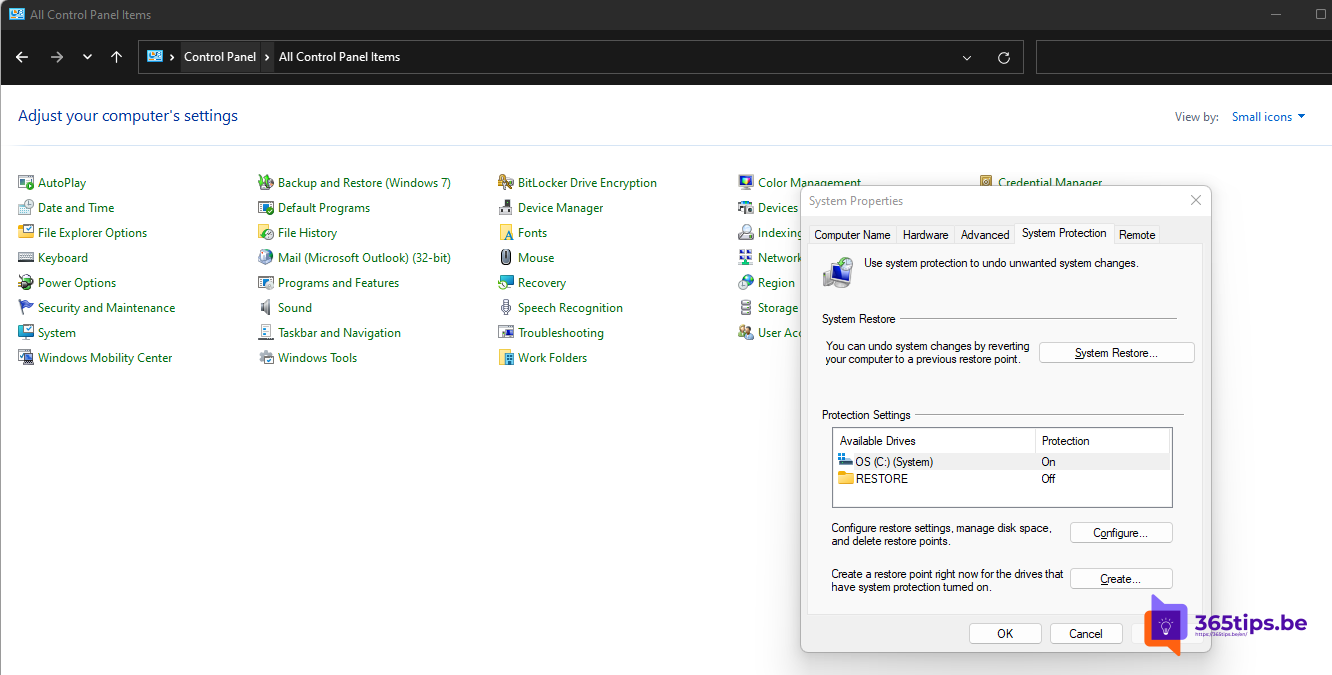
A new driver or update makes your PC unstable? With a system restore point you roll Windows back to an earlier moment without touching your personal files. On many PCs, system protection is off by default. This article shows how to turn it on in Windows 11, create a restore point yourself and roll back.
Turn on system protection
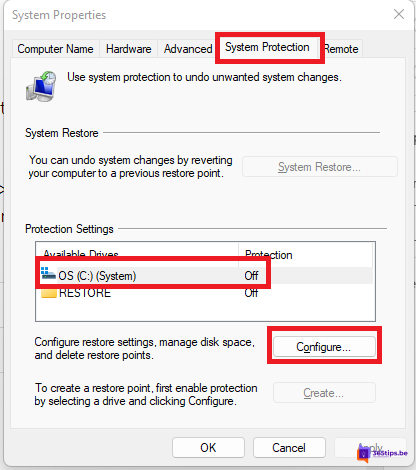
- Search the Start menu for Create a restore point and open it.
- On the System Protection tab, select your system drive (C:) and choose Configure.
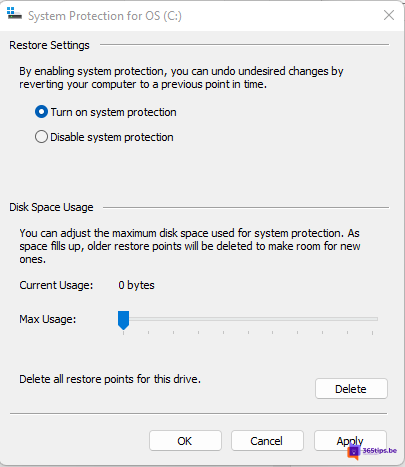
- Select Turn on system protection.
- Set the Max Usage slider to about 5 to 10% of the drive. Older restore points are removed automatically when that space fills up.
- Select OK.
Create a restore point yourself
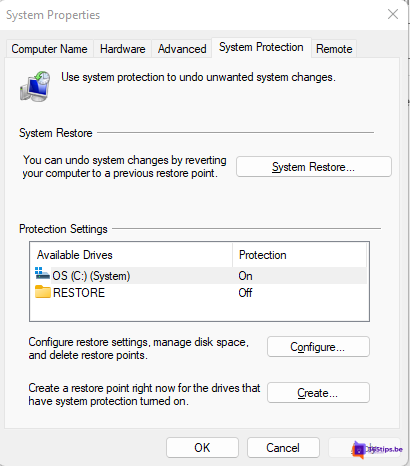
On the same tab, select Create, enter a name such as Before new printer driver and select Create. Windows also creates restore points itself before major updates and driver installs.
With PowerShell
- Turn on: Enable-ComputerRestore -Drive "C:\"
- Create a restore point: Checkpoint-Computer -Description "Before test" -RestorePointType MODIFY_SETTINGS
- List them: Get-ComputerRestorePoint
By default Windows only creates one restore point per 24 hours through PowerShell. See also open a terminal as administrator.
Roll back to a restore point
- Open Create a restore point > System Restore (or type rstrui).
- Choose a restore point. Scan for affected programs shows what will be removed.
- Select Finish. The PC restarts.
Windows won't start? Hold Shift while choosing Restart > Troubleshoot > Advanced options > System Restore.
What it doesn't restore
System Restore doesn't touch your documents, photos or email, so it isn't a backup. If it doesn't help, you can reset Windows to factory settings. Also useful: update drivers and pause Windows updates.
Read also
Reset a Windows 11 PC to factory settings
How to update drivers in Windows 11 and 10
How to pause or delay Windows 11 updates and prevent restarts
Nederlandstalige versie: Systeemherstelpunten inschakelen, maken en gebruiken in Windows 11