
Keeping lots of photos in a team, for example from events or building sites? The default list view only shows file names. With the Tiles view you see thumbnails right away and browse through photos easily. Here's how to set up a handy photo gallery.
Choose the Tiles view
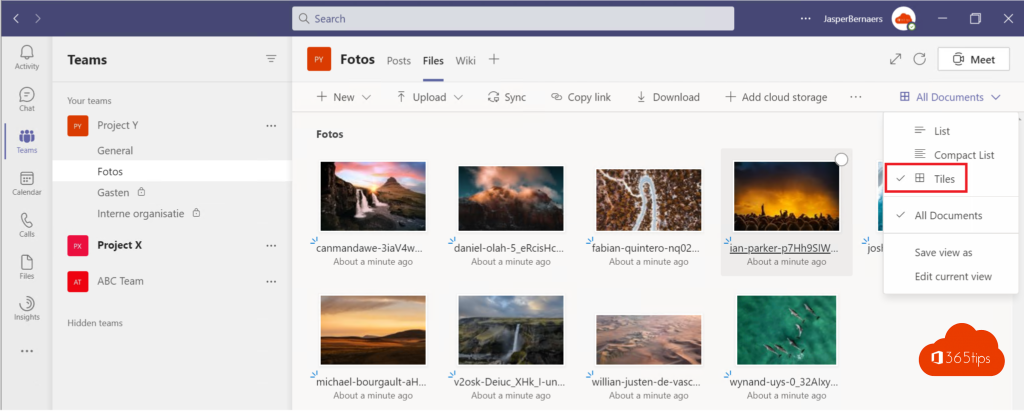
- Open the team and go to the channel with the photos.
- Open the Files (or Shared) tab and go to the photo folder.
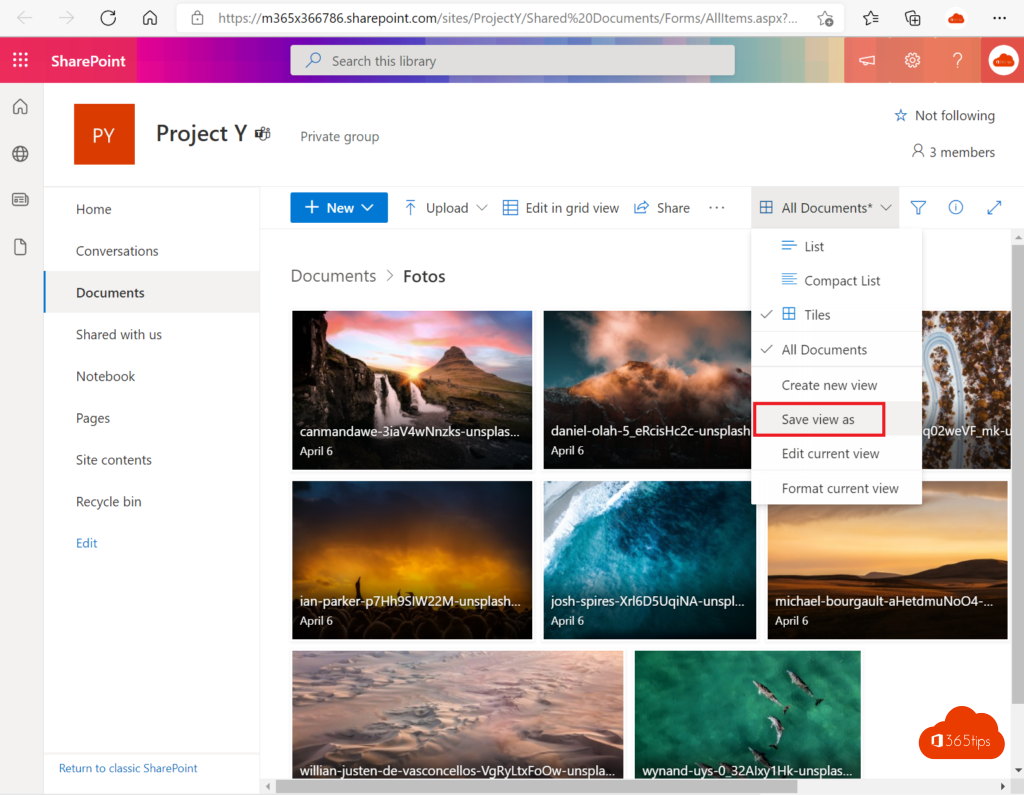
- Click the view icon at the top right and choose Tiles.

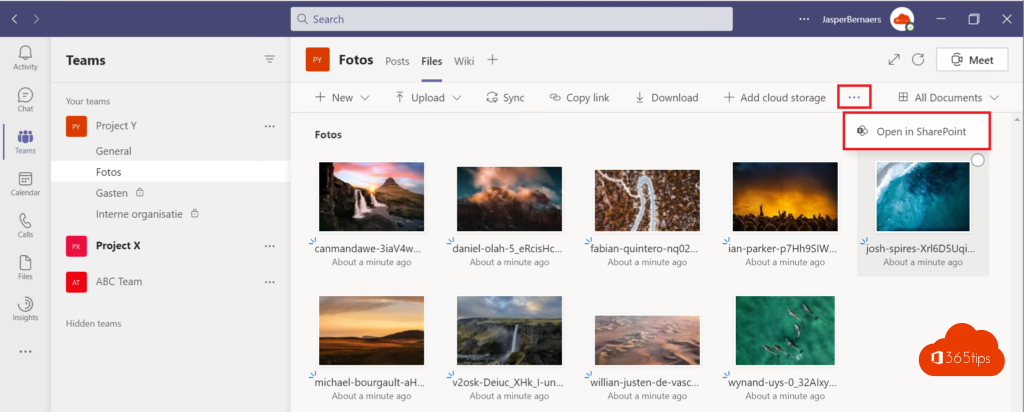
Open in SharePoint
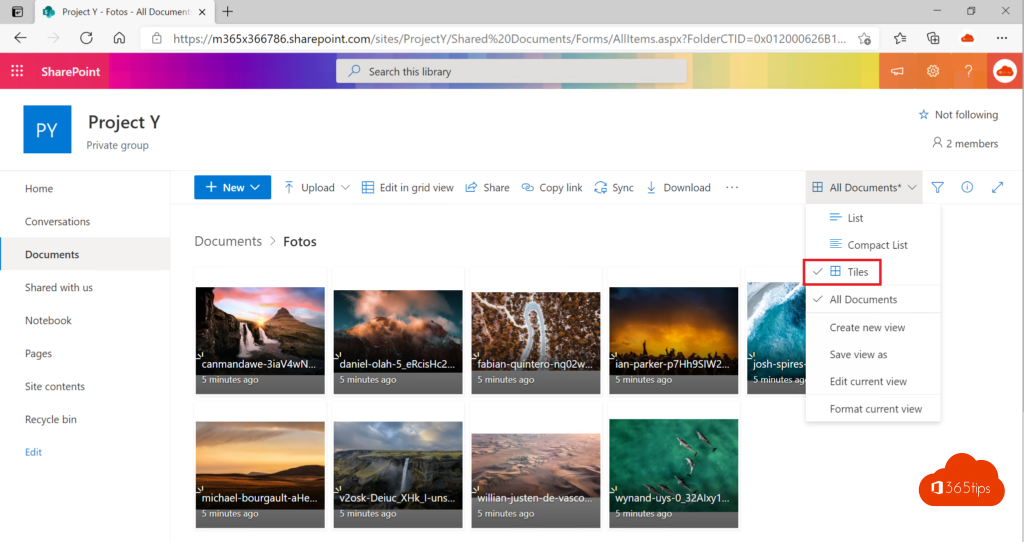
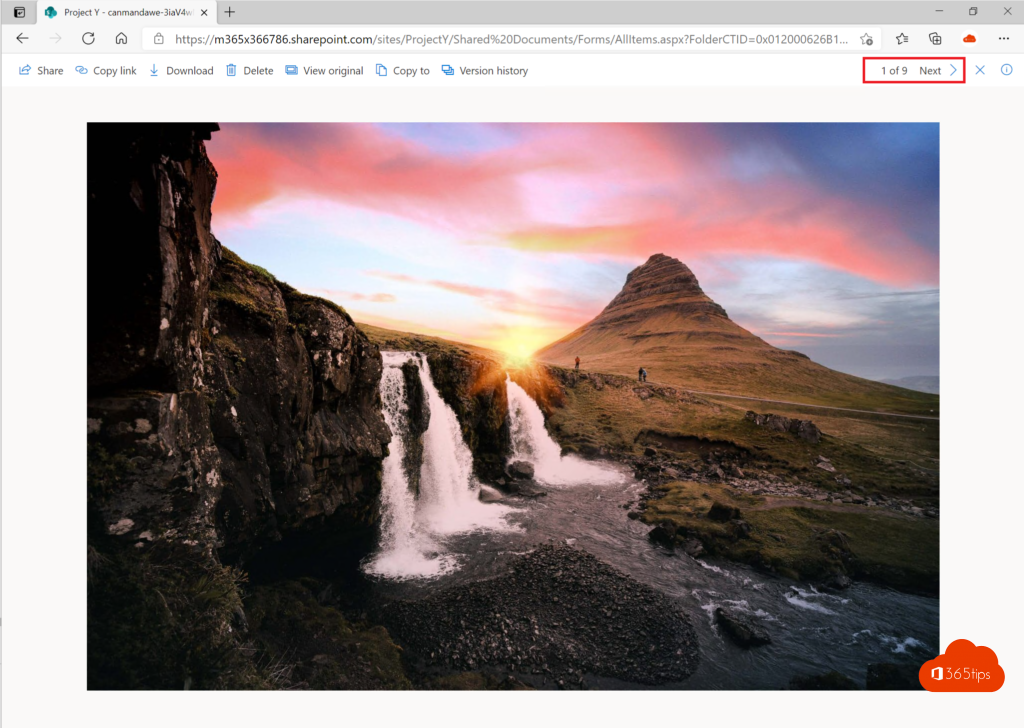
Don't see the option in Teams, or want more possibilities? Choose Open in SharePoint and pick Tiles there too. Click a photo to open it full size and use the arrows to browse to the next one.
Save the view as default
Save the Tiles view, otherwise you'll see the list view again after signing in next time.
- Choose the Tiles view in SharePoint.
- Open the views menu (for example All Documents) and choose Save view as.
- Name the view, such as Photo gallery. Whoever manages the library can also make it the default view.
Exact menu names can differ slightly.
Tips for a good photo gallery
- Create a separate folder per event or project.
- Give photos clear names or add a column with date or location.
- Add the folder as a separate tab in the channel so everyone finds it fast.
- Sync the folder with the OneDrive app if you also want to view photos in File Explorer.
Also see share files in Microsoft Teams and sync Teams files to File Explorer.
Read also
Share files in a Teams chat, channel or via a link
Open Microsoft Teams files in File Explorer with a shortcut or sync
Move or copy files and folders in SharePoint and Teams
Nederlandstalige versie: Een fotogalerij inrichten in Microsoft Teams met de tegelweergave