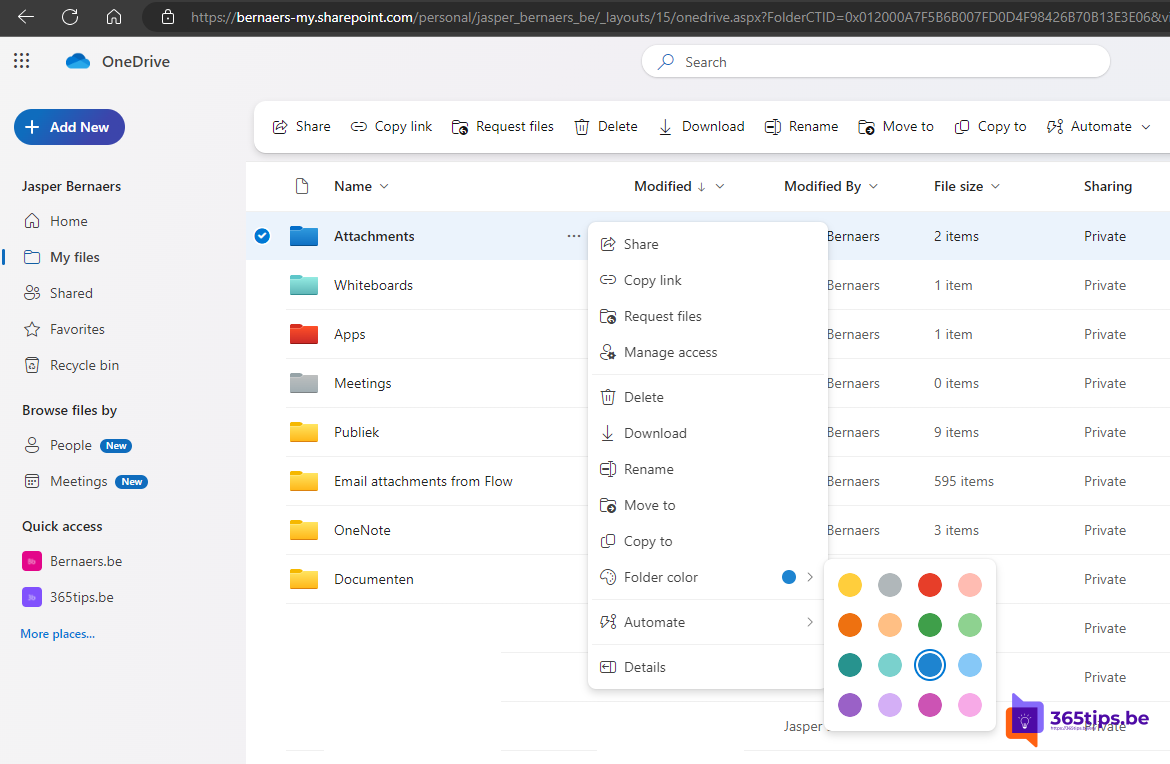
A library with dozens of yellow folders isn't easy to scan. In OneDrive, SharePoint and Teams files you can give folders their own colour, so you spot the Invoices or Archive folder at a glance. This article shows how.
Give a folder a colour
- Open the folder in OneDrive, a SharePoint library or the Files tab in Teams.
- Right-click the folder, or select More options (...).
- Choose Folder color and pick a colour.
You can also choose a colour straight away under New > Folder.


Who sees the colour?
- In SharePoint and Teams, the colour applies to everyone who opens the library.
- You need edit rights to change the colour.
- The colour shows in the web view of OneDrive, SharePoint and Teams. In File Explorer on your PC, folders usually still appear in the default colour.
Tips for a clear structure
- Agree with your team what each colour means, such as green for active projects, grey for archive and red for confidential.
- Don't use too many colours: three or four is enough.
- Colour isn't security. For a folder nobody may change, read create a read-only folder.
- Combine colours with pinning to keep important folders at the top of the library. See also move or copy files.
Read also
Create a read-only folder in Microsoft Teams
Move or copy files and folders in SharePoint and Teams
Open Microsoft Teams files in File Explorer with a shortcut or sync
Nederlandstalige versie: Mappen een kleur geven in Microsoft Teams, SharePoint en OneDrive
More in English
▸Create a read-only folder in Microsoft TeamsMake a Teams folder read-only for members by changing its permissions in SharePoint, so nobody can edit your…
▸Restore an earlier version with version history in OneDrive and SharePointView and restore earlier versions of files in OneDrive, SharePoint, Teams and the Office apps, and learn how…
▸Share files in Microsoft 365 and Teams: all the optionsEvery way to share files in Microsoft 365: links, Teams chats and channels, Outlook and file requests, and…
▸Receive files with a file request in OneDriveCreate a file request in OneDrive so others can upload files into your folder without seeing its contents or…