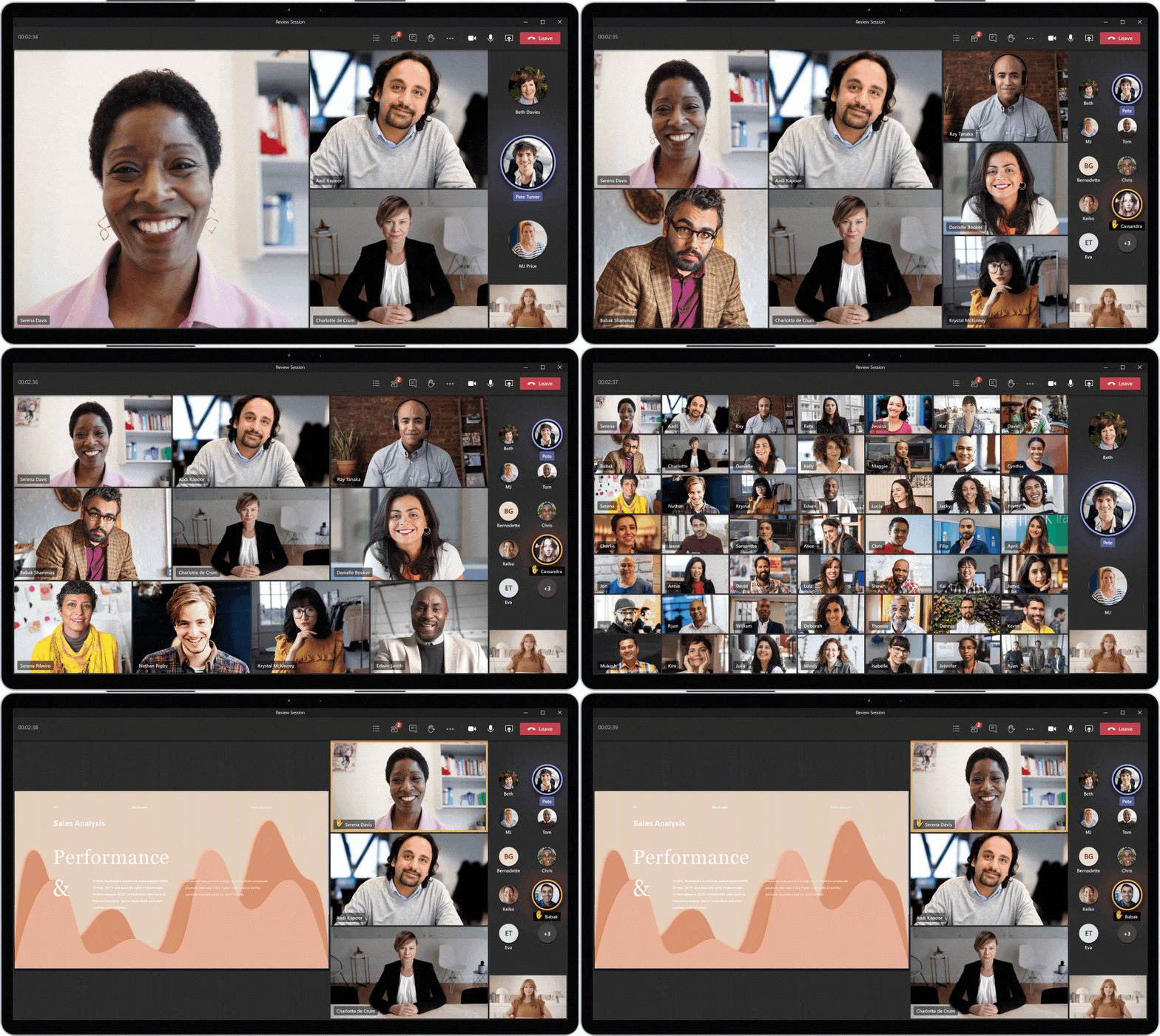
In a Teams meeting people talk, present and chat. With dynamic view, Teams automatically arranges videos and shared content so you see what matters most. A few buttons let you adjust it yourself. Dynamic view has long been the default: the Gallery view in the new Teams works this way. Menu names below apply to recent versions and may differ slightly.
What does dynamic view do?
- Teams adapts the layout to the number of participants and whether content is being shared.
- Whoever is speaking gets more attention on screen.
- When someone shares their screen, you see the content large and the participants in a strip beside or above it.
- People who raise their hand move forward.

Adjust the view yourself
Click View at the top of the meeting. Options include:
| View | When it's useful |
|---|---|
| Gallery | Default. You see many participants at once, adapted to the situation. |
| Speaker | You mainly want to see the speaker large. |
| Together mode | Everyone together in one virtual space. |
| Focus on content | Only the presentation, without distracting videos. |
In the same menu you choose how many participants you see at once and whether the gallery sits above or beside the content.
Pin or spotlight someone
- Pin: always keep a person in view, just for you. Click ... next to the person and choose Pin for me.
- Spotlight: show someone large for everyone. Read use Spotlight.
Present with yourself on screen
When you share your screen, you can put yourself in front of your slides with presenter mode (formerly weatherman mode). It helps you keep the connection with your audience.
Also see Together mode in Teams and a meeting in full screen.
Read also
Use Spotlight in Microsoft Teams to feature the speaker
Use presenter mode (Standout, Side-by-side, Reporter) in Microsoft Teams
Present a PowerPoint in Teams with PowerPoint Live
Nederlandstalige versie: De dynamische weergave in Microsoft Teams-vergaderingen