In Microsoft Teams you share files in a chat, in a channel or as a link to a file already in Teams. Important: where you share determines where the file is stored and who can see it. This article explains how it works.
In a chat
- In the compose box, select + (or the paperclip icon) > Attach file.
- Choose a file from your PC or from OneDrive.
- Send the message.
The file is stored in your OneDrive, in the Microsoft Teams Chat Files folder, and the people in the chat get access. You'll find every shared file on the Shared (or Files) tab at the top of the chat.
In a channel
Attach the file to a channel post, or upload it on the Files tab. The file goes into the team's SharePoint library and all team members can open and co-edit it.

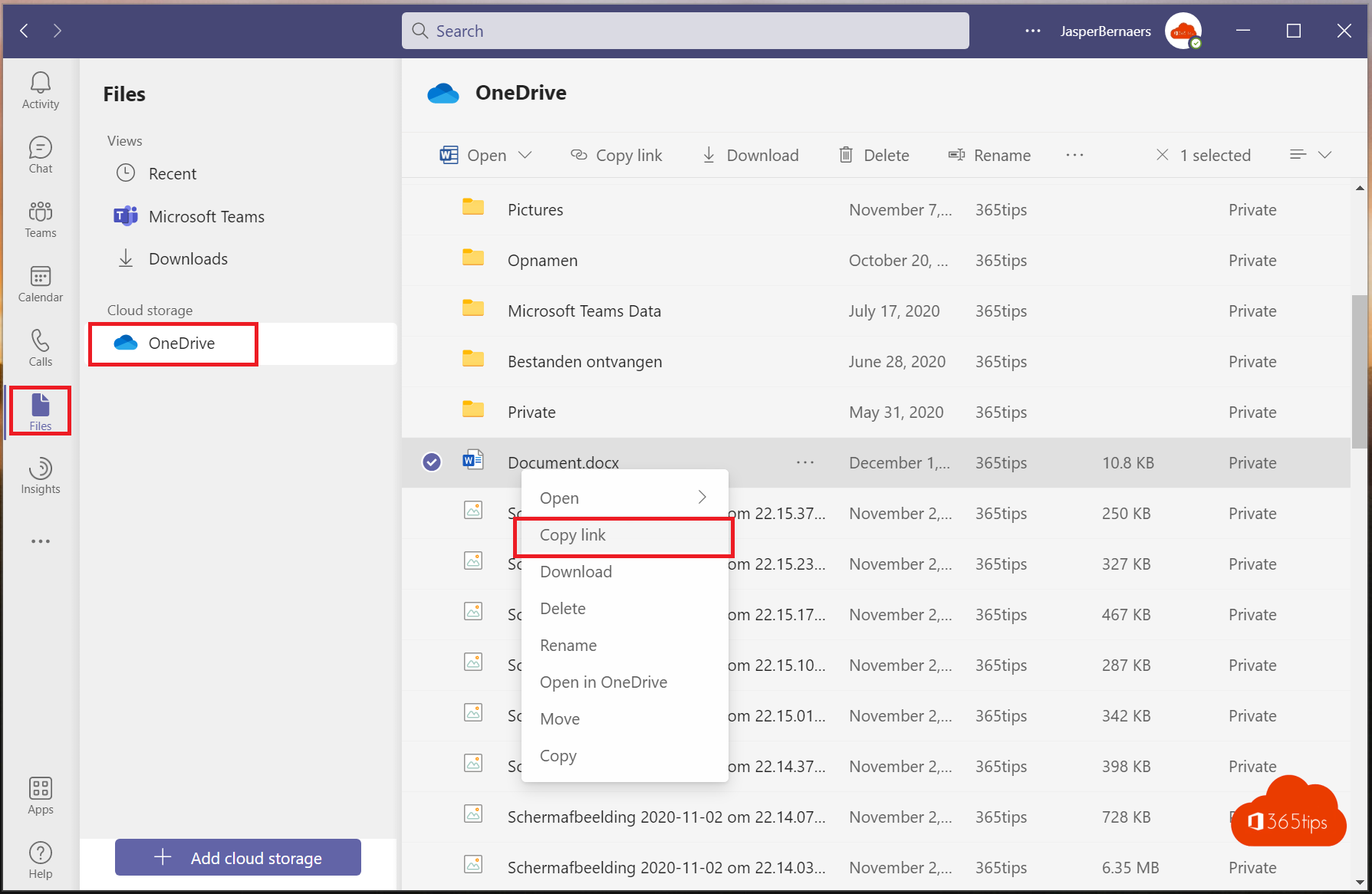
Copy a link to a file
- On the Files tab, go to the file.
- Select More options (...) > Copy link, or Share to choose who gets access.
- Paste the link into a chat, email or document.
People who aren't team members can only open the link once you give them access through Share.
With external people
You can share files in a chat with an external person or guest too. Whether it works depends on your organisation's sharing settings. Read sharing options greyed out.
Tips
- Share a project's working files in the channel, not a private chat, so they stay with the team when someone leaves.
- Files open in Teams by default. Prefer the desktop app? Read open Office files in the desktop app.
- More ways to share: read ways to share files in Microsoft 365.
Read also
Share files in Microsoft 365 and Teams: all the options
Open Microsoft Teams files in File Explorer with a shortcut or sync
Open Word, Excel and PowerPoint from Teams in the desktop app or browser
Nederlandstalige versie: Bestanden delen in een Teams-chat, kanaal of via een link