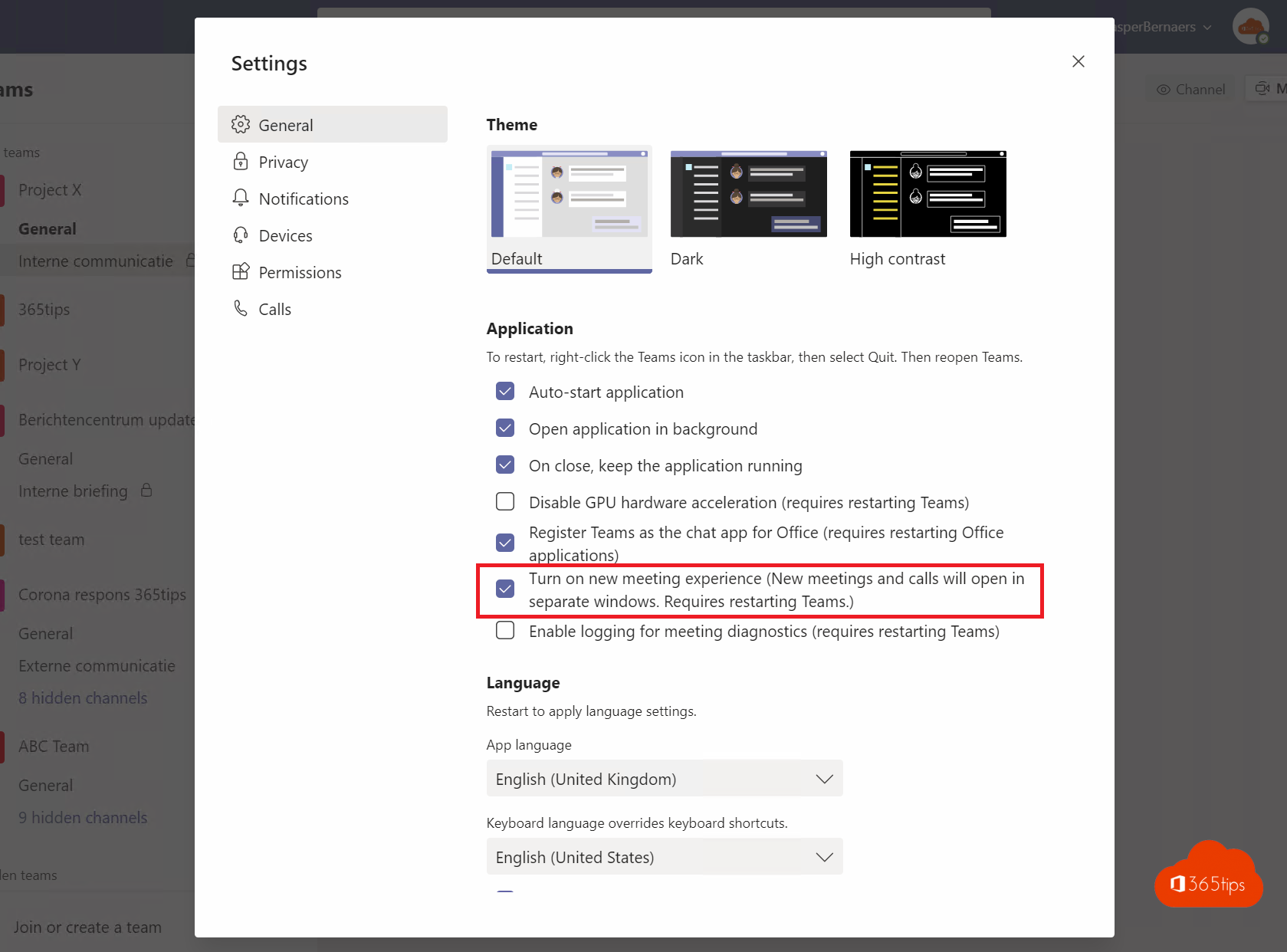
In the past, you first had to turn on the new meeting experience in Teams to open meetings in a separate window and use Together mode. That's no longer needed: in the new Teams it's the default. The Turn on new meeting experience checkbox no longer exists; Together mode and Gallery views are in the View menu. Here's how meeting windows work today and how to turn on Together mode.
Meetings in a separate window
A meeting or call opens in its own window. That way you can keep chatting or look for a file in the main Teams window while you're in a meeting. Want chats in a separate window too? Select the Pop out chat icon on a chat, or double-click the chat in the list.
Turn on Together mode
- Start or join a meeting.
- Select View at the top.
- Choose Together mode.
- As the organizer, you can pick a different scene, such as an auditorium or a meeting room.
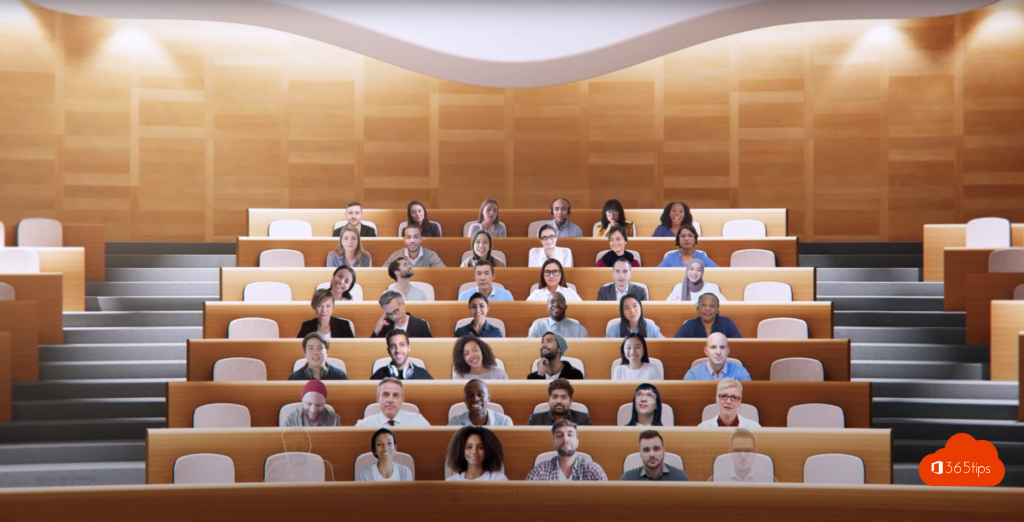
Don't see the option? Your organization may have turned it off, or too few participants have their camera on. This varies by situation.
Other views
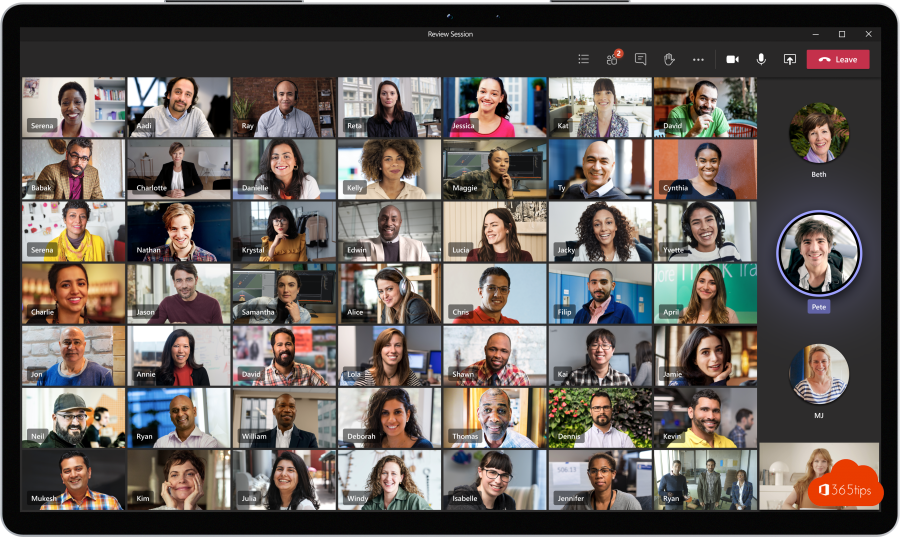
- Gallery: shows many participants at once.
- Speaker: shows the speaker large.
- Focus on content: only what's being shared.
Also see Together mode in Teams and full-screen view in Teams meetings.
Read also
Together mode in Microsoft Teams: one shared virtual space
View a Microsoft Teams meeting in full screen
Celebrate the holidays with Microsoft Teams
Nederlandstalige versie: Vergaderingen in een apart venster en de Together-modus in Teams