Do you keep data in an Excel file in Teams, like a list of equipment, customers or requests? Then a list (Microsoft Lists, built on SharePoint) is often handier. Everyone works in the same rows, and you can filter, add colors and automate. You can convert your Excel table in a few steps, right inside a Teams channel with the Lists app.
Prepare your Excel file
- Put your data in a table: select it and choose Insert > Table or press Ctrl + T.
- Give every column a clear header.
- Avoid merged cells and empty rows.
Create a list in a Teams channel
- Open the channel in Teams and click + (Add a tab) next to the tabs.
- Choose Lists and click Save.
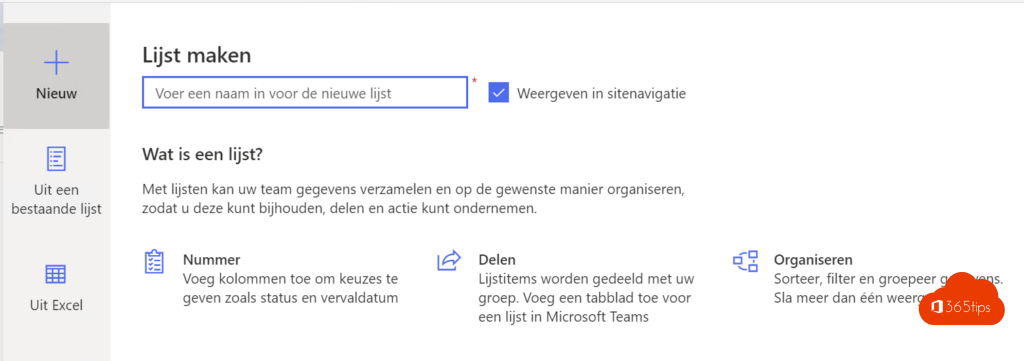
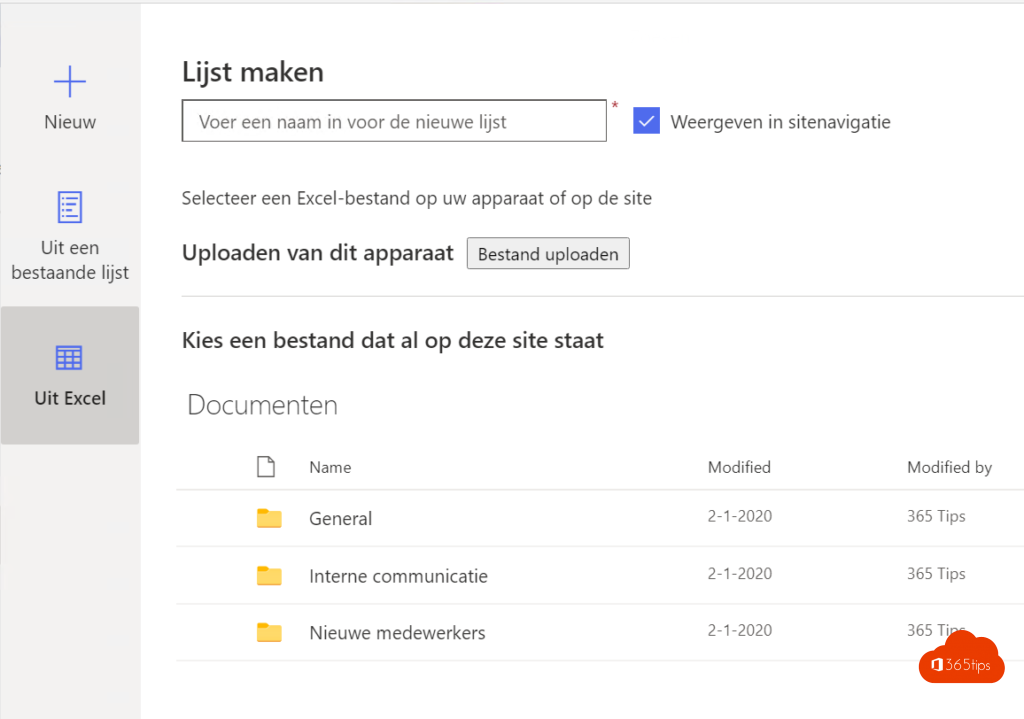
- Choose Create a list and then From Excel.
- Upload your Excel file or pick one that's already in the team.
- Select the table and check the type of each column, such as text, number, date or choice.
- Name the list and click Create.
The list now appears as a tab in the channel, and your teammates see it right away. Behind the scenes, the list lives on the team's SharePoint site.
Through Microsoft Lists or SharePoint
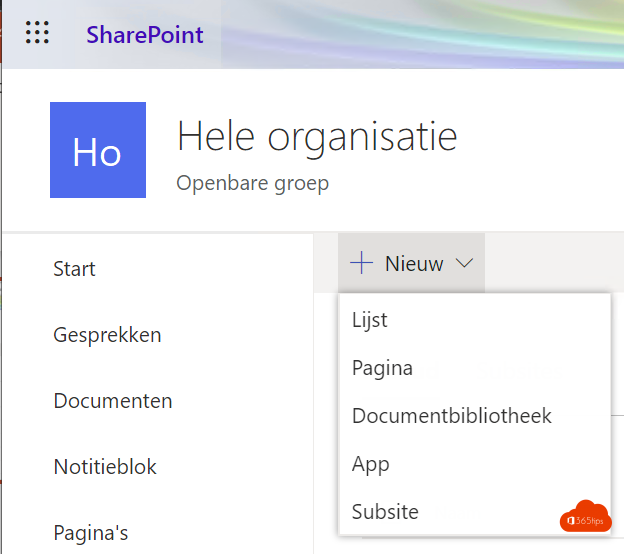
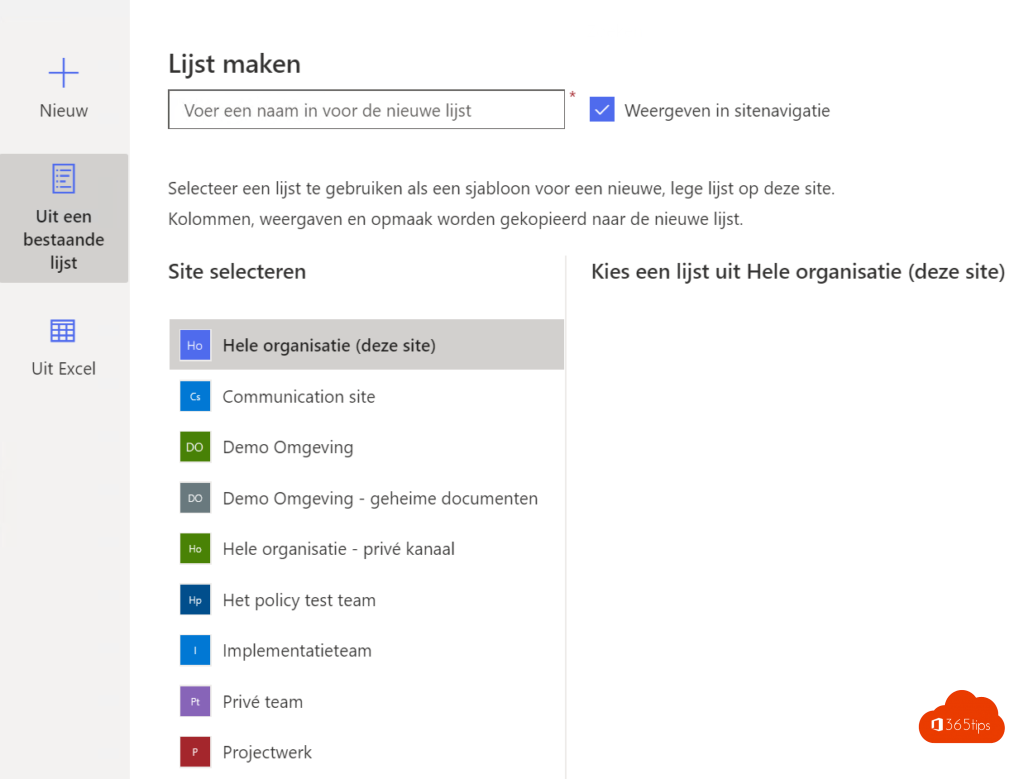
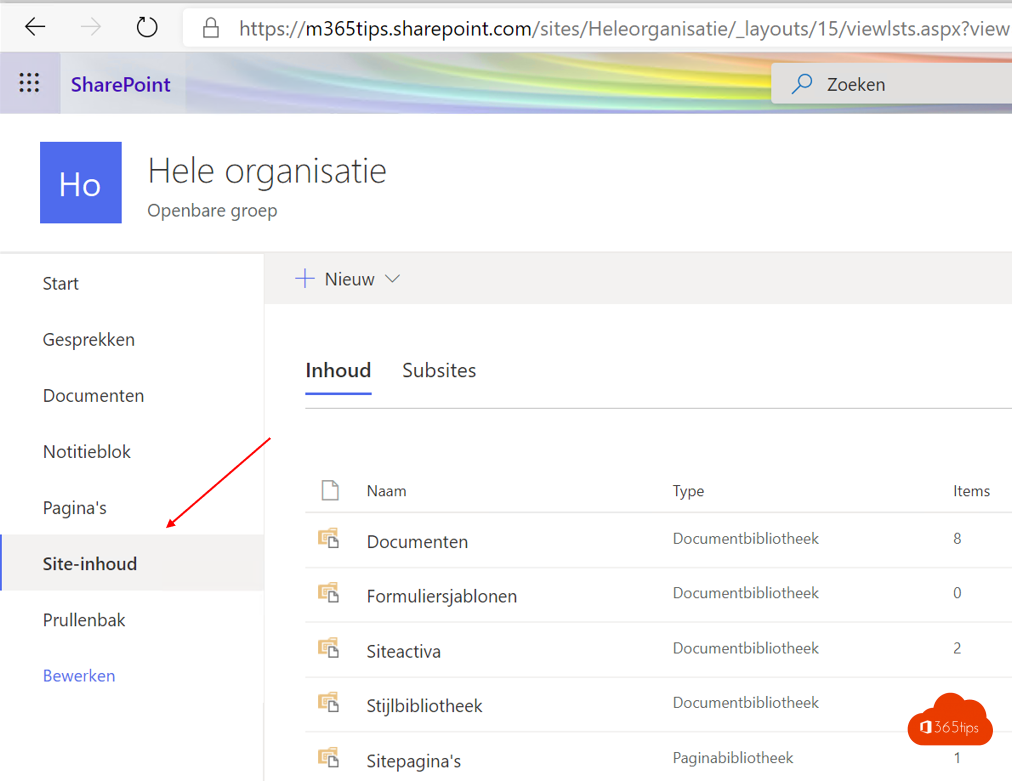
You can do the same from the Microsoft Lists app or on the SharePoint site through New > List > From Excel. Pick your team's site as the location so you can add the list as a tab later.
Make your list look better
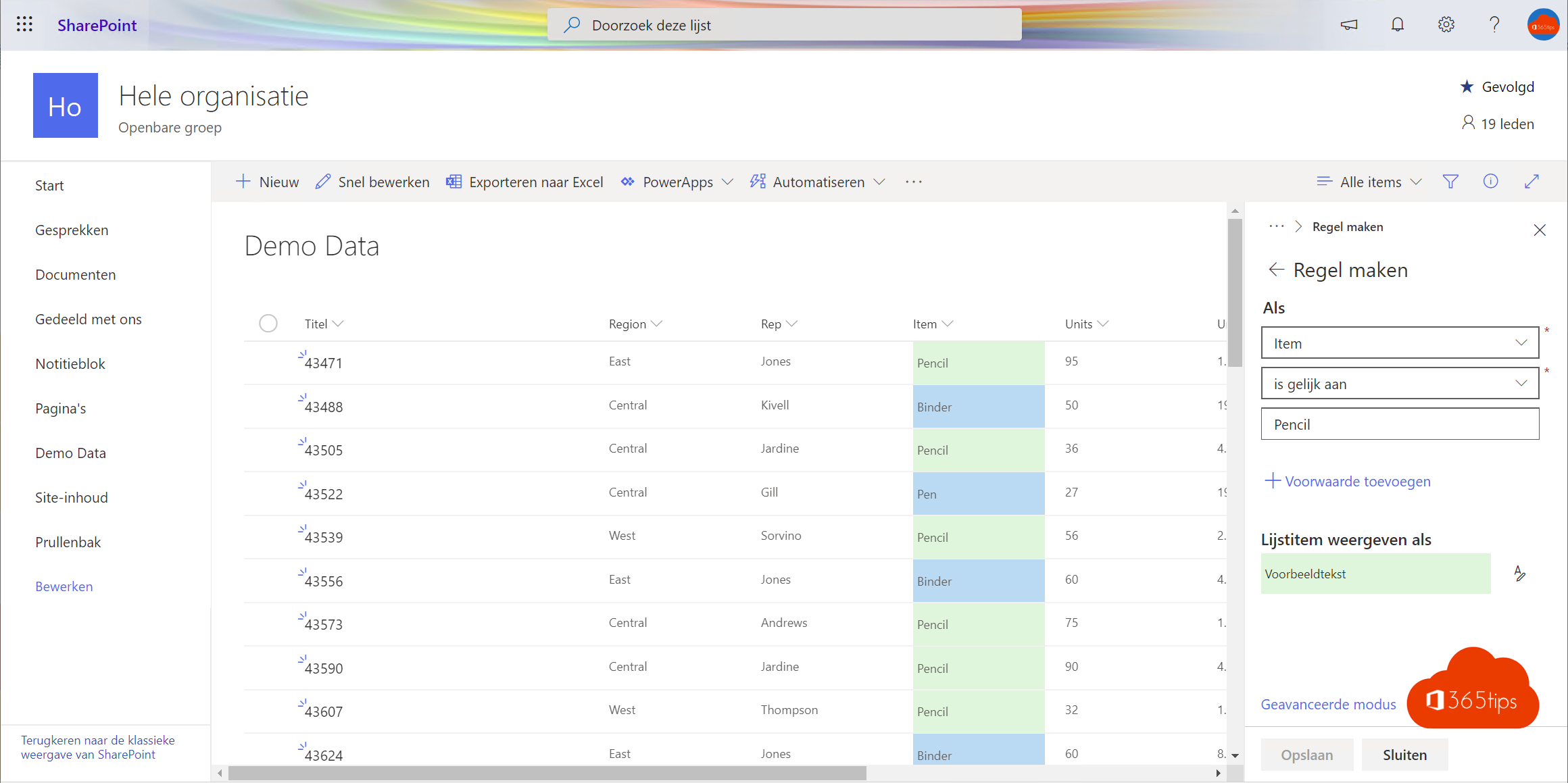
- Click a column header > Column settings > Format this column to add colors.
- Create views, such as a board or a calendar.
- Set up rules to get notified about changes.

Also see convert Excel to Microsoft Lists and create a Power App from a list.
Nederlandstalige versie: Een lijst maken vanuit Excel in Microsoft Teams