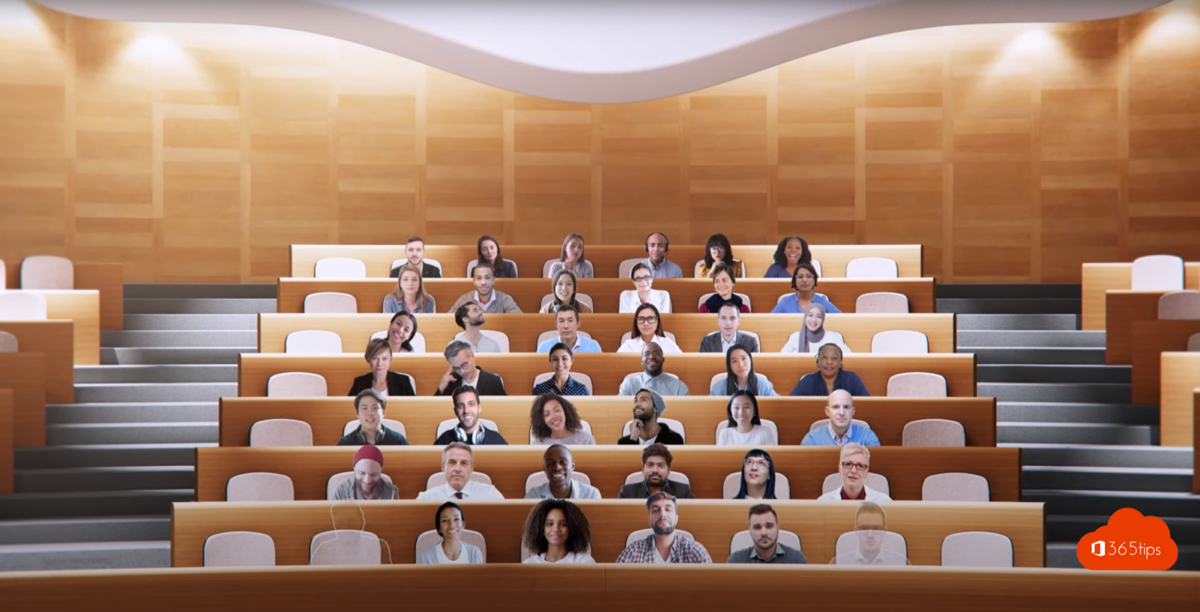
Staring at small video tiles for hours is tiring. With Together mode, Microsoft Teams places all participants in one virtual space, like an auditorium or a meeting room. It feels more natural and you can see better who's reacting. Together mode is still available in the new Teams app, in the meeting's view options.
What is Together mode?
Teams cuts participants out of their background and places them together in a scene. Everyone sits side by side, as if you're in the same room.
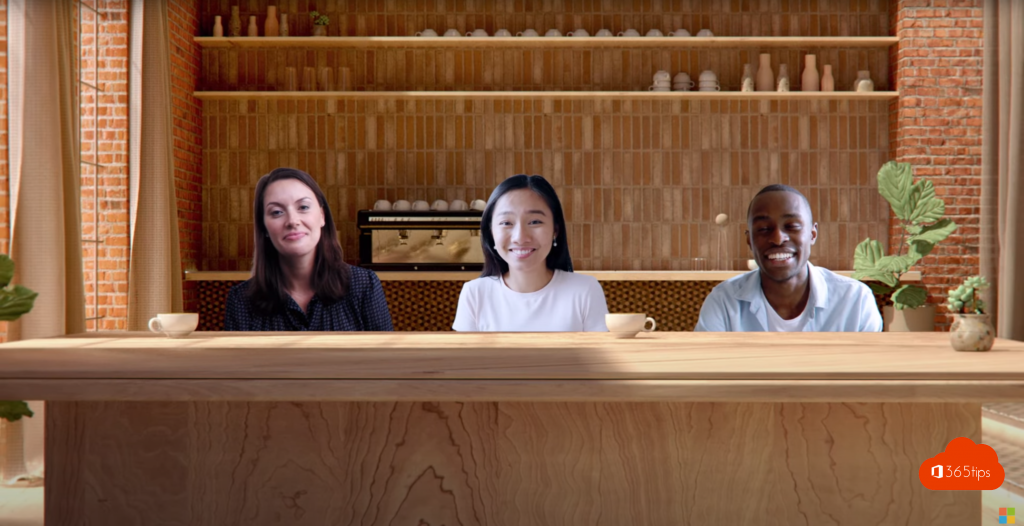
- You see body language and reactions more easily.
- It feels less tiring than a grid of separate tiles.
- Useful for team meetings, classes and informal moments.
Turn on Together mode
- Join a Teams meeting with your camera on.
- Click View at the top.
- Choose Together mode.
Don't see the option? There may be too few participants with their camera on, or your admin may have turned it off.

Choose a different scene
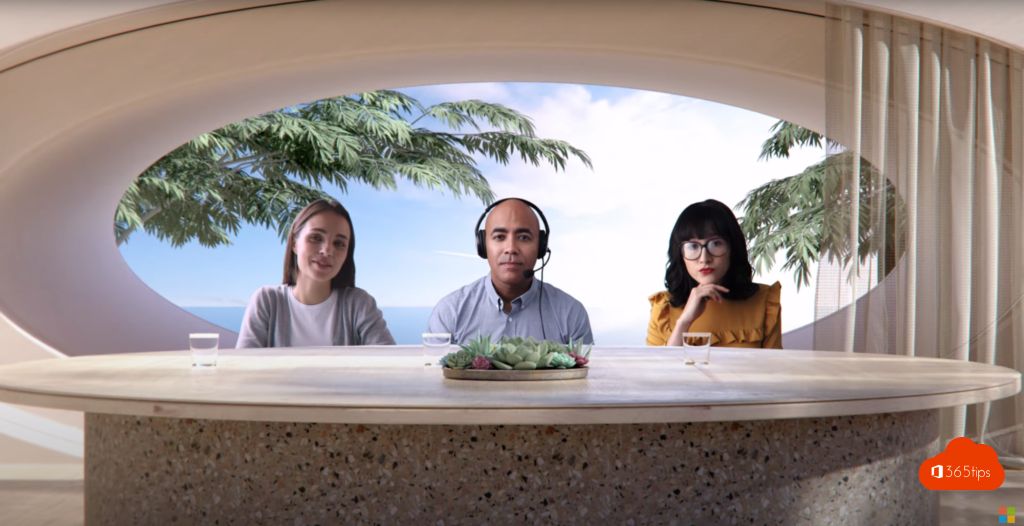
The organizer or a presenter can pick a scene, such as an auditorium, a meeting room or a coffee shop. That scene then applies to everyone using Together mode. In Together mode, click Change scene.
Other views
- Gallery: the default view, which adapts automatically. Read more about dynamic view.
- Speaker: the person speaking is shown large.
- Focus on content: only the shared content, without videos.
Want to show one person large for everyone? Use Spotlight.
Also see customize your background in Teams.
Read also
Use Spotlight in Microsoft Teams to feature the speaker
Set a custom background in Microsoft Teams
Dynamic view in Microsoft Teams meetings
Nederlandstalige versie: De modus Samen in Microsoft Teams: samen in één virtuele ruimte