A barking dog, a colleague who forgets to mute or a classroom full of students: in a large Teams meeting you sometimes want everyone quiet. As organizer you can mute everyone at once and even stop attendees from unmuting themselves. This article shows how.
Mute everyone
- In the meeting, select People at the top.
- At the top of the participant list, select Mute all (or the three dots > Mute all).
- Confirm with Mute.
Everyone except you is muted. Attendees get a notification and can unmute themselves again.
Mute one person
Hover over the name in the participant list > More options (...) > Mute participant.
Stop attendees from unmuting
- During the meeting: in People, select the three dots > Don't allow attendees to unmute.
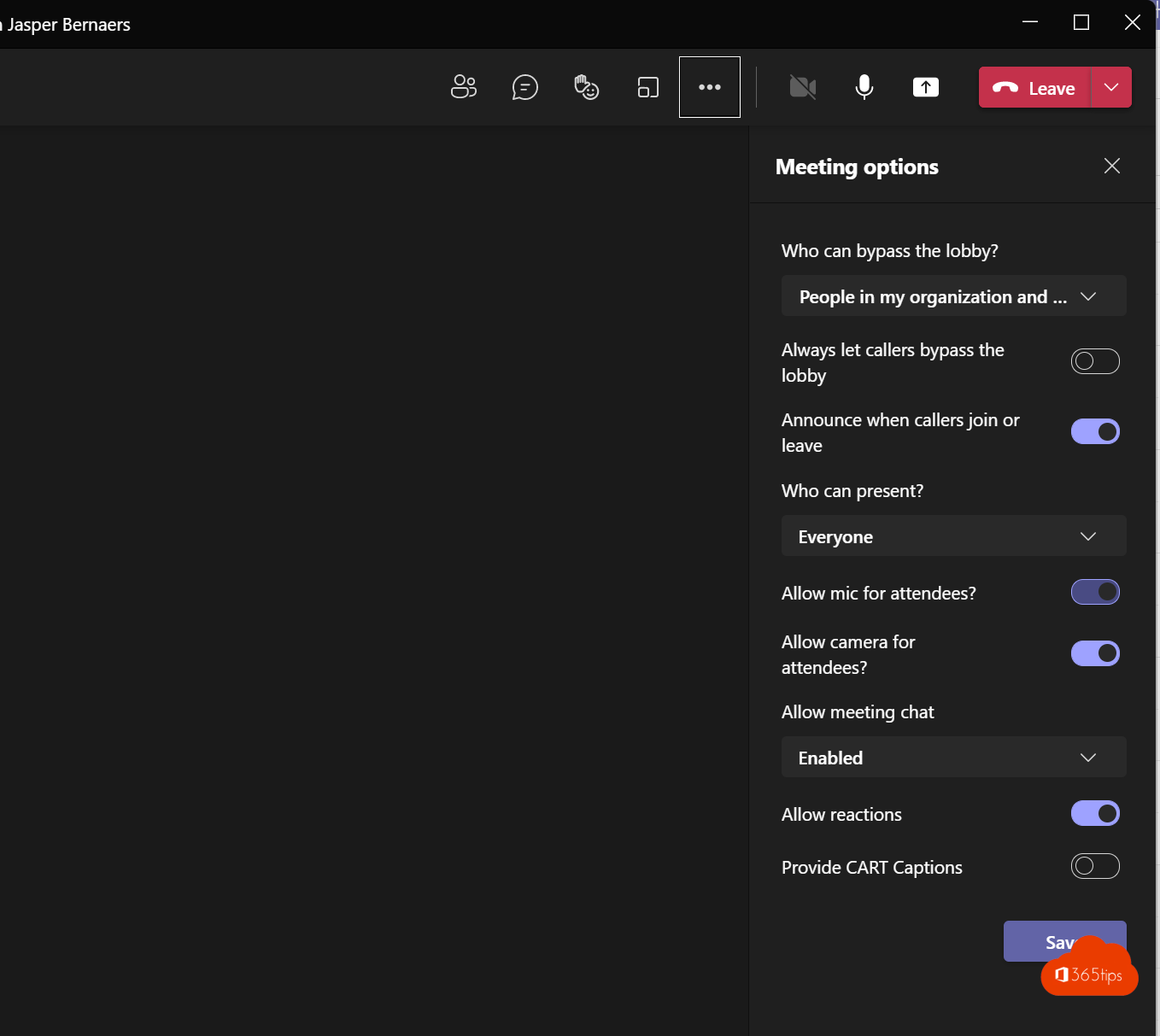
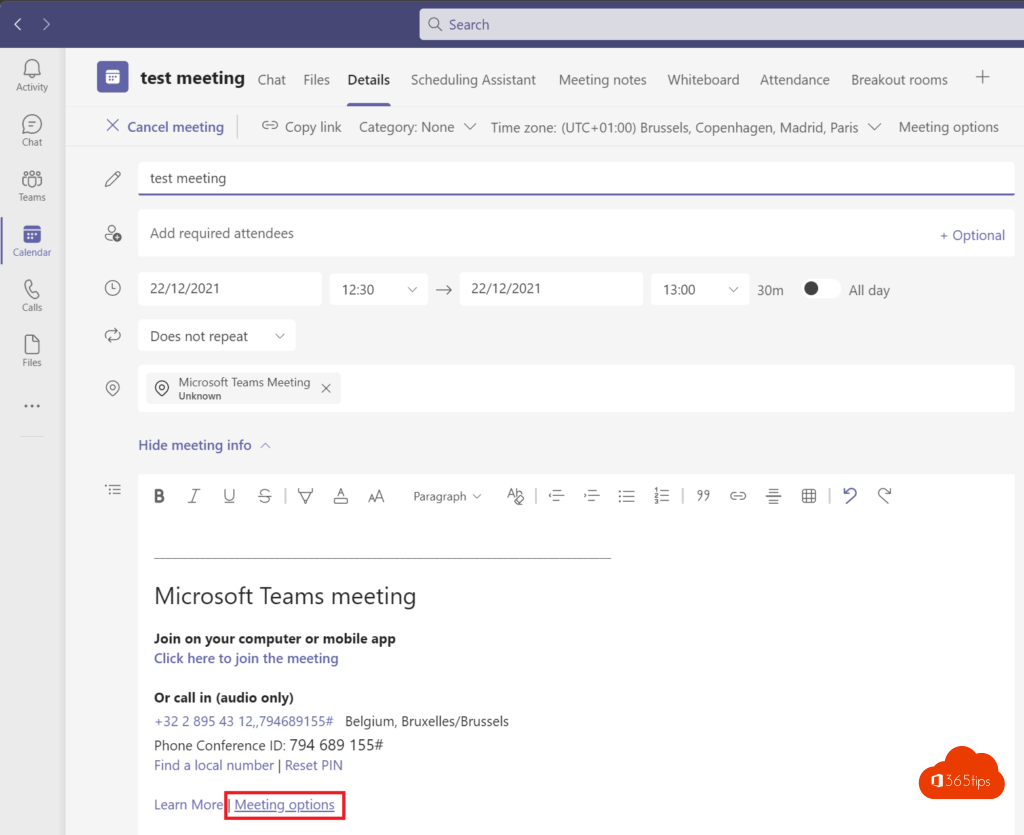
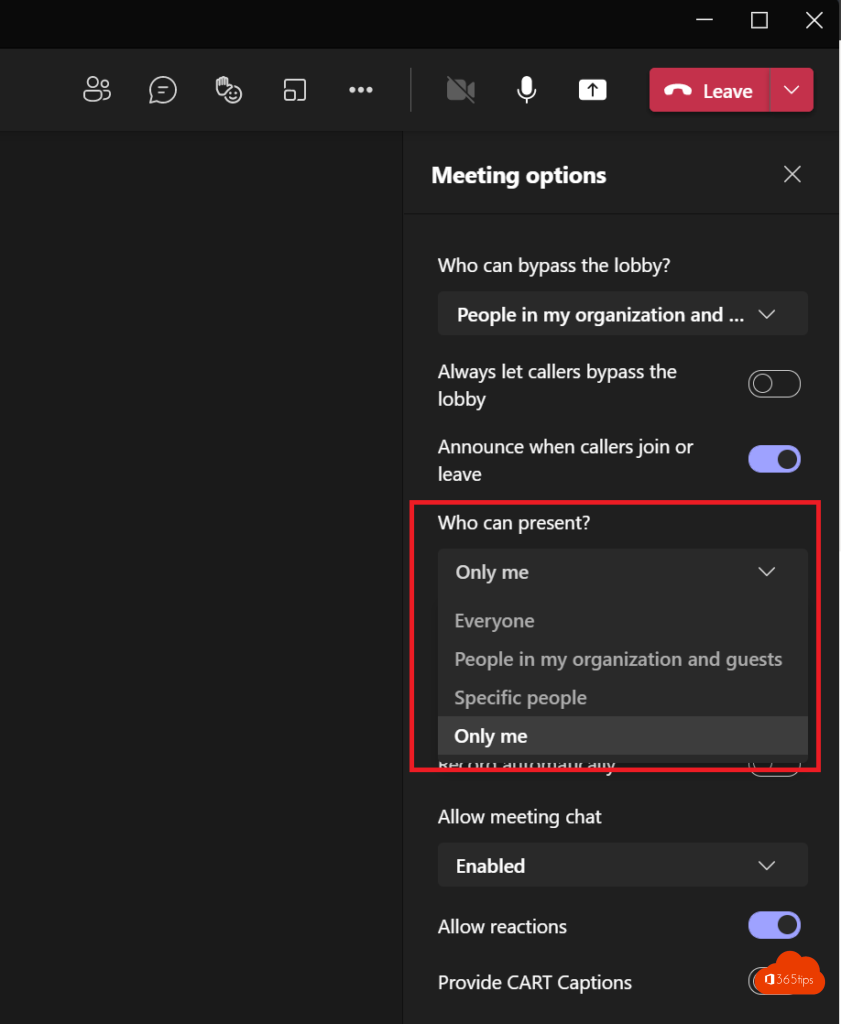
- Beforehand: open the meeting in your calendar > Options and turn off Allow mic for attendees. Do the same for the camera if you like.
These options apply to attendees. Organizers and presenters can always speak. Want someone to ask a question? Select Allow mic next to their name, or make them a presenter for a moment.
Work with raised hands
Let attendees raise their hand (Ctrl + Shift + K). The participant list shows who's next, and you give that person the floor.
Tips
- Set roles correctly in meeting options: only make speakers presenters. A co-organizer can manage the audience while you present.
- Use noise suppression for speakers' background noise.
- Don't want distracting emoji either? Turn off reactions.
- More shortcuts: Microsoft Teams keyboard shortcuts.
Read also
The most useful Microsoft Teams keyboard shortcuts for Windows and Mac
The co-organizer role in a Microsoft Teams meeting
Set up noise suppression and voice isolation in Microsoft Teams
Nederlandstalige versie: Iedereen dempen in een Microsoft Teams-vergadering