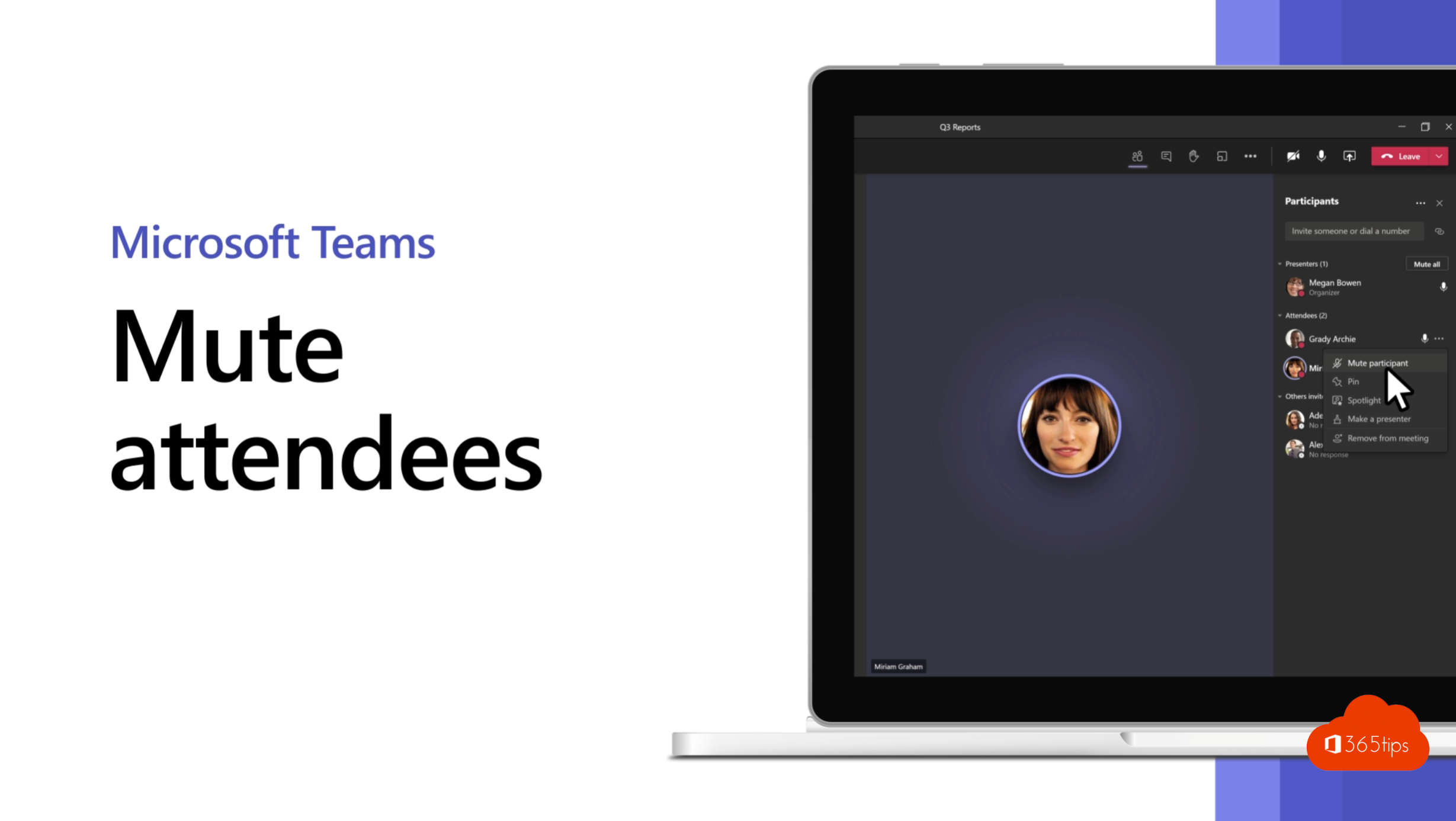
A barking dog, a keyboard, or someone who forgets to mute: in a Teams meeting that gets distracting fast. As an organizer or presenter you can mute attendees, one at a time or all at once. You can even stop them from unmuting themselves.
Mute one attendee
- In the meeting, click People.
- Hover over the name, click More options (the three dots) and choose Mute participant.
The attendee gets a notification and can turn the mic back on themselves.
Mute everyone
- Open People.
- Click Mute all at the top of the list and confirm.
Presenters and organizers can keep talking. More in mute all participants in Teams.
Block microphones
Don't want attendees to unmute themselves? That's called a "hard mute". In the new Teams app it's the Allow mic for attendees option.
- For everyone: in Meeting options, turn off Allow mic for attendees. You can do this beforehand or during the meeting.
- For one person: in People, click More options next to the name > Disable mic. Later choose Allow mic.
Anyone who wants to speak raises their hand. You give them the floor and open their mic again. The same works for cameras: see disable attendee cameras.
Work with roles
A hard mute only applies to the Attendee role. In Meeting options, under Who can present?, give the presenter role to the speakers only. Everyone else joins as an attendee and can't share content or mute others. Learn the differences in meeting roles in Teams.
More tips for a calm meeting
- Ask attendees to raise their hand.
- Use Q&A for questions in large sessions.
- Turn on noise suppression in your device settings.
- In large presentations, turn off chat or reactions if they distract too much.
- For really big events, a town hall fits better: only presenters speak there.
Also see Q&A in Teams meetings and noise suppression in Teams.
Read also
Mute everyone in a Microsoft Teams meeting
Turn off attendees' cameras in a Microsoft Teams meeting
Meeting roles in Microsoft Teams: organizer, presenter and attendee
Nederlandstalige versie: Onderbrekingen beperken door deelnemers te dempen in Teams