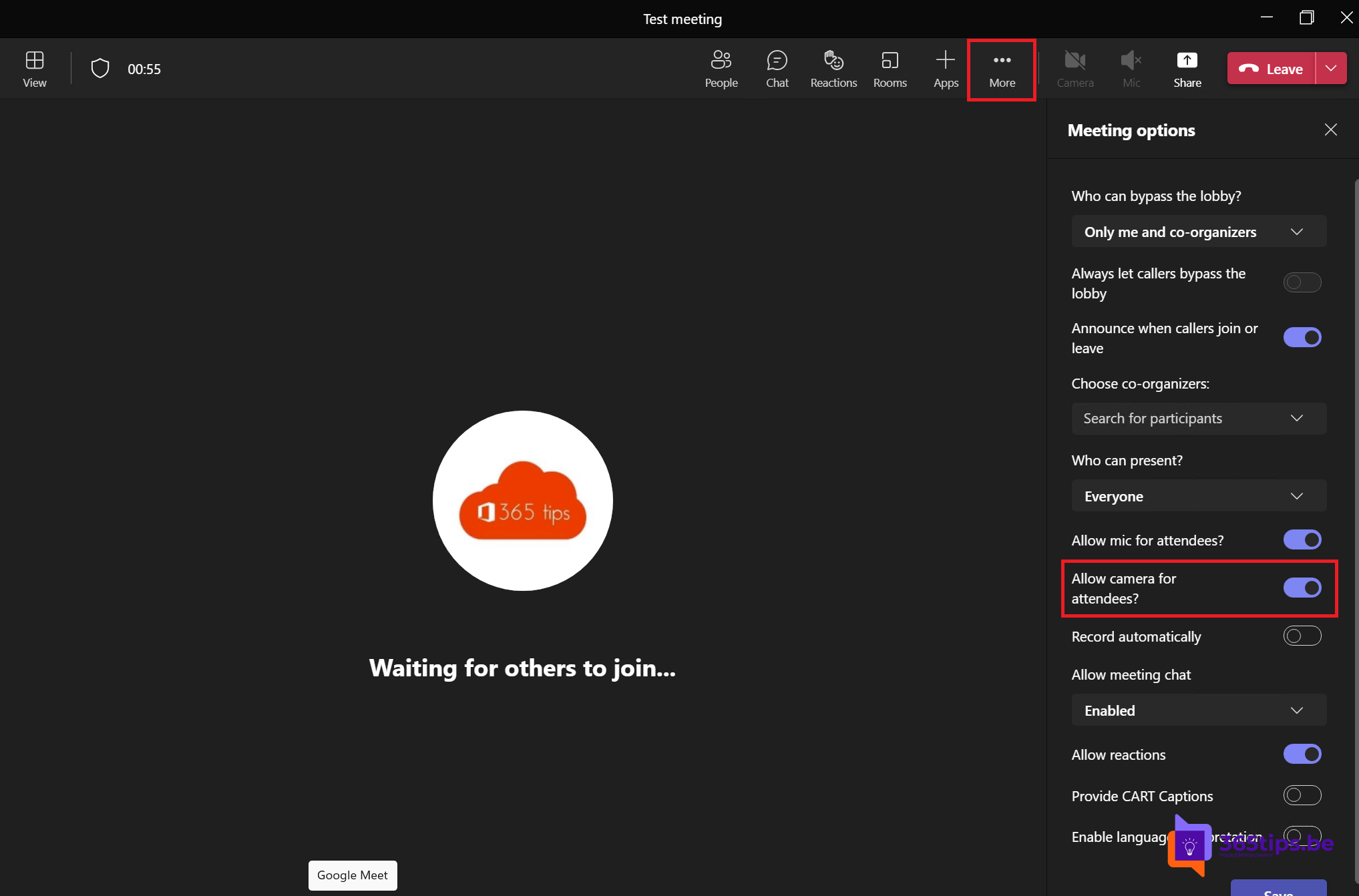
In a large meeting, class or webinar you sometimes don't want everyone turning on their camera. It can be distracting, uses bandwidth or simply doesn't fit the format. In Microsoft Teams the organizer can turn off attendees' cameras, for everyone or for one person. This article shows how.
Turn off in advance
- Open the meeting in your calendar and select Options.
- Under Audio & video, turn off Allow camera for attendees.
- Select Save.

During the meeting
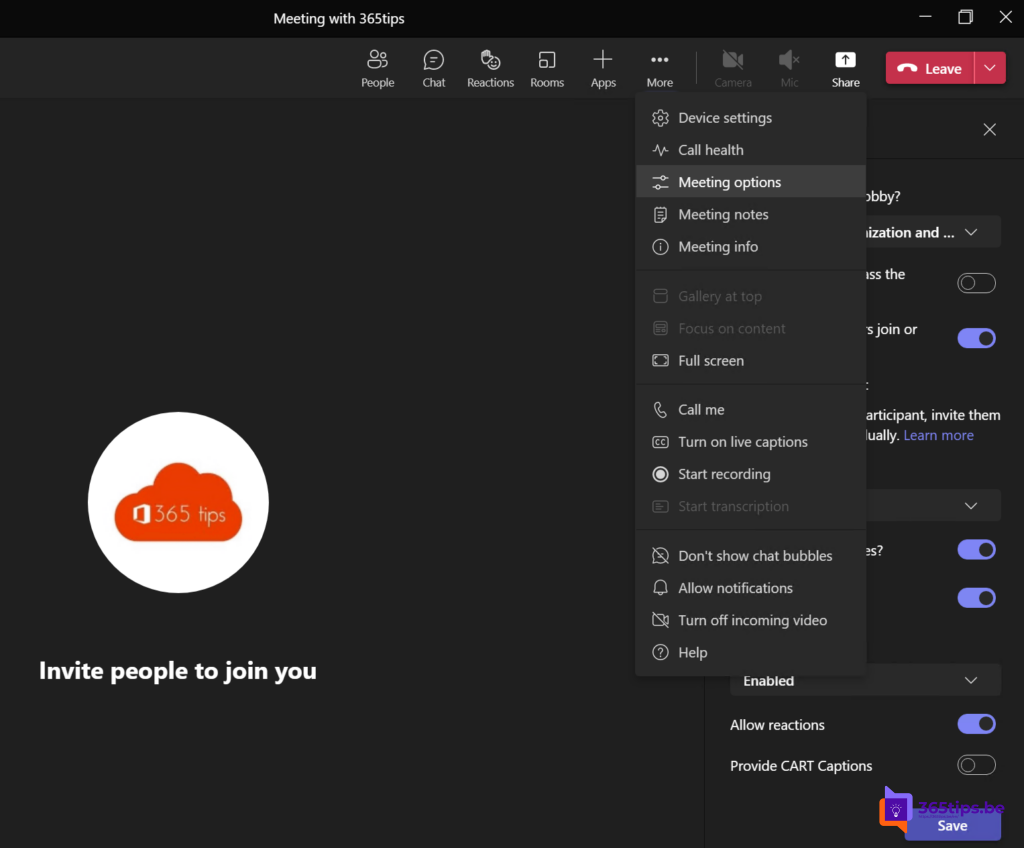
- For everyone: open People > three dots at the top > Disable camera for attendees.
- For one person: hover over the name > More options > Disable camera.
- Allow again: choose Allow camera for the person or for everyone.
Who does it apply to?
This option only applies to attendees. Organizers, co-organizers and presenters can always use their camera. Want an attendee to speak on camera? Make them a presenter for a moment or allow their camera. Read meeting roles in Teams.
Combine with other options
- Turn off attendee microphones too. Read mute everyone.
- Use Spotlight to keep the speakers large on screen.
- Turn off reactions if you don't want emoji.
A tip for attendees
Want your camera on without showing your surroundings? Use a custom background or blur.
Read also
Mute everyone in a Microsoft Teams meeting
Meeting roles in Microsoft Teams: organizer, presenter and attendee
Use Spotlight in Microsoft Teams to feature the speaker
Nederlandstalige versie: De camera van deelnemers uitschakelen in een Teams-vergadering