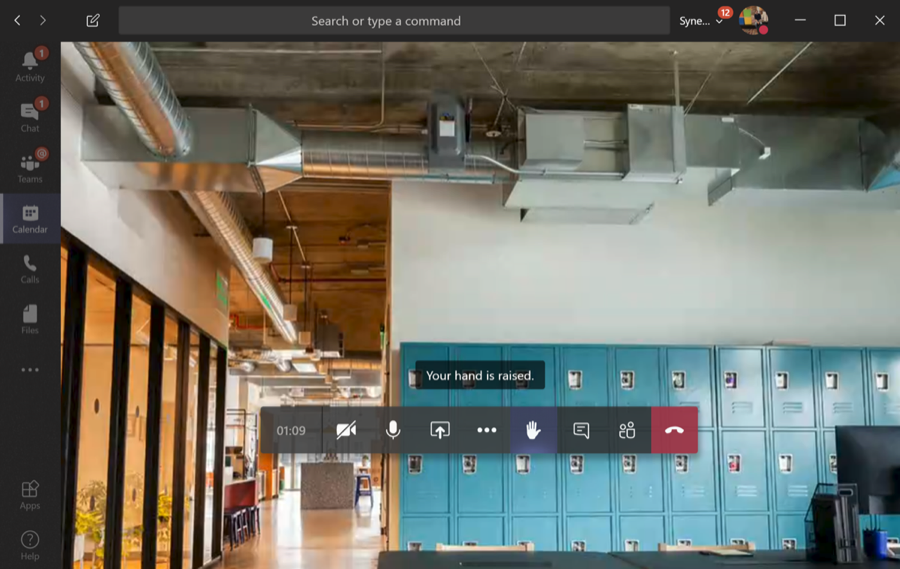
In a large Teams meeting you raise your hand to ask something. After your question you forget to lower it, and the organizer thinks you still want to speak. Teams solves this: your raised hand is lowered automatically once you've spoken.
How it works
- In the meeting, select React > Raise hand, or press Ctrl + Shift + K.
- The organizer sees your hand and gives you the floor.
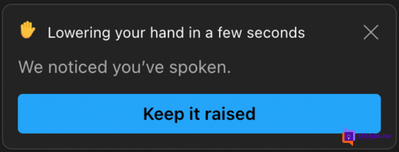
- Unmute and speak. After you've spoken for a short while, Teams lowers your hand automatically and tells you so.
As an organizer
- In People, raised hands are at the top, in the order they were raised.
- Lower a hand via More options next to the person > Lower hand, or all hands at once with Lower all hands.
Tip
Want to lower your hand without speaking? Just select Lower hand again. Also read raise your hand in Teams, meeting roles and mute everyone in a Teams meeting.
Read also
Raise your hand in a Microsoft Teams meeting
Meeting roles in Microsoft Teams: organizer, presenter and attendee
Mute everyone in a Microsoft Teams meeting
Nederlandstalige versie: Je opgestoken hand zakt automatisch na het spreken in Teams
More in English
▸Collect questions with Q&A in Microsoft Teams meetingsTurn on Q&A in a Teams meeting, town hall or webinar. Attendees ask and upvote questions; you moderate and…
▸Use Spotlight in Microsoft Teams to feature the speakerFeature a speaker for everyone with Spotlight in Teams. Up to seven people, spotlighting yourself and the…
▸Everything about breakout rooms in Microsoft TeamsCreate breakout rooms in a Teams meeting, assign attendees, set a timer, use room managers and bring everyone…
▸Turn off or limit chat in a Teams meetingTurn meeting chat off or limit it to the meeting itself in meeting options, or set it for everyone with a…