If you use Microsoft Teams all day, keyboard shortcuts save a lot of time. Muting your mic without hunting for the button, starting a new chat or sharing your screen: all of it works from the keyboard. This article lists the most useful shortcuts for the new Teams app on Windows and Mac.
See all shortcuts
Press Ctrl + . (period) in Teams to open the full list. On a Mac, use Cmd instead of Ctrl and usually Option instead of Alt.
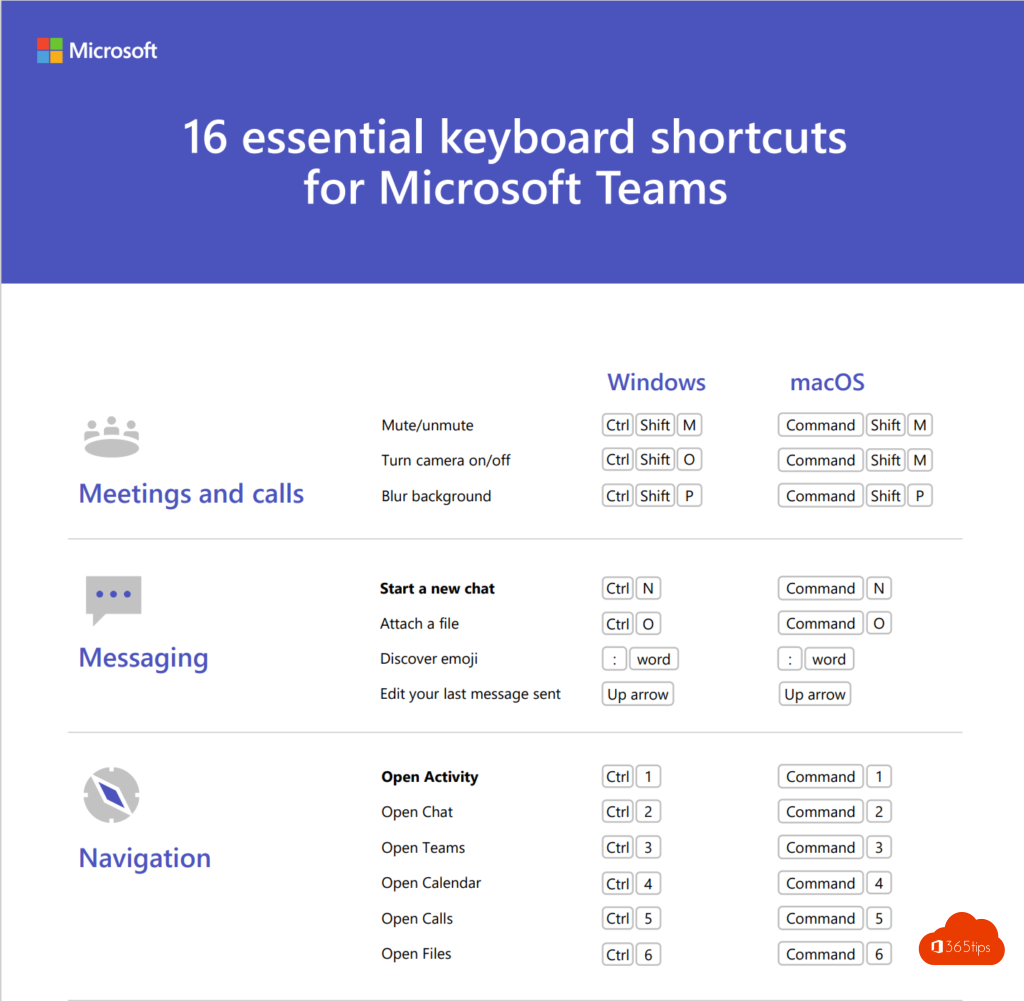
General and navigation
| Action | Windows | Mac |
|---|---|---|
| Search | Ctrl + E | Cmd + E |
| Show shortcuts | Ctrl + . | Cmd + . |
| Open settings | Ctrl + , | Cmd + , |
| Go to Activity, Chat, Teams, Calendar ... | Ctrl + 1, 2, 3, 4 ... | Cmd + 1, 2, 3, 4 ... |
| Zoom in / out | Ctrl + = / Ctrl + - | Cmd + = / Cmd + - |
Chat
| Action | Windows | Mac |
|---|---|---|
| New chat | Ctrl + N | Cmd + N |
| Expand compose box | Ctrl + Shift + X | Cmd + Shift + X |
| New line without sending | Shift + Enter | Shift + Enter |
| Attach file | Ctrl + O | Cmd + O |
| Reply to a message | Alt + Shift + R | Option + Shift + R |
Meetings and calls
| Action | Windows | Mac |
|---|---|---|
| Mute / unmute | Ctrl + Shift + M | Cmd + Shift + M |
| Camera on / off | Ctrl + Shift + O | Cmd + Shift + O |
| Talk briefly while muted | Ctrl + Space (hold) | Option + Space |
| Raise or lower hand | Ctrl + Shift + K | Cmd + Shift + K |
| Share screen | Ctrl + Shift + E | Cmd + Shift + E |
| Blur background | Ctrl + Shift + P | Cmd + Shift + P |
| Accept call with video / audio | Ctrl + Shift + A / S | Cmd + Shift + A / S |
| Decline call | Ctrl + Shift + D | Cmd + Shift + D |
| Hang up or leave meeting | Ctrl + Shift + H | Cmd + Shift + H |
Shortcut not working? Another app on your PC may use the same combination, or the meeting window isn't selected.
Tips
- Type a name in the search bar and press Enter to open a chat with that person straight away.
- Use @ to mention someone and : for an emoji.
- Working in several windows? See pop out multiple windows in Teams.
Read also
Mute everyone in a Microsoft Teams meeting
Work in multiple windows with Microsoft Teams
How to chat with yourself in Microsoft Teams
Nederlandstalige versie: De handigste sneltoetsen voor Microsoft Teams op Windows en Mac
More in English
▸Mute everyone in a Microsoft Teams meetingMute all attendees in a Teams meeting in one click and stop them from unmuting. Meeting options and raised…
▸Work in multiple windows with Microsoft TeamsOpen chats, channels, meetings and shared content in a separate window in Teams. Handy with two screens, plus…
▸How to view and use clipboard history in Windows 11 and 10 (Windows + V)Windows + V shows the last 25 things you copied. Turn on clipboard history, pin items, clear it and sync the…
▸How to put windows side by side in Windows 11 with SnapPut two, three or four windows side by side in Windows 11 with snap layouts, dragging, Windows + arrow keys…