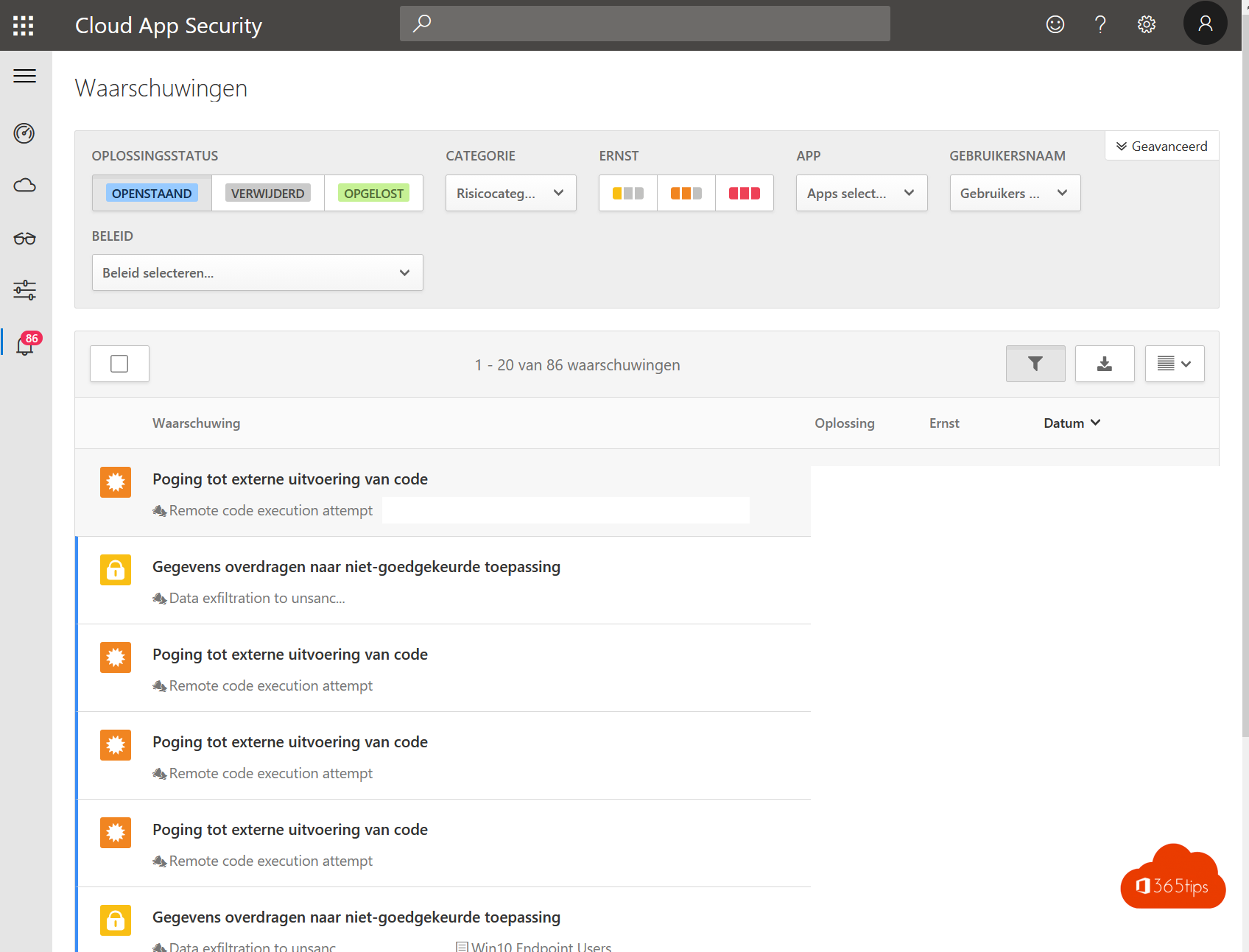
For most organizations, Microsoft 365 is the core of the digital workplace. Your email, documents and identities live there. That's why it pays to run your own security assessment. With the tools Microsoft provides, you get a good picture of your risks in five steps, including your on-premises Active Directory. Note that many products were renamed: Azure ATP is now Microsoft Defender for Identity, Cloud App Security is Microsoft Defender for Cloud Apps and Azure AD is Microsoft Entra ID. Everything now lives in the Microsoft Defender portal (security.microsoft.com); the old portals are gone.
Why a security assessment?
- Email is still the main entry point for attacks, through phishing.
- Identities: your accounts often come from your on-premises Active Directory and are synced. A weak spot there is also a weak spot in the cloud.
- Microsoft 365 gives you a lot of insight, also into your on-premises environment. Use it.
Preparation: a trial license
Many of the tools below require Microsoft 365 E5 or separate security licenses. Don't have them? Start a trial in the Microsoft 365 admin center under Billing > Purchase services, and assign the license to your admin account.
Step 1: Microsoft Secure Score
Open security.microsoft.com and go to Secure Score. You get a score and a list of recommendations, ranked by impact. This is the best starting point for your report. Also read get started with Microsoft Secure Score.
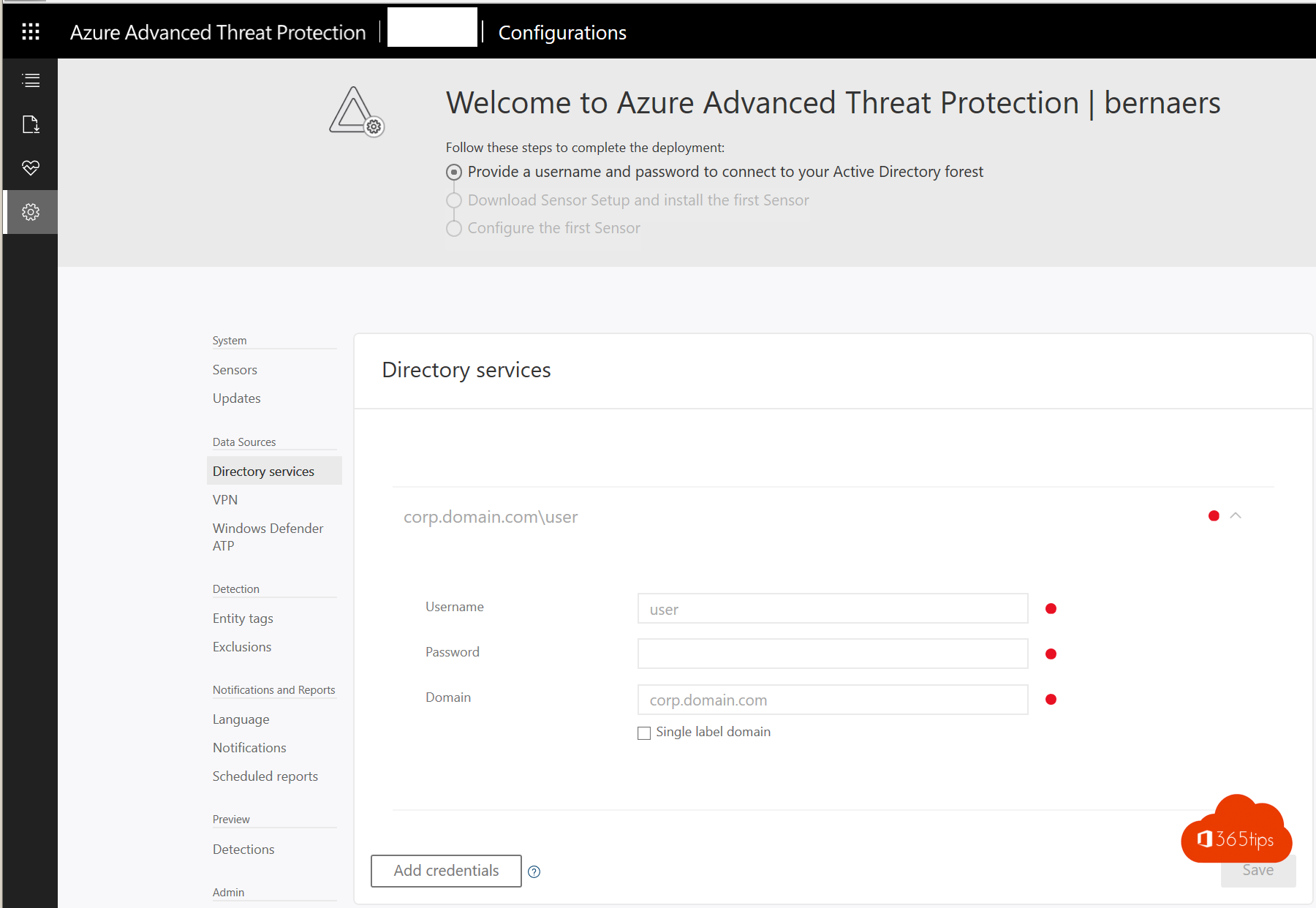
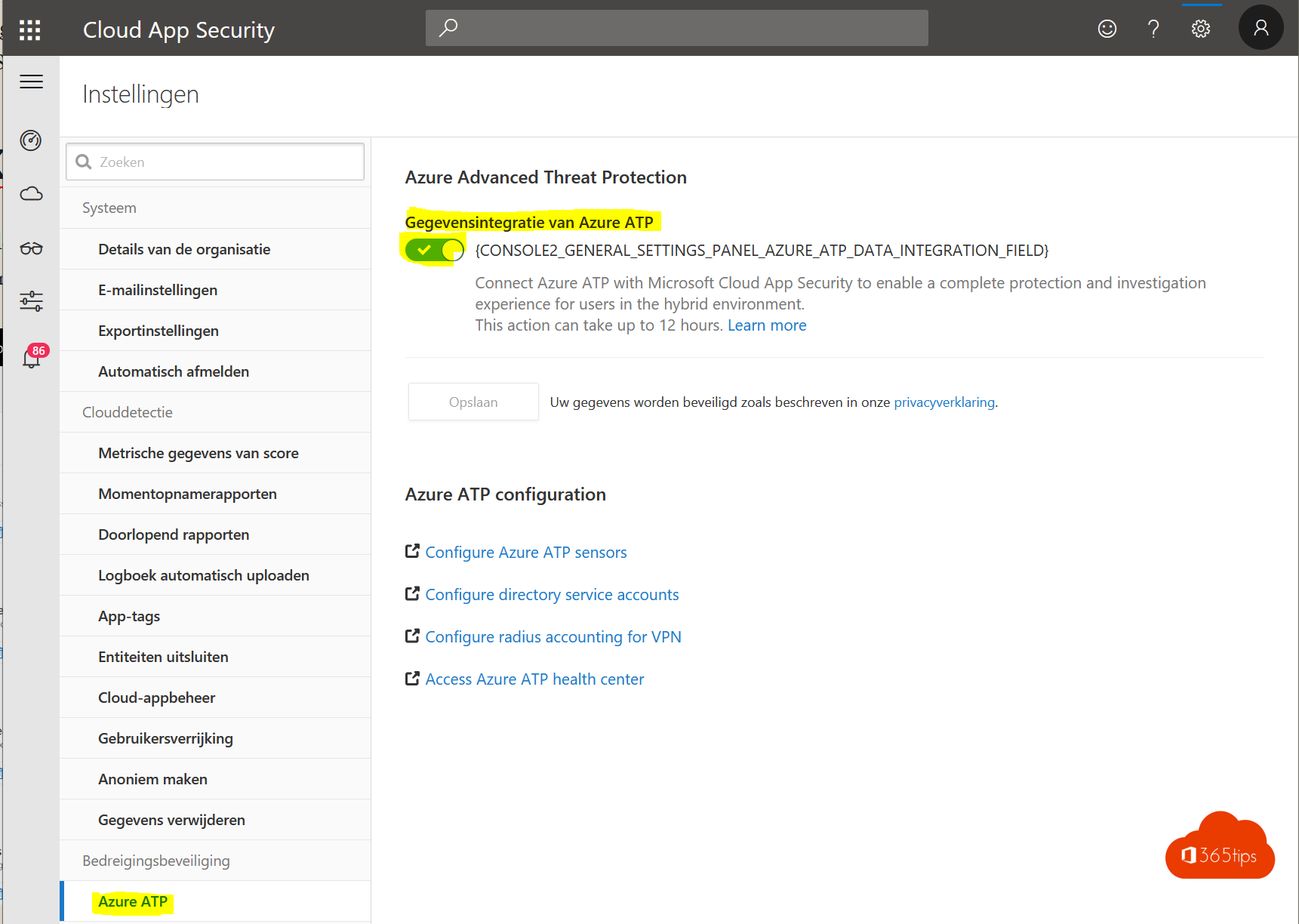
Step 2: Defender for Identity on your domain controllers
Microsoft Defender for Identity reads the signals from your on-premises Active Directory and detects attacks, compromised accounts and suspicious actions.
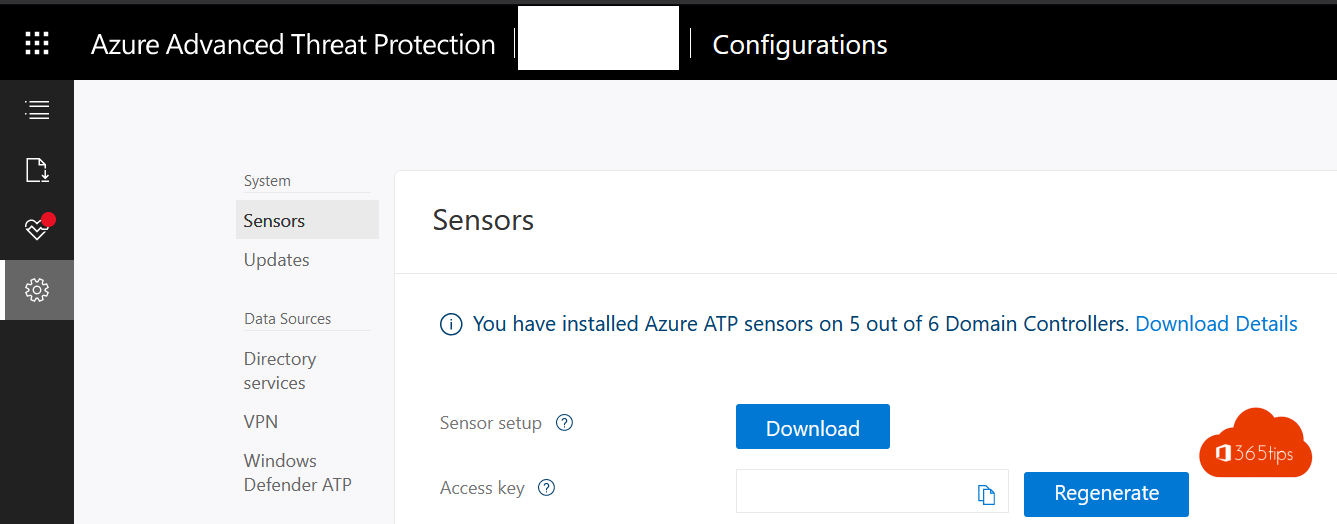
- In the Defender portal, go to Settings > Identities.
- Download the sensor and the access key.
- Install the sensor on all your domain controllers (and AD FS and AD CS servers if you have them).
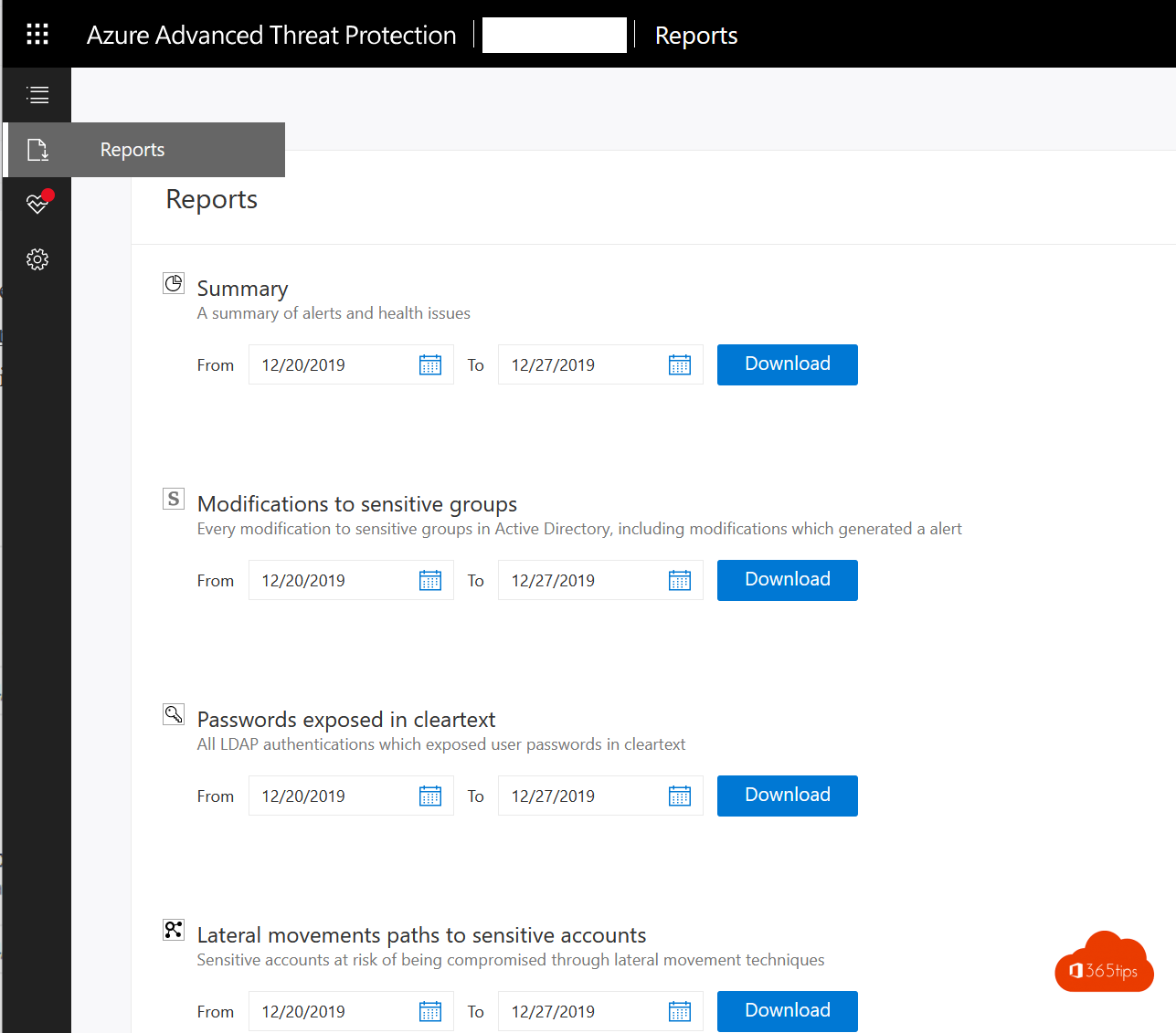
Afterwards you see, among other things:
- accounts sending passwords in clear text;
- possible lateral movement paths;
- changes to sensitive groups, such as Domain Admins;
- the health of your sensors.
Step 3: Defender for Cloud Apps
Microsoft Defender for Cloud Apps is also in the Defender portal. Connect Microsoft 365 as an app and look at:
- which cloud apps your employees use (shadow IT);
- sign-ins from unusual locations;
- large downloads or sharing of sensitive files (data exfiltration).
Step 4: risky sign-ins in Entra ID
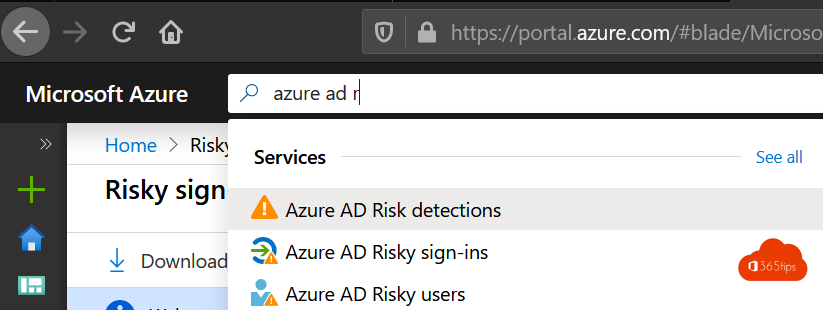
Open the Microsoft Entra admin center and go to ID Protection > Risky sign-ins and Risky users. You see, for example, impossible travel, sign-ins from suspicious IP addresses and leaked credentials. The full reports require Microsoft Entra ID P2. Also read detect risky sign-ins.
Step 5: data protection with Microsoft Purview
Open purview.microsoft.com. Look at which sensitive information lives in your environment, whether there are sensitivity labels and DLP policies, and how retention is set up.
What goes in your report?
- Identities: vulnerable or leaked accounts, and whether MFA is on everywhere.
- Admin accounts: how many, which roles, and whether they're separate and protected.
- Devices: which are managed, which aren't, and the gap between what you think and what you measure.
- Monitoring: are alerts followed up?
- Data protection: labels, DLP, external sharing.
- Patch management of Windows, macOS, network devices and printers.
- Awareness: is there a program, for example with phishing simulations?
- Licenses: what do you have, and what do you already use?
Finish with a priority list: the most important recommendations first, with concrete actions.
Also see attack simulation training and Microsoft 365 admin roles explained.
Read also
Improve your security with Microsoft Secure Score
Detect risky sign-ins and users with Microsoft Entra ID Protection
Run a phishing simulation with Attack simulation training
Nederlandstalige versie: Doe je eigen Microsoft 365 security assessment in 5 stappen