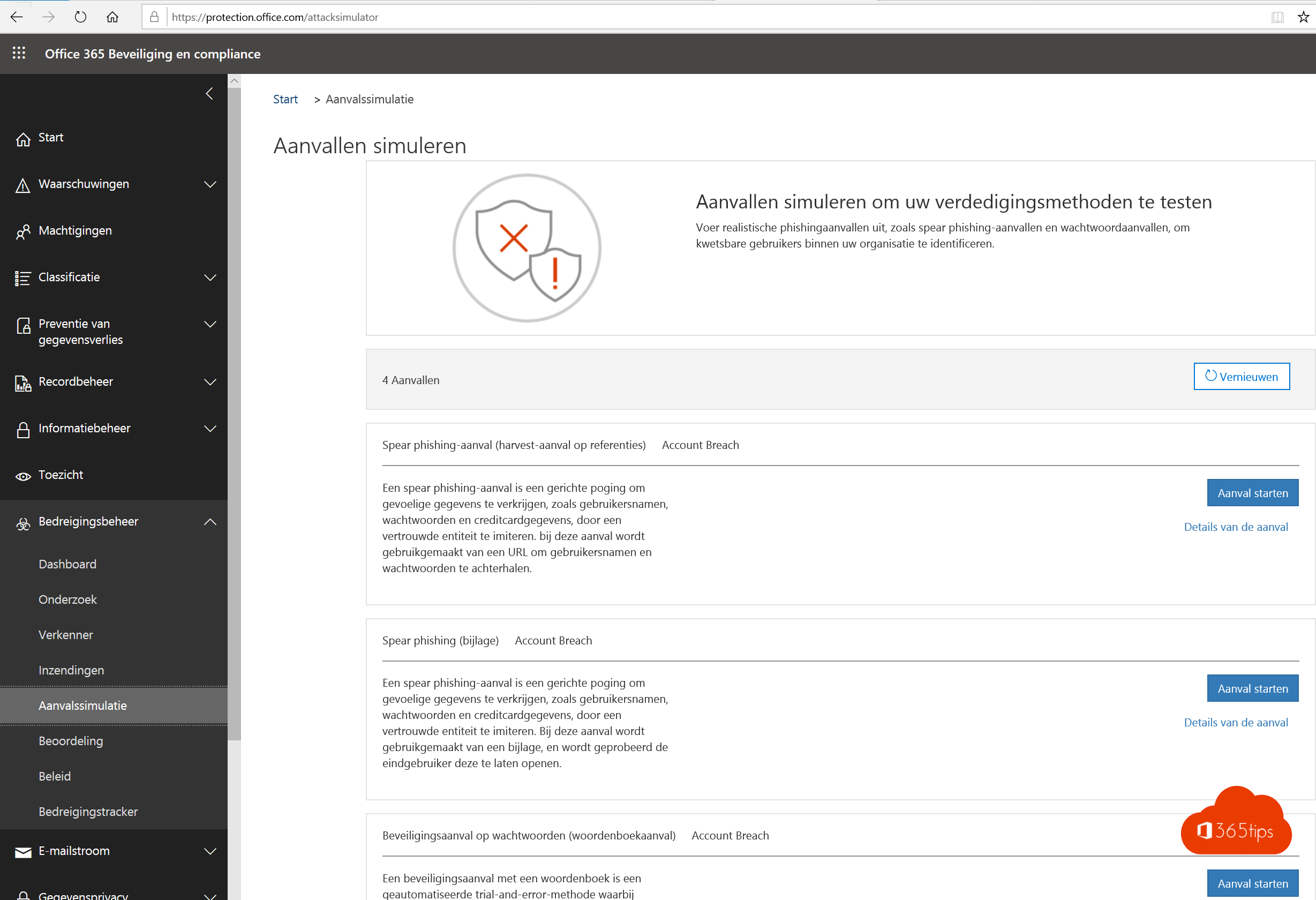
Would your colleague click a fake email from "IT support" and type in their password? With Attack simulation training in Microsoft Defender you test that safely: you send a realistic phishing email, see who clicks and give those people a short training straight away. This article shows how to set up a simulation.
Licence
You need Microsoft Defender for Office 365 Plan 2, for example through Microsoft 365 E5 or as an add-on.
Launch a simulation
- Go to security.microsoft.com > Email & collaboration > Attack simulation training.
- Select Simulations > Launch a simulation.
- Choose a technique: credential harvest (a fake sign-in page), malware attachment, link in attachment, drive-by URL or OAuth consent grant.
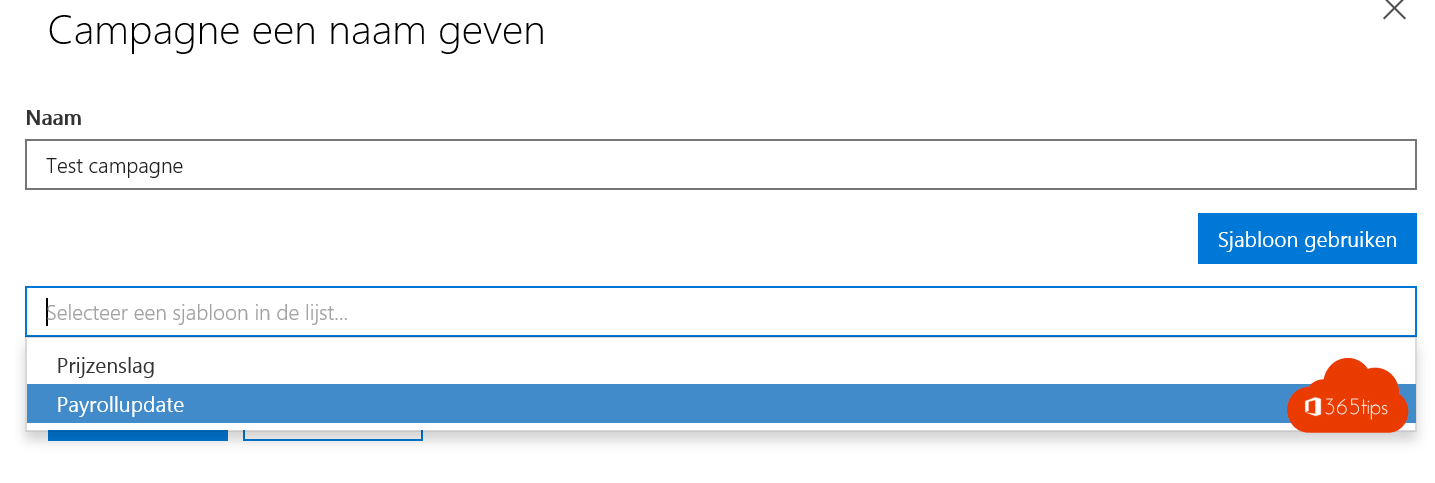
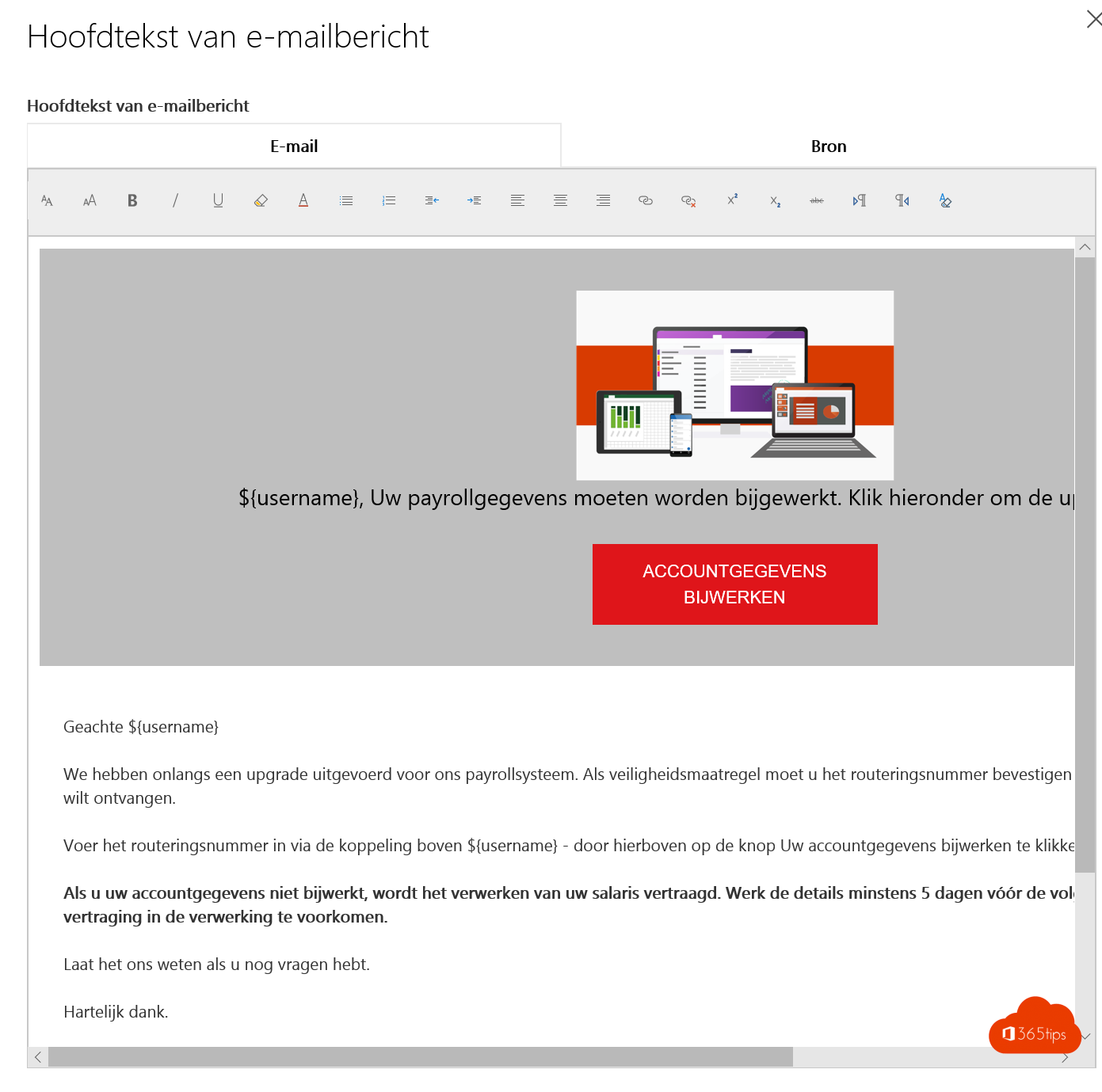
- Choose a payload: a ready-made email from the library or your own, ideally in your users' language.
- Choose the target users, for example a test group first.
- Choose the training users get if they click, and an end date.
- Schedule the launch and select Submit.
Results
The simulation shows who opened the email, clicked the link, entered credentials or reported it as phishing. Track reporting in particular: that's the behaviour you want to see.
Tips
- Tell management and HR you run simulations, and communicate the goal up front: learning, not punishing.
- Make reporting easy with the Report button in Outlook.
- Repeat simulations a few times a year with different techniques.
- Use automations to give new employees a simulation and training automatically.
- Related: Have I Been Pwned and Microsoft Secure Score.
Read also
Have I Been Pwned: check whether your email is in a data breach
Improve your security with Microsoft Secure Score
Set up alert policies in Microsoft 365
Nederlandstalige versie: Een phishingsimulatie uitvoeren met Attack simulation training