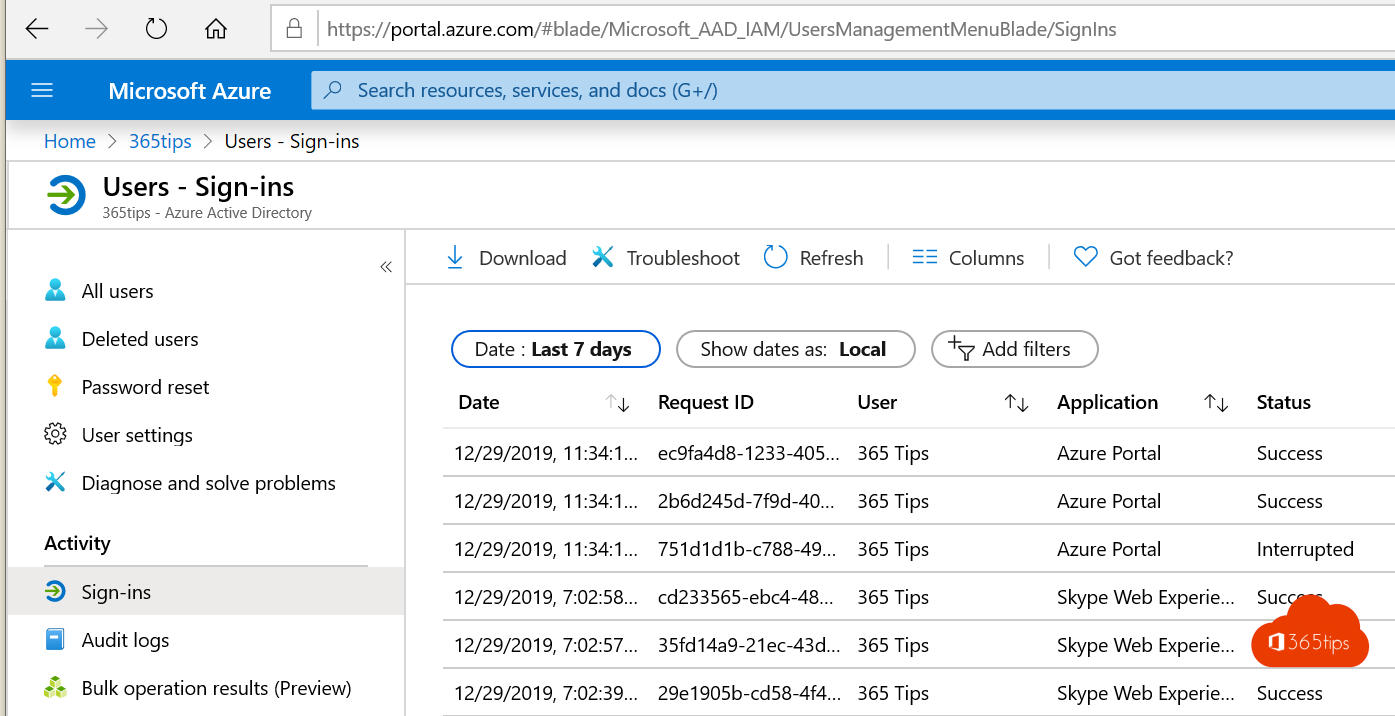
A sign-in from a country where nobody in your organisation is, a known malicious IP address or a password that turns up online: Microsoft Entra ID Protection detects such risks automatically. This article shows where to see risky sign-ins and users, and how to respond automatically.
What does it detect?
- Impossible travel: sign-ins from two distant locations shortly after each other.
- Anonymous IP addresses, such as Tor.
- Malicious IP addresses and unfamiliar sign-in properties.
- Leaked credentials: a user's password appears in a data breach (requires password hash sync for hybrid users).
- Token and session theft signals.
View risky sign-ins
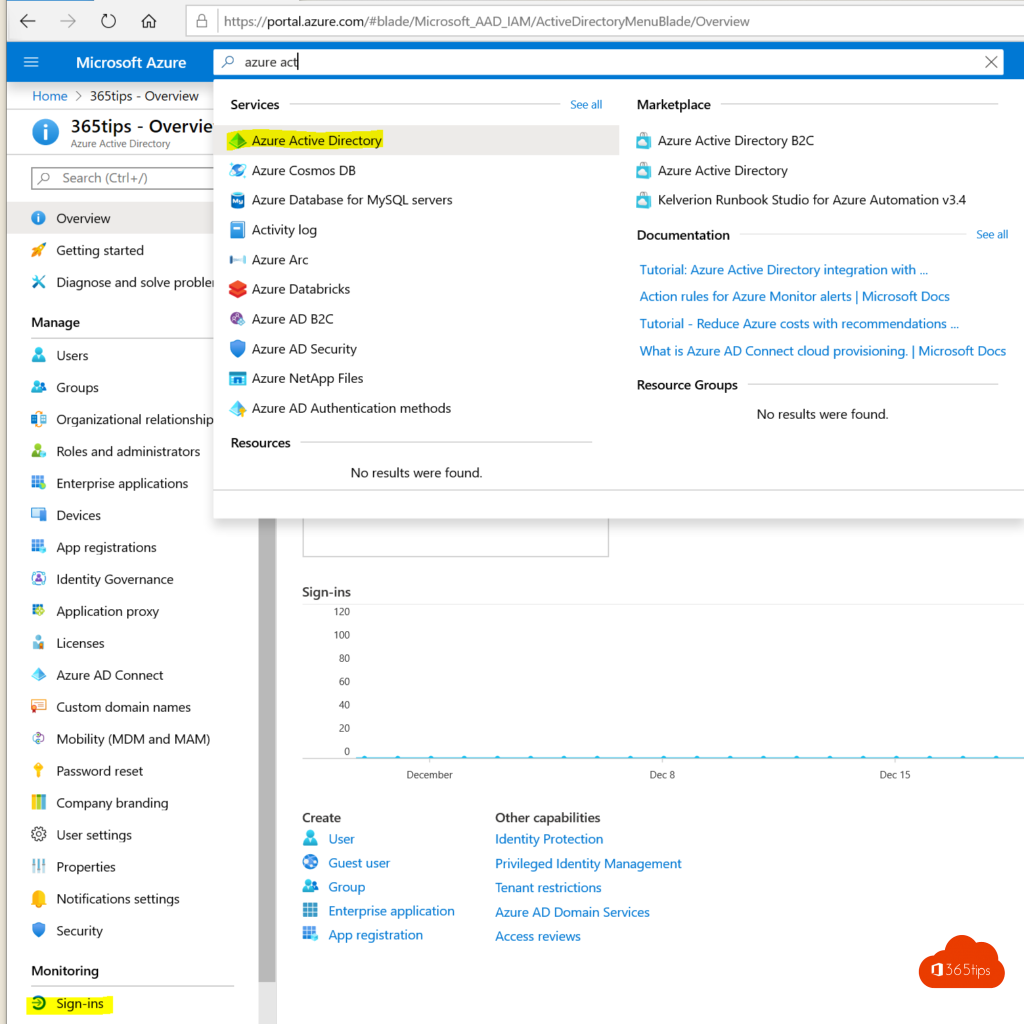
- Go to entra.microsoft.com > Protection > Identity Protection.
- Open Risky sign-ins, Risky users or Risk detections.
- Select an item for details: location, app, IP address and risk level.
- Choose Confirm compromised or Confirm safe, or Dismiss user risk after investigating.
Respond automatically
Create two risk-based policies in Conditional Access:
- Sign-in risk medium or high: require MFA.
- User risk high: require password change (with MFA).
Microsoft provides templates under Create new policy from templates. Users need to be registered for MFA and SSPR.
Licence
Full features and risk-based policies require Entra ID P2 (for example in Microsoft 365 E5). With P1 or free you see a limited list of risky users.
Tip for users
Anyone can check their own recent sign-ins. Read check where you're signed in. See also Microsoft Secure Score.
Read also
Check where and when your Microsoft account was signed in
Enable multi-factor authentication (MFA) in Microsoft 365
Improve your security with Microsoft Secure Score
Nederlandstalige versie: Riskante aanmeldingen en gebruikers opsporen met Microsoft Entra ID Protection