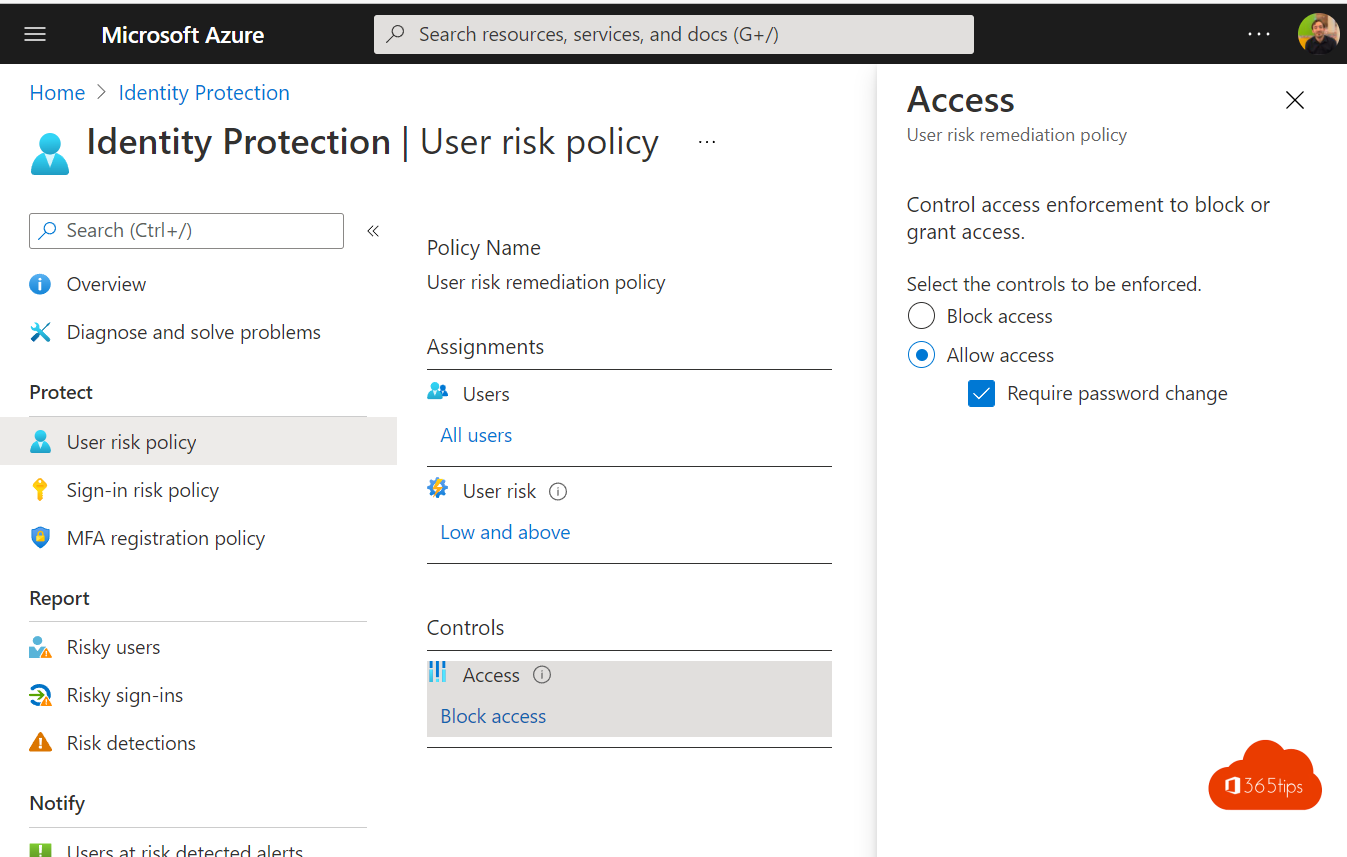
Has a user's password leaked, or does Microsoft see a sign-in that doesn't add up? You don't want to wait until the helpdesk notices. With Microsoft Entra ID Protection you make the user choose a new password right away when their risk goes up. That closes the gap without IT having to step in.
How does it work?
Microsoft analyzes every sign-in and compares it with signals from its own security services. If a password shows up in a leaked list, or an account behaves suspiciously, the user gets a user risk level (low, medium or high).
A Conditional Access policy decides what happens next. The best approach: the user signs in with MFA and then has to perform a secure password change. The risk is then cleared automatically.
What do you need?
- License: risk-based Conditional Access requires Microsoft Entra ID P2, included in Microsoft 365 E5 among others. Microsoft 365 Business Premium and E3 include P1, so you need a P2 add-on.
- MFA and SSPR: users must be registered for MFA and self-service password reset. Without registration they can't change their password themselves and stay blocked.
- Hybrid accounts: if you sync from Active Directory, turn on password writeback so the new password also applies on-premises.
Configure the policy
- Go to the Microsoft Entra admin center (entra.microsoft.com).
- Select Entra ID > Conditional Access > Policies > New policy. You can also start from the user risk template.
- Under Users: choose All users and exclude your emergency (break-glass) accounts.
- Under Target resources: choose All resources.
- Under Conditions > User risk: set it to High. To be stricter, add Medium as well.
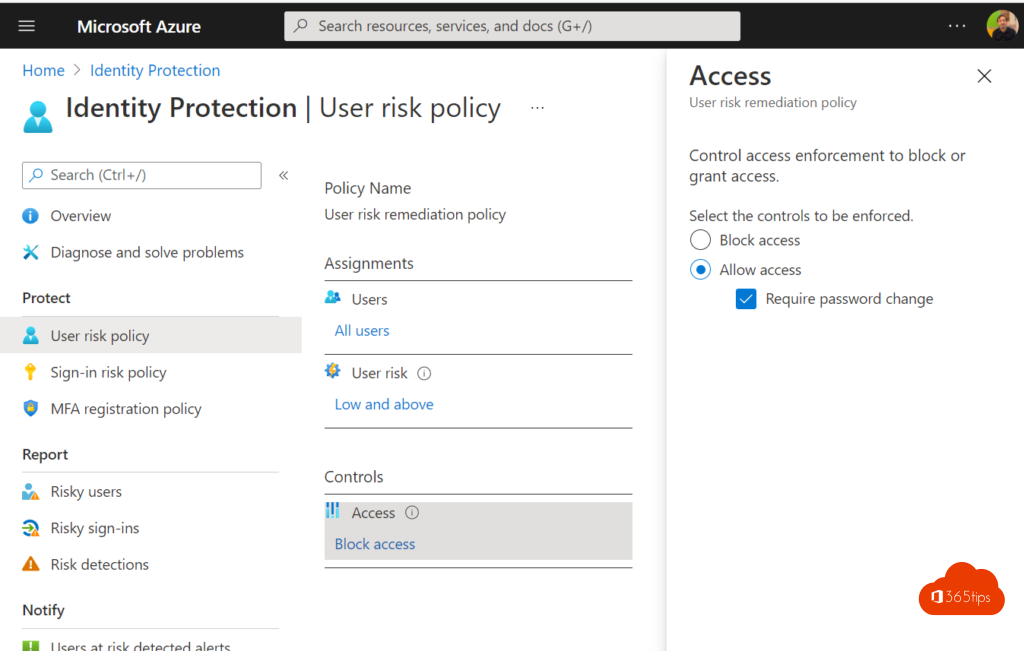
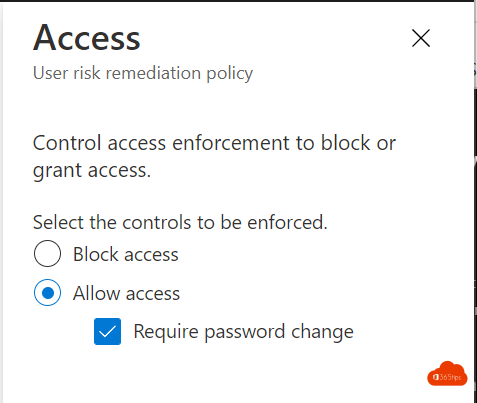
- Under Grant: choose Grant access, tick Require authentication strength (MFA) and Require password change, and select Require all the selected controls.
- Under Session: set sign-in frequency to Every time.
- Start in Report-only. Watch who is affected for a week, then switch the policy On.
Cover sign-in risk too
Besides user risk there is sign-in risk: a single suspicious sign-in, for example from an unfamiliar IP address. Create a second policy that requires MFA for medium or high sign-in risk. Together, both policies catch most misuse.
Follow up
Check the Risky users and Risky sign-ins reports under ID Protection. You'll see who had to change their password and whether a risk is still open. You can also manually confirm a user as safe or compromised there.
Also see detect risky sign-ins with Entra ID Protection and set up self-service password reset.
Read also
Detect risky sign-ins and users with Microsoft Entra ID Protection
Enable Self-Service Password Reset (SSPR) in Microsoft Entra ID
Enable multi-factor authentication (MFA) in Microsoft 365
Nederlandstalige versie: Gebruikers automatisch hun wachtwoord laten wijzigen bij een risico