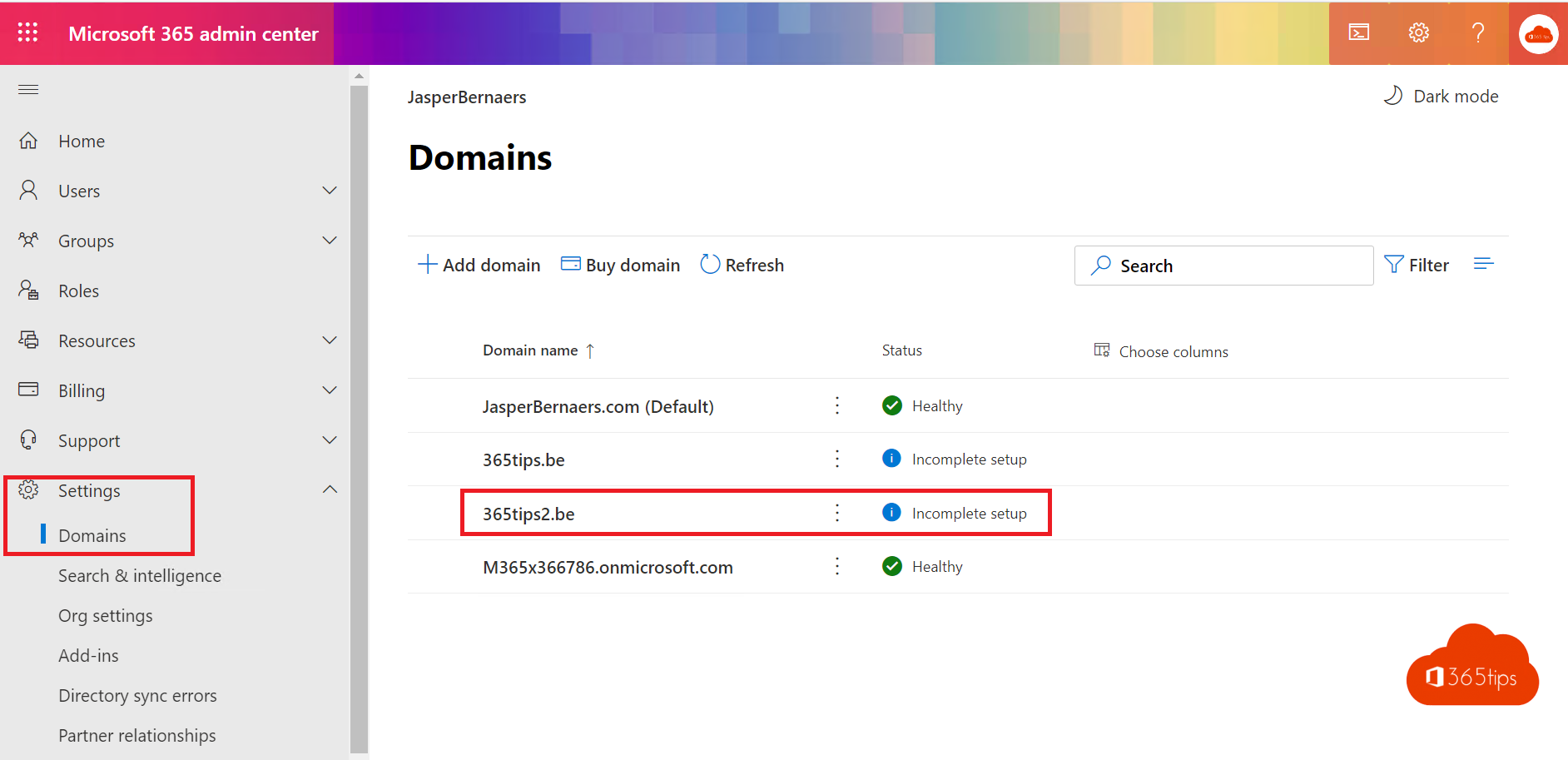
A new Microsoft 365 environment uses an address like contoso.onmicrosoft.com by default. To send email under your own name, such as john@contoso.com, you add your domain to Microsoft 365. This article shows how to verify the domain, set up the DNS records and give users the new address.
Add and verify the domain
- Go to admin.microsoft.com > Settings > Domains > Add domain.
- Type your domain name and select Continue.
- Verify ownership with a TXT record at your DNS provider. With some providers it works automatically through Domain Connect: you sign in and Microsoft adds the records itself.
- Select Verify.

The DNS records
The admin center then shows the records to add:
- MX: routes email to Exchange Online.
- CNAME autodiscover: so Outlook finds your mailbox automatically.
- TXT (SPF): v=spf1 include:spf.protection.outlook.com -all.
- Optionally records for Teams and Intune.
Migrating email from another provider? Only change the MX record once the mailboxes are ready.

Give users the new address
- Set the domain as default (Set as default) so new users get it automatically.
- For existing users, change the username and email via Users > Manage username and email. With PowerShell, read change the UserPrincipalName.
Next: security
Enable DKIM and a DMARC record for your new domain. Your emails are less likely to land in spam and spoofing gets harder.
Read also
Enable DKIM in Microsoft 365 for your own domain
Change a UserPrincipalName (UPN) in Microsoft 365 and Entra ID
Create a Microsoft 365 tenant for testing
Nederlandstalige versie: Je eigen domein toevoegen aan Microsoft 365