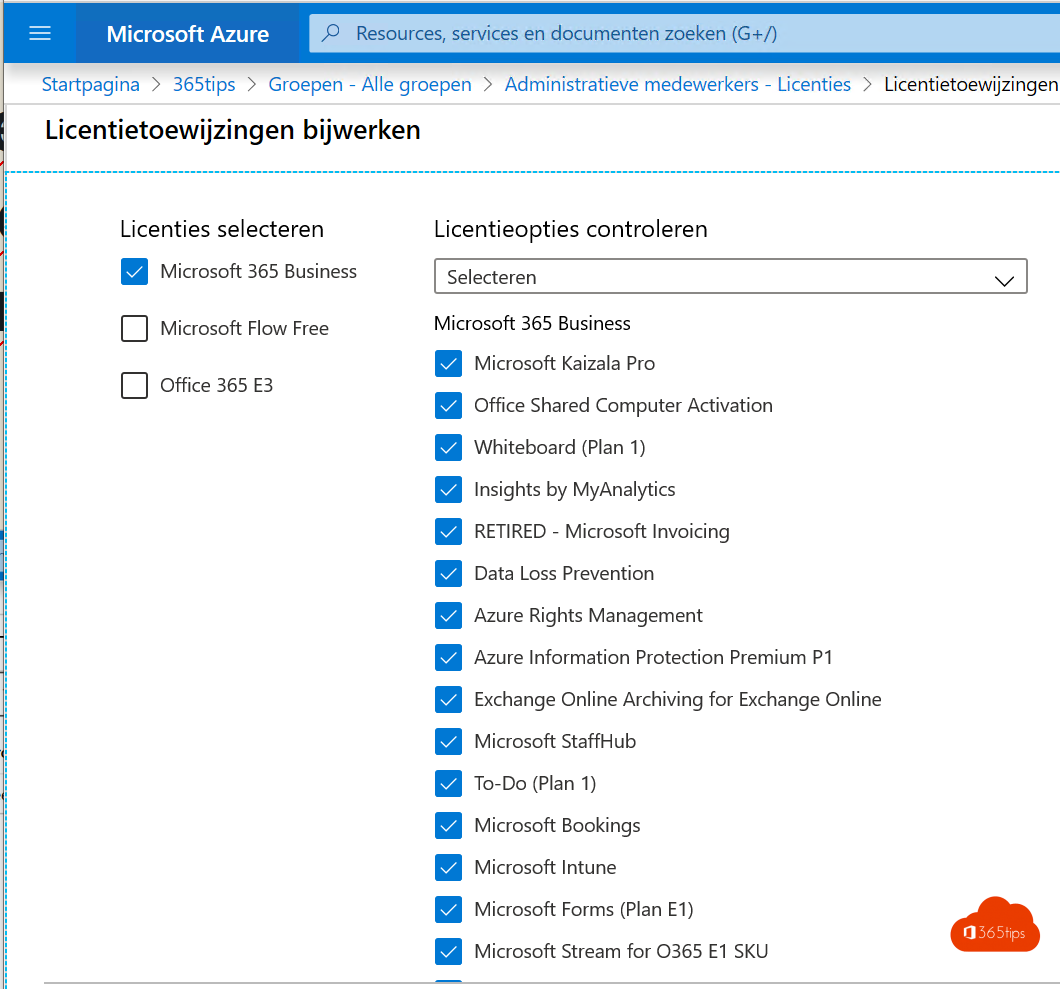
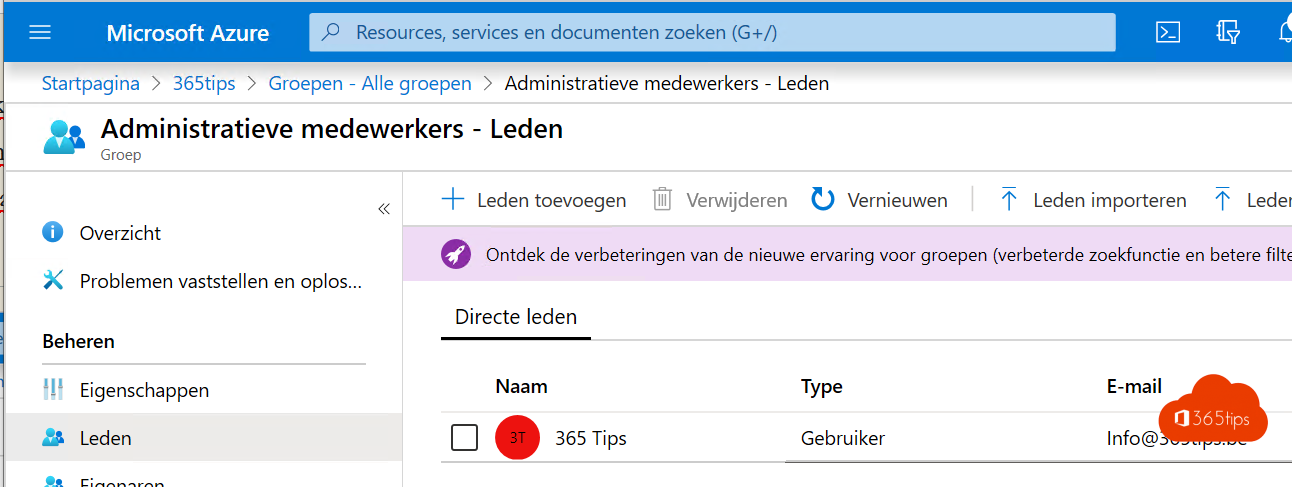
Assigning a license to every new employee by hand is a lot of clicking, and it's easy to forget. With group-based licensing you link a license to a group. Anyone in the group gets the license automatically; anyone who leaves loses it. Combine that with a dynamic group per persona, such as Sales or Frontline, and it runs by itself.
1. A group per persona
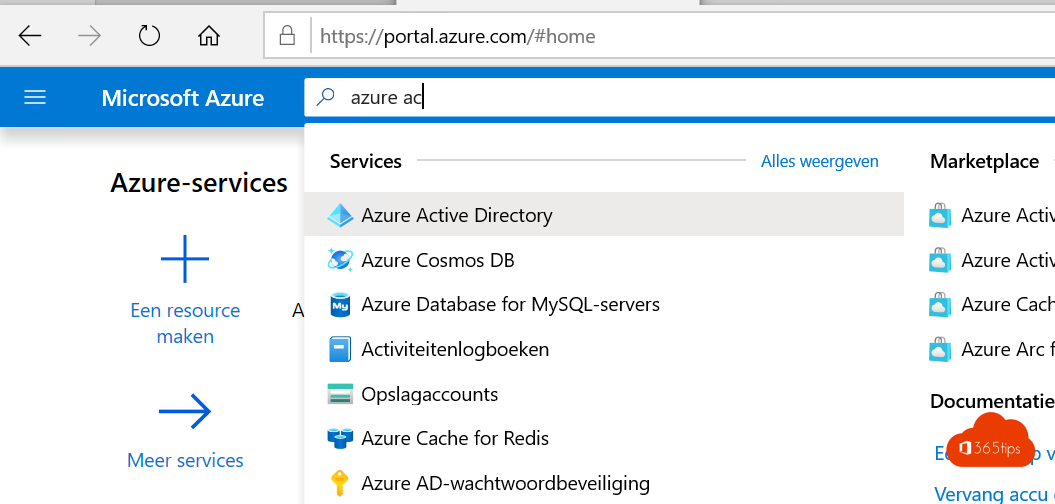
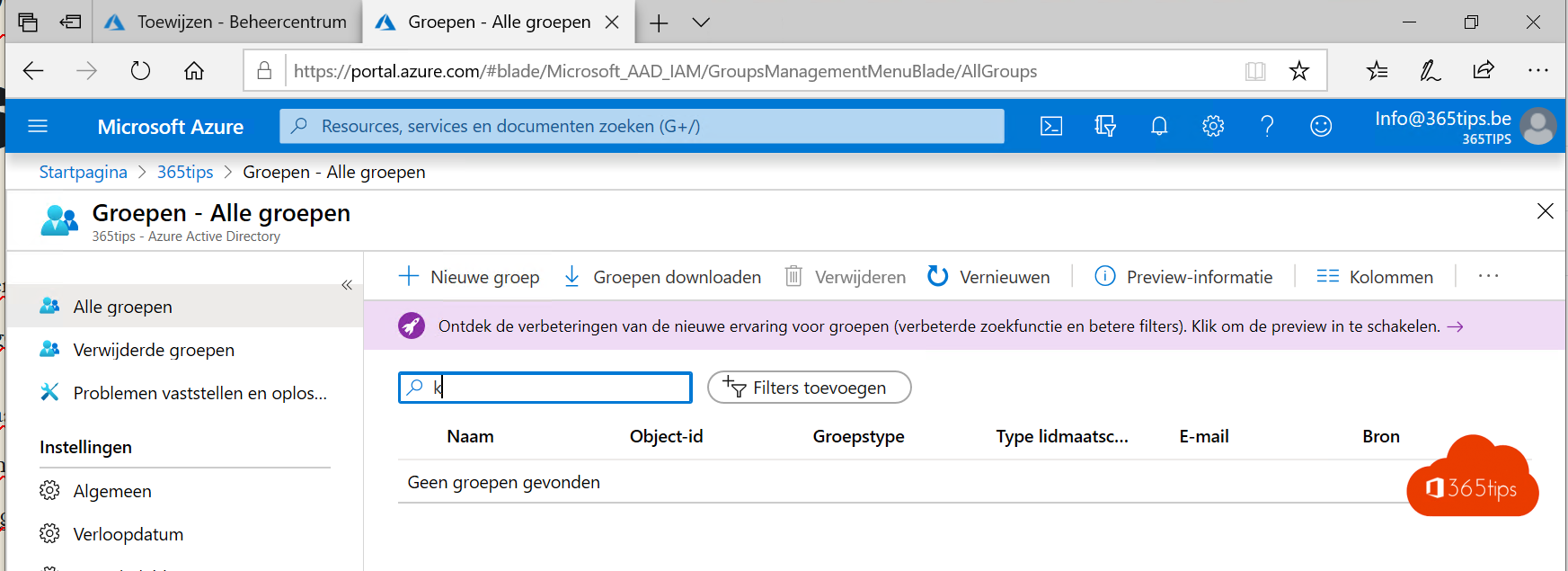
- In the Entra admin center, go to Groups > New group.
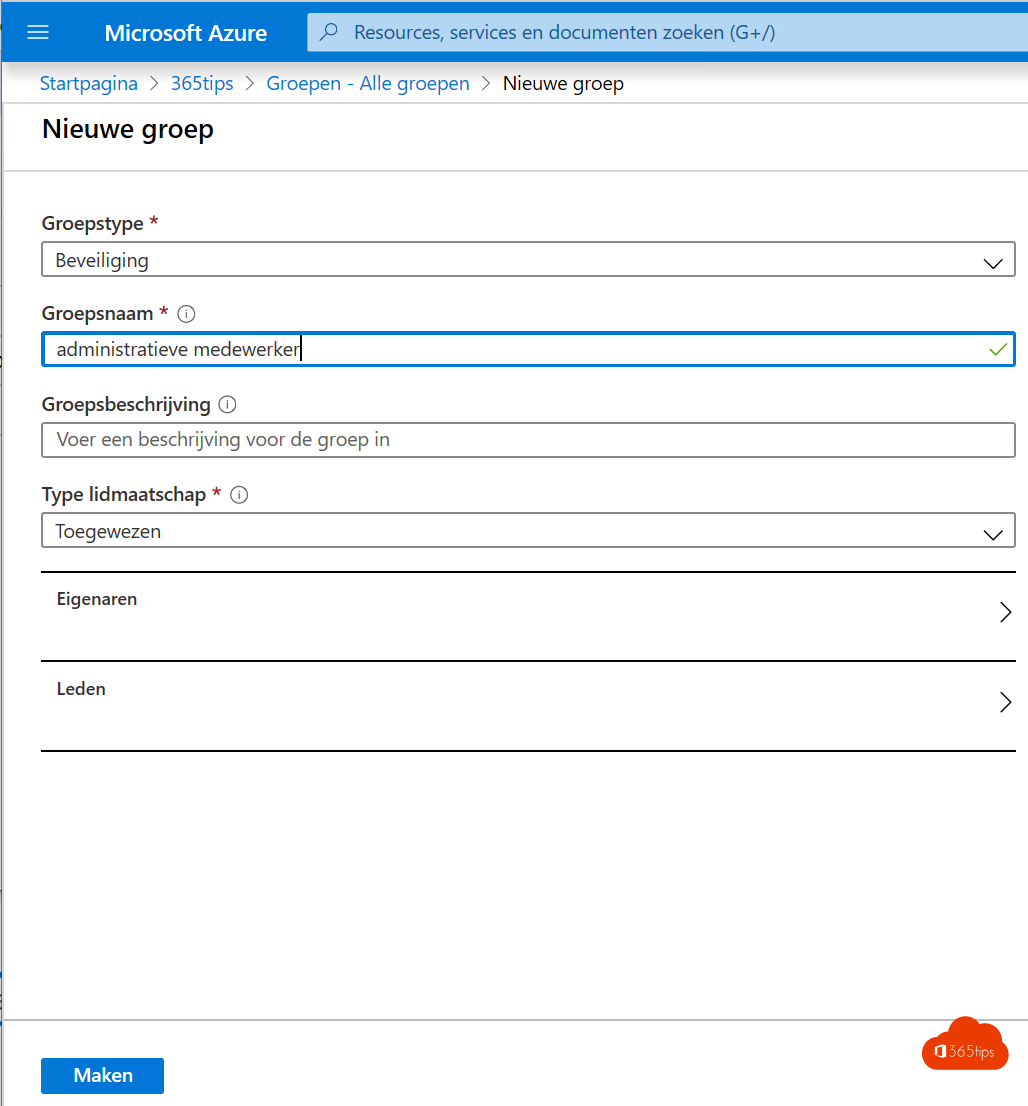
- Choose the type Security.
- Choose the membership type Dynamic user and set a rule, for example
user.department -eq "Sales". Or choose Assigned and add members yourself.
2. Link the license to the group
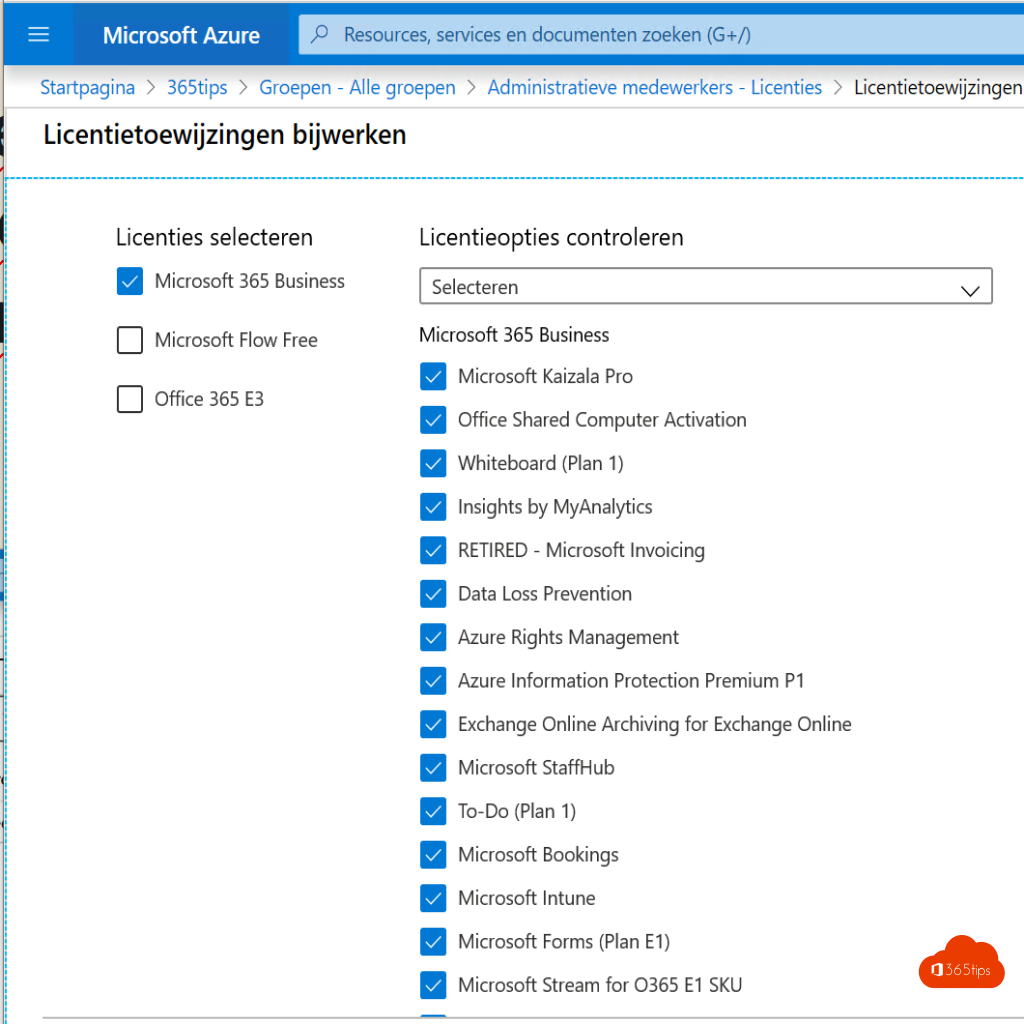
- Go to Billing > Licenses > All products and choose the product, such as Microsoft 365 Business Premium.
- Select Assign and pick the group.
- Optionally turn off components this group doesn't need, such as an app you don't use.
- Select Assign.
3. Check
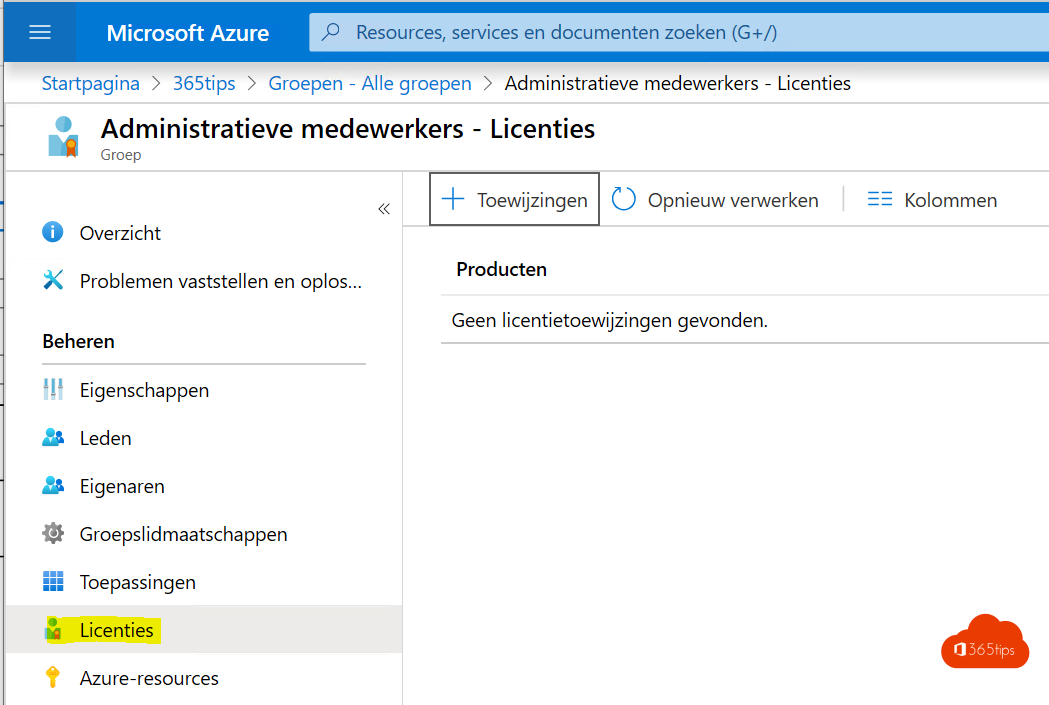
Under Licenses on the group you see whether the assignment succeeded. If there aren't enough licenses, the affected users show an error. Read check which license a user has.
Group-based licensing and dynamic groups require Entra ID P1 (included in Business Premium and E3, among others). Also see manage users and groups and bulk import users.
Read also
Manage users and groups in Microsoft Entra ID
Which Microsoft 365 licence do I have? How to check
Bulk import users or guests with a CSV file
Nederlandstalige versie: Microsoft 365-licenties automatisch toewijzen met groepen in Entra ID